

This is different from using PayPunch on your own phone. On the kiosk you sign in fresh
each time and just clock in or out. The personal app keeps you signed in and adds breaks,
job codes, and your full timesheet. See Clocking in & out
for the personal version.
Sign in and clock in
1
Find the time clock
Walk up to the shared device. It shows the PayPunch Time Clock sign-in screen.
2
Enter your ID and PIN
Choose the ID, Email, or Phone tab, type your identifier, then tap your
PIN on the keypad and press GO.
3
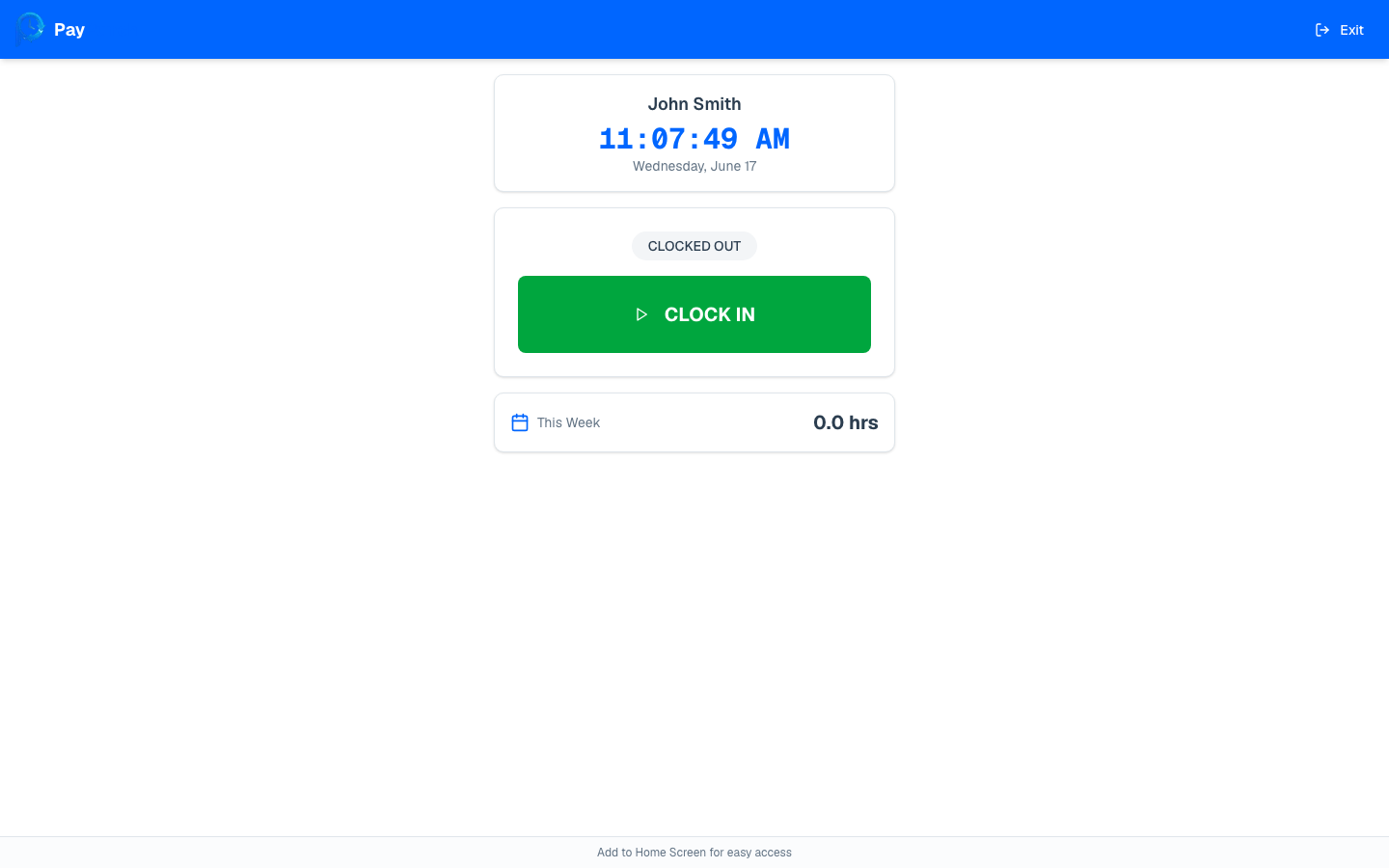
Check your name
The clock screen shows your name and the current time so you know it’s your
session. A CLOCKED IN or CLOCKED OUT badge tells you your current status.
4
Tap CLOCK IN
Press the green CLOCK IN button. You’ll see a “Successfully clocked in!” message
and a timer showing your current shift.
Clock out
1
Sign in again
Come back to the kiosk and enter your ID and PIN just like before. (The screen reset
after your last visit, so this is normal.)
2
Tap CLOCK OUT
The button is now red and says CLOCK OUT. Press it. You’ll see a message with how
many hours you worked, and your weekly total updates.
Kiosk etiquette
- Always enter your own PIN. The session belongs to whoever just signed in.
- Wait for the confirmation (“Successfully clocked in!” or your hours worked) before stepping away, so you know it went through.
- The screen resets on its own after a short time. If you walk up and see someone else’s name or a sign-in screen, just start fresh with your own PIN.
If you get an error
Need to fix a missed punch?
If you forgot to clock in or out, learn how corrections work.