

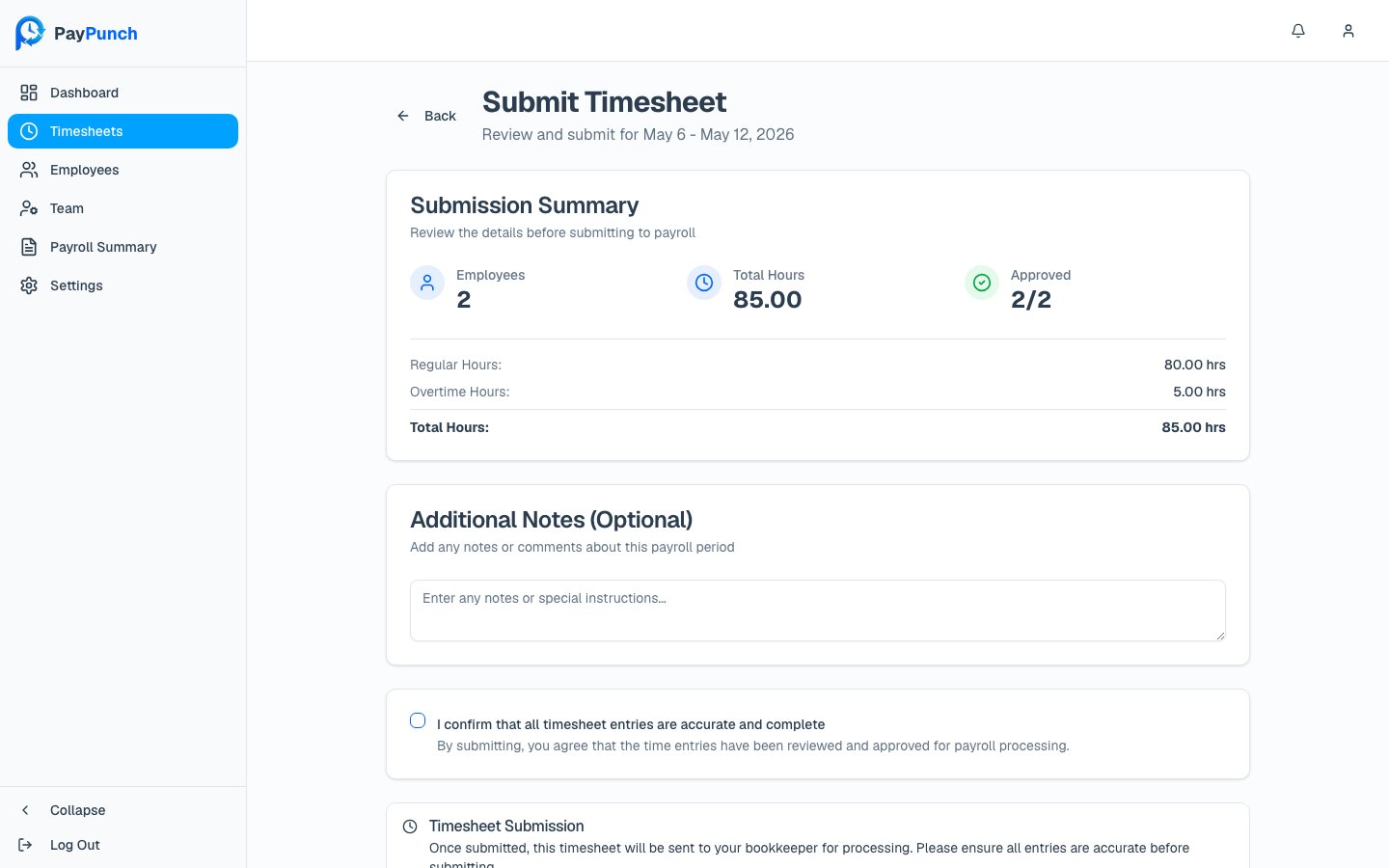
Submitting requires the Owner or Manager role. A Viewer can’t submit payroll.
Before you start
- Every employee’s entries for the period should be Approved. If any are still pending, finish reviewing time first — the submit screen will block you until they’re cleared.
- The period must not be locked.
Submit a period step by step
1
Open the submit screen
From Timesheets, click Submit on the open period (or open the
period and click Submit Timesheet). The header reads Submit Timesheet —
“Review and submit for [date range].”
2
Clear any pending entries
If you see a red “Cannot Submit Yet” warning — “You have N employee(s) with pending
time entries. All entries must be approved before submission.” — go back and
review those entries. The confirmation checkbox and submit
button stay disabled until none remain.
3
Review the Submission Summary
Check the Submission Summary card: Employees, Total Hours, and Approved
(shown as X/Y), plus a breakdown of Regular Hours, Overtime Hours, and Total
Hours. Make sure the numbers match what you expect.
4
Add notes (optional)
Use Additional Notes (Optional) to pass any context to your bookkeeper —
“Enter any notes or special instructions…”
5
Confirm accuracy
Check “I confirm that all timesheet entries are accurate and complete.” By checking
it you agree the entries have been reviewed and approved for payroll processing.
6
Submit
Click Submit Timesheet. While it processes you’ll see “Submitting…”, then
PayPunch returns you to the Timesheets list with the period now marked Submitted.
What happens when you submit
Submitting does several things at once:- The period’s status changes to Submitted and the period is locked so entries can’t be changed afterward.
- A QuickBooks IIF file is generated and emailed to the payroll contact.
- Your bookkeeper is notified that the period is ready to process.