

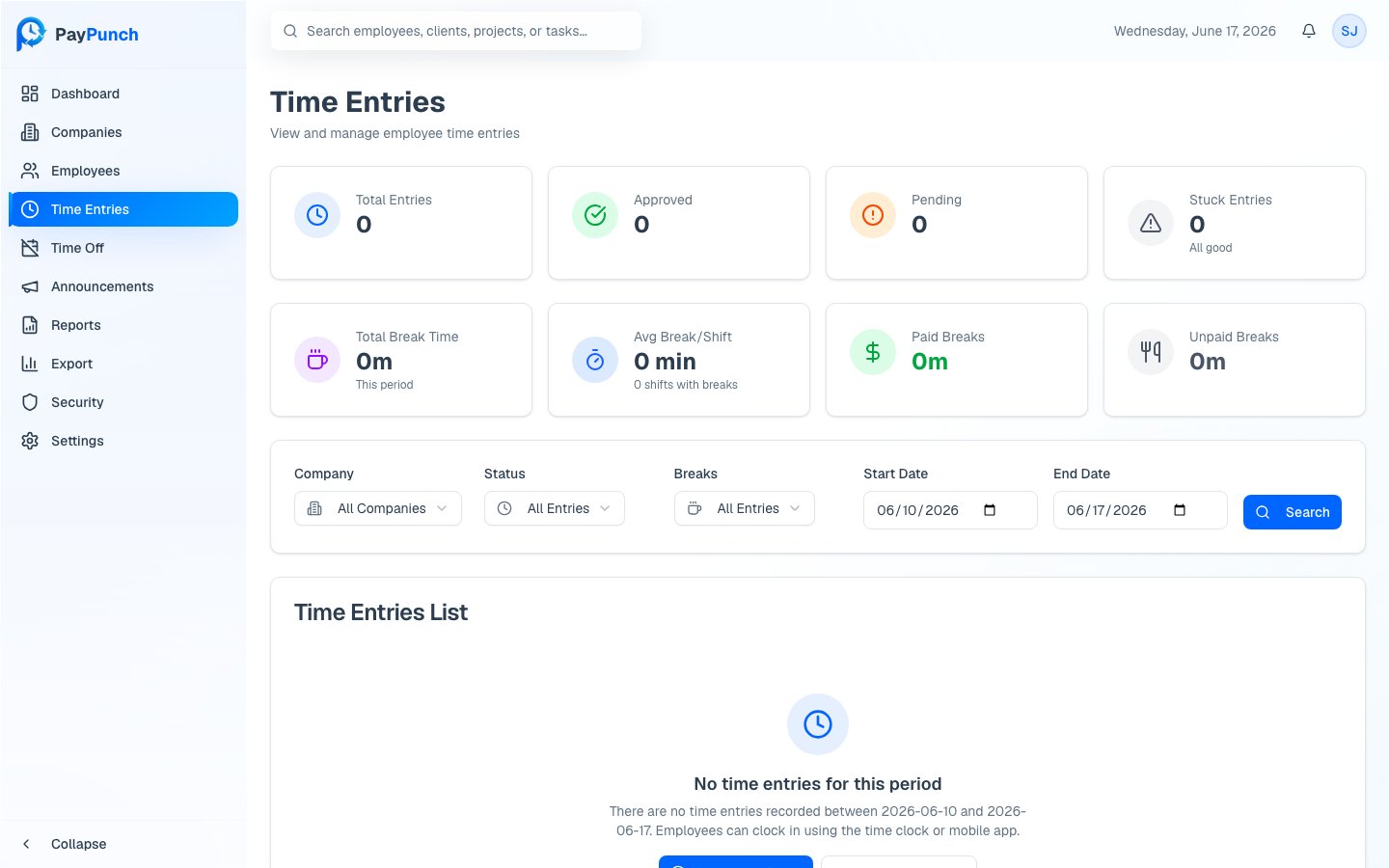
The Time Entries page
Open Time Entries from the sidebar. Four cards summarize the current view: Total Entries, Approved, Pending, and Stuck Entries (with an “All good” or “Need attention” status). The table shows Employee, Company, Clock In, Clock Out, Hours, Breaks, and Status for each entry.Status badges
Filters
Narrow the list with the Company dropdown, the Status filter (All Entries, Stuck (>8h), Active (Normal), Completed), the Breaks
filter (Has Breaks / No Breaks), and a Start Date / End Date range,
then click Search.
Approve or reject an entry
Open the ⋯ (more) menu on any row:- Approve — marks the entry approved (available once the entry has a clock-out and isn’t already approved).
- Reject — opens a Reject Time Entry? confirmation showing the clock-in, clock-out, and hours. Confirm to mark it rejected; you can change the status again later if needed.
Edit an entry
Choose Edit Entry to open the Edit Time Entry dialog. You can adjust:- Clock Out time
- Break (minutes)
- Employee Notes and Admin Notes (admin notes are internal and not shown to the employee)
The Clock In time can’t be modified. Break records created by the employee are
shown for reference but are managed by the employee. Saving an edit recalculates
regular and overtime hours and marks the entry as edited by an admin.
Force clock-out (forgotten clock-outs)
When an employee forgets to clock out, their shift stays open and shows as Stuck. Resolve it with Force Clock Out:1
Open the action
From the entry’s ⋯ menu, choose Force Clock Out (shown only for
entries with no clock-out).
2
Review the shift
The dialog shows the clock-in time and elapsed duration, and warns that the
employee will be clocked out at the current time and the entry marked as
edited by admin.
3
Add a note (optional)
Add an Admin Notes comment, for example “Employee forgot to clock out.”
4
Confirm
Click Force Clock Out. PayPunch sets the clock-out, recalculates hours,
and stamps an admin note on the entry.