

The notification bell
The bell in the header shows a red badge with your unread count (it reads 99+ above 99) and refreshes automatically. Click it to open a dropdown of your most recent notifications. From there you can:- Click a notification to open it (and mark it read).
- Click Mark all read to clear every unread item at once.
- Click View all notifications to open the full page.
The notifications page
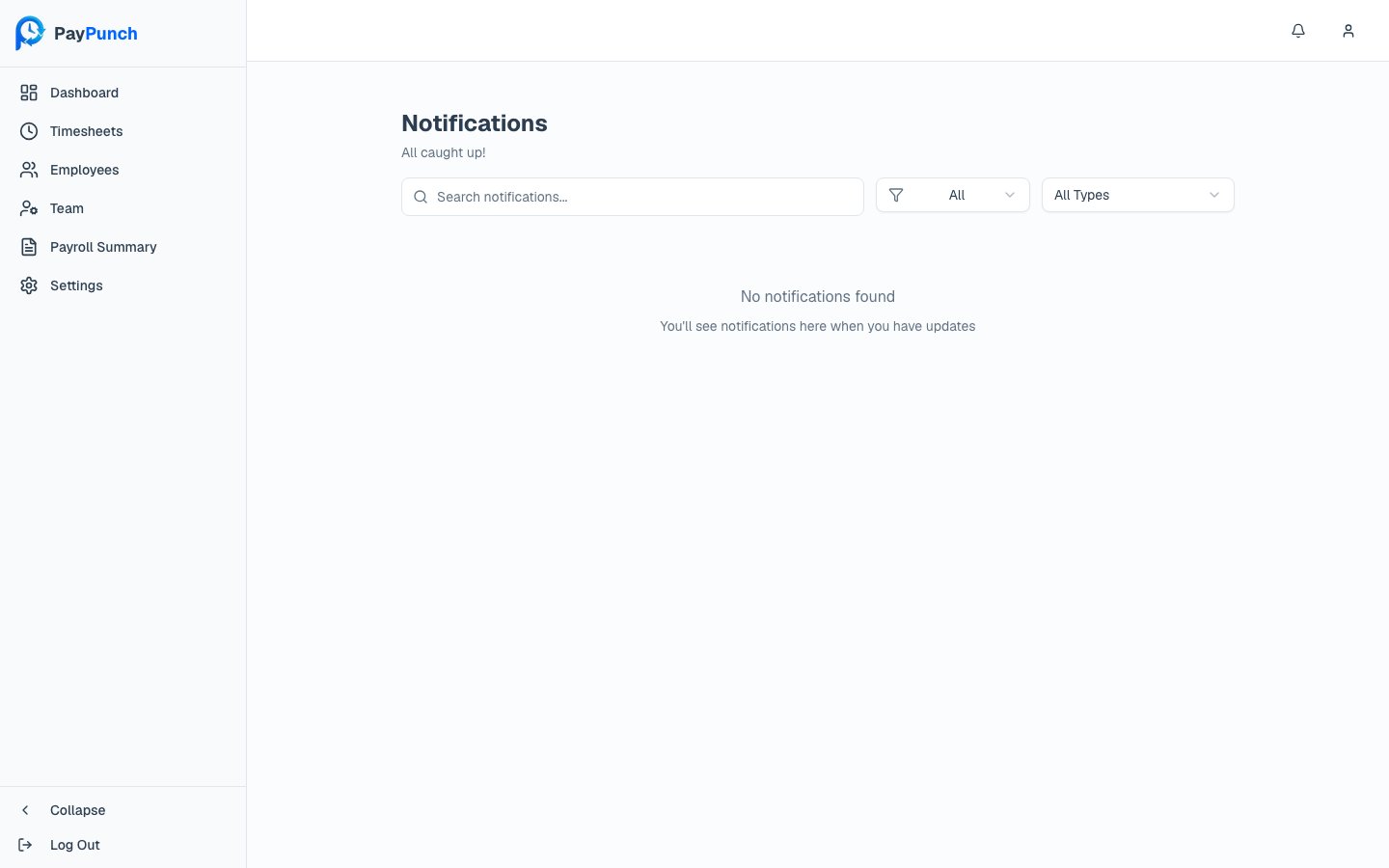
The full page header reads Notifications and tells you how many are unread (or “All caught up!” when none are). Tools to find what you need:- Search with “Search notifications…”
- Read status filter — All, Unread, or Read.
- Type filter — All Types or a specific type (see below).
- Mark all as read button when you have unread items.
What you get notified about
Notifications cover the events that matter to a client company, including:Payroll
Payroll Submitted, Payroll Approved, and Payroll Rejected updates.
Approvals
Approval Needed when a payroll summary is waiting on you.
Timesheets
Timesheet Due reminders as a deadline approaches.
Documents
Document Required and Document Verified updates.
Team
User invited, role changed, and employee onboarded events.
System
System Update announcements.