

PayPunch is in beta. Features and screens are actively evolving, so a label
or button you see in the app may look slightly different here. If something
doesn’t match, let us know.
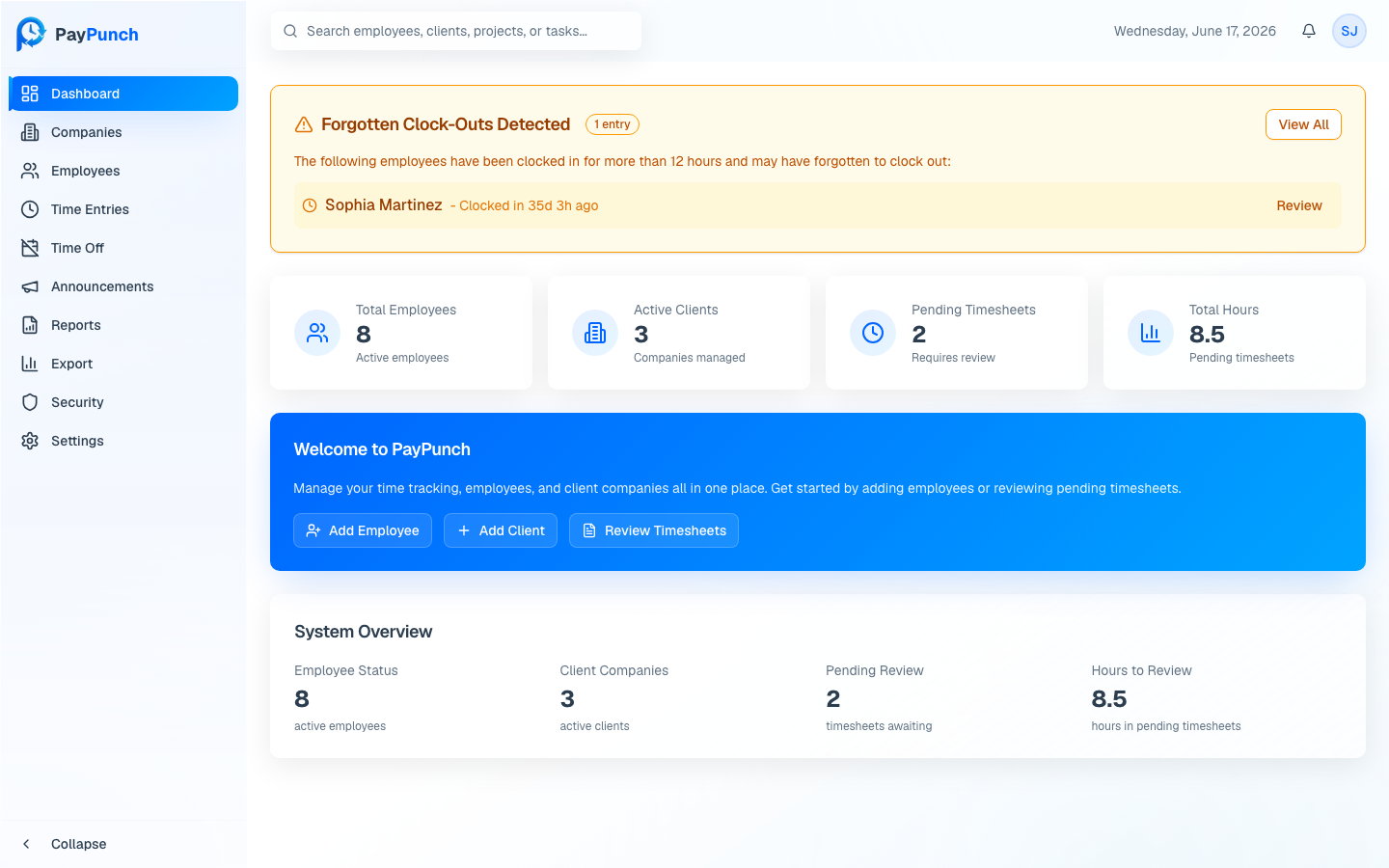
Reading your stats
Four cards across the top summarize your whole organization:
The System Overview card lower on the page repeats these numbers with a
short label (for example, “timesheets awaiting” and “hours in pending
timesheets”) so you can confirm what each figure represents.
Forgotten clock-out alerts
If any employee has been clocked in for more than 8 hours, a Forgotten Clock-Outs Detected banner appears at the top of the dashboard with an amber border. It lists each affected employee and how long ago they clocked in.1
Spot the alert
The banner shows a badge with the number of stuck entries, for example
3 entries.2
Review an individual entry
Click Review next to an employee to open that exact entry in Time
Entries.
3
Review them all
Click View All to open Time Entries filtered to stuck entries.
Quick actions
The Welcome to PayPunch card gives you three shortcuts for the work you do most:Add Employee
Start onboarding a new employee.
Add Client
Add a new client company.
Review Timesheets
Open pending time entries for approval.
Where to go next
Manage client companies
Add and organize the companies you do payroll for.
Review time entries
Approve, edit, and reject employee hours.
Run the payroll workflow
Take submissions from review to paid.
Export to QuickBooks
Generate the flagship IIF file.