

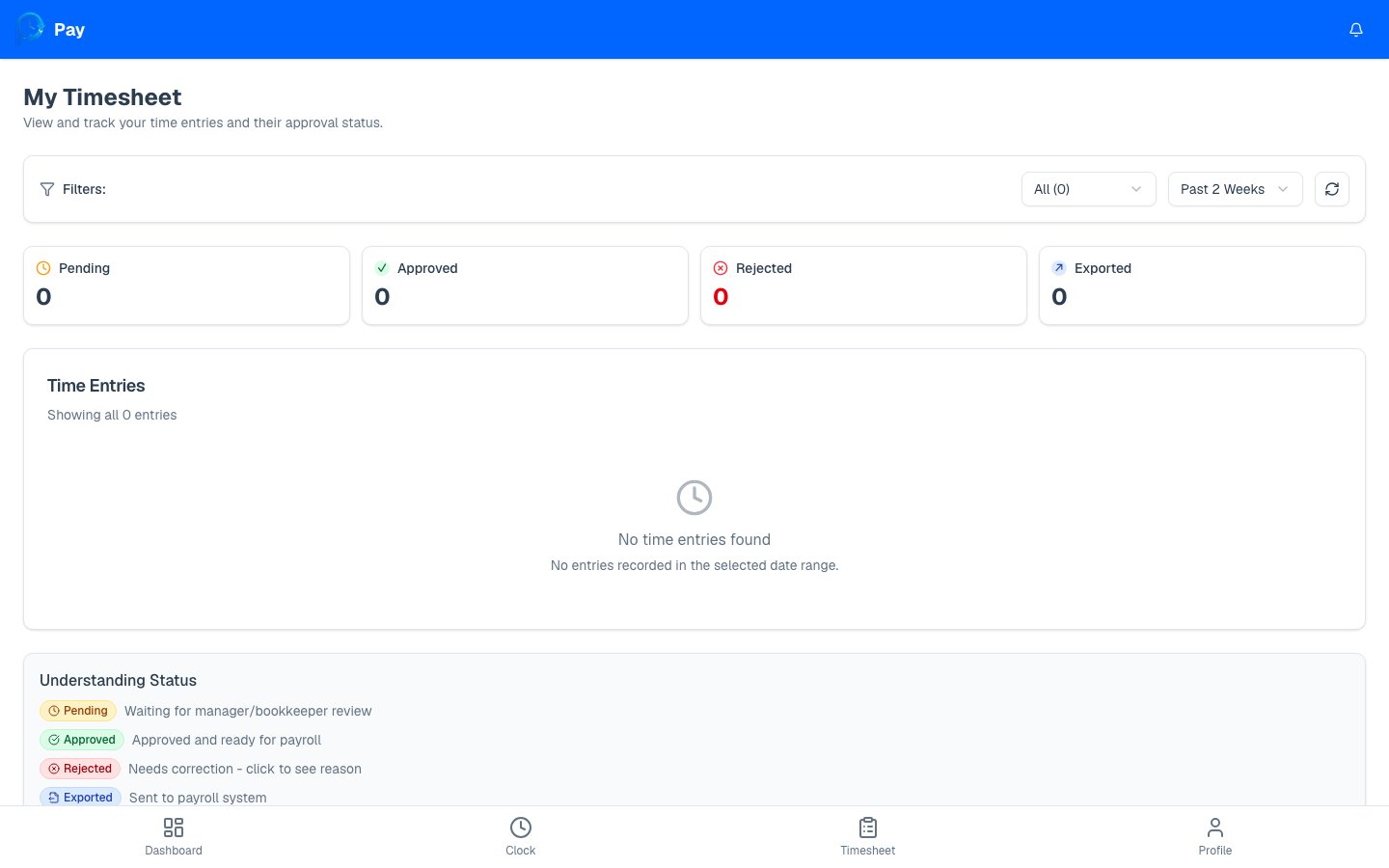
What you’ll see
Each entry on your timesheet shows the date, your clock in and clock out times, the job code (if used), your break time, and the total hours. If your employer shares pay info, you’ll also see estimated earnings for each entry.Filtering your entries
At the top of the page you can narrow down what’s shown:- Status — show everything, or just Pending, Approved, Rejected, or Exported entries.
- Date range — Past Week, Past 2 Weeks, or Past Month.
- Refresh — tap the refresh button to pull in your latest entries.
Understanding entry status
Every entry moves through these stages:Reading the totals
When you’ve filtered to a date range, PayPunch adds up your regular hours, overtime hours, and total hours for that period. If pay info is shared with you, it also estimates your earnings for the period.Hours show as In Progress for any shift you’re currently clocked into — they’ll
finalize once you clock out.
Fix a rejected entry
Handle entries sent back for correction.
See your earnings
Understand how your hours turn into pay.