

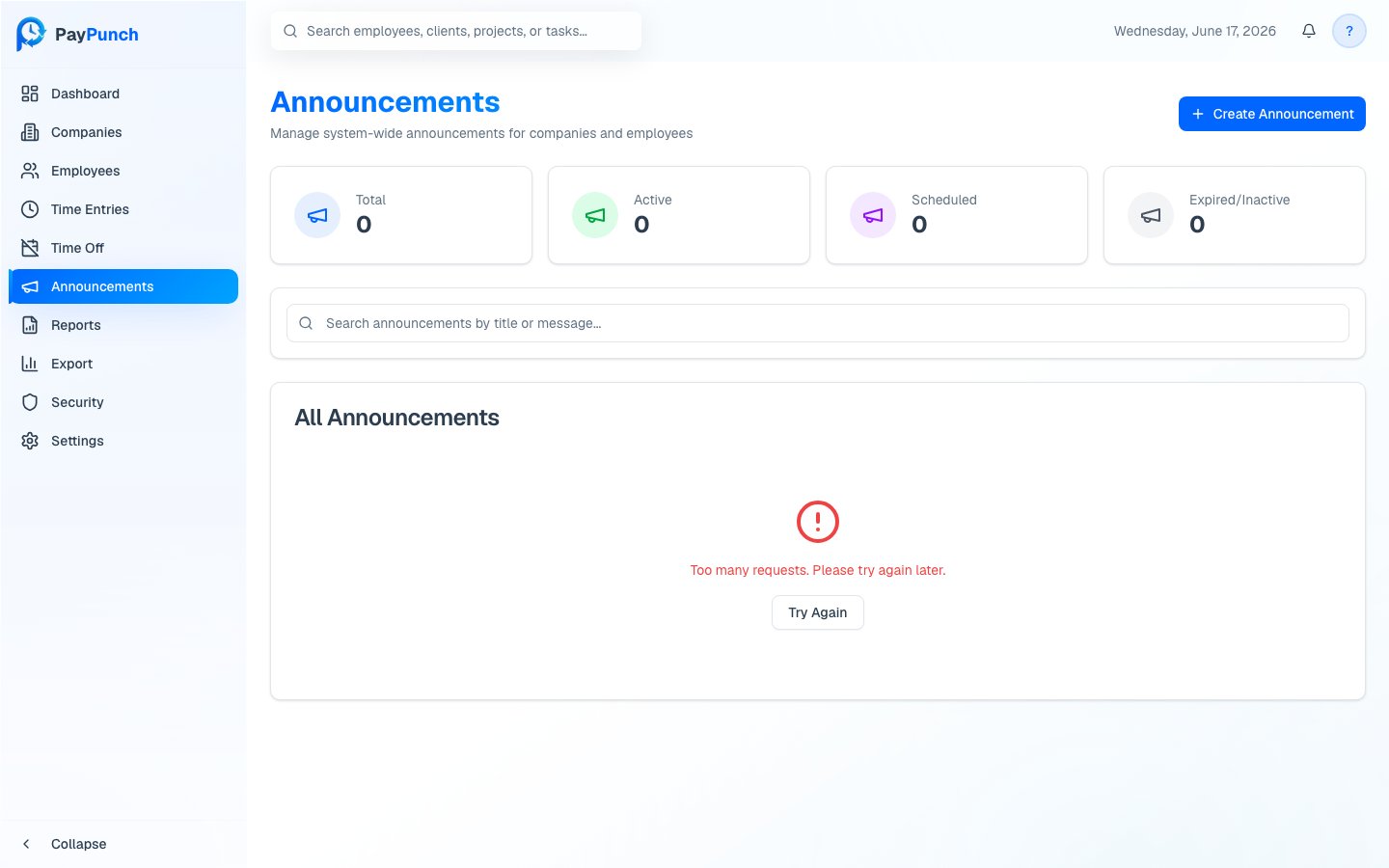
The Announcements page
Open Announcements from the sidebar. Cards summarize Total, Active, Scheduled, and Expired/Inactive announcements. The table lists each announcement’s Title, Priority, Audience, Status, Publish Date, and Expires date. Use the search box to find one by title or message.Create an announcement
1
Open the dialog
Click Create Announcement.
2
Write the message
Enter a Title and Message (both required).
3
Set priority and audience
Choose a Priority — Info (Blue), Warning (Amber), or Critical
(Red) — and a Target Audience — Everyone, Companies Only, or
Employees Only. Optionally scope it to a Specific Company.
4
Add an optional action and schedule
Optionally add an Action URL and Action Label (a button on the
banner), then set Publish At and an optional Expires At.
5
Create
Click Create Announcement.
Edit or delete
Use the Edit and Delete actions on any row. Editing opens the same fields (Save Changes); deleting asks for confirmation and can’t be undone.Statuses
An announcement is Active, Scheduled (publish date in the future), Inactive, or Expired (past its expiry). Active announcements appear as a banner to their target audience.Creating, editing, and deleting announcements require the ADMIN or
SUPER_ADMIN role — read-only (VIEWER) users can’t manage them.