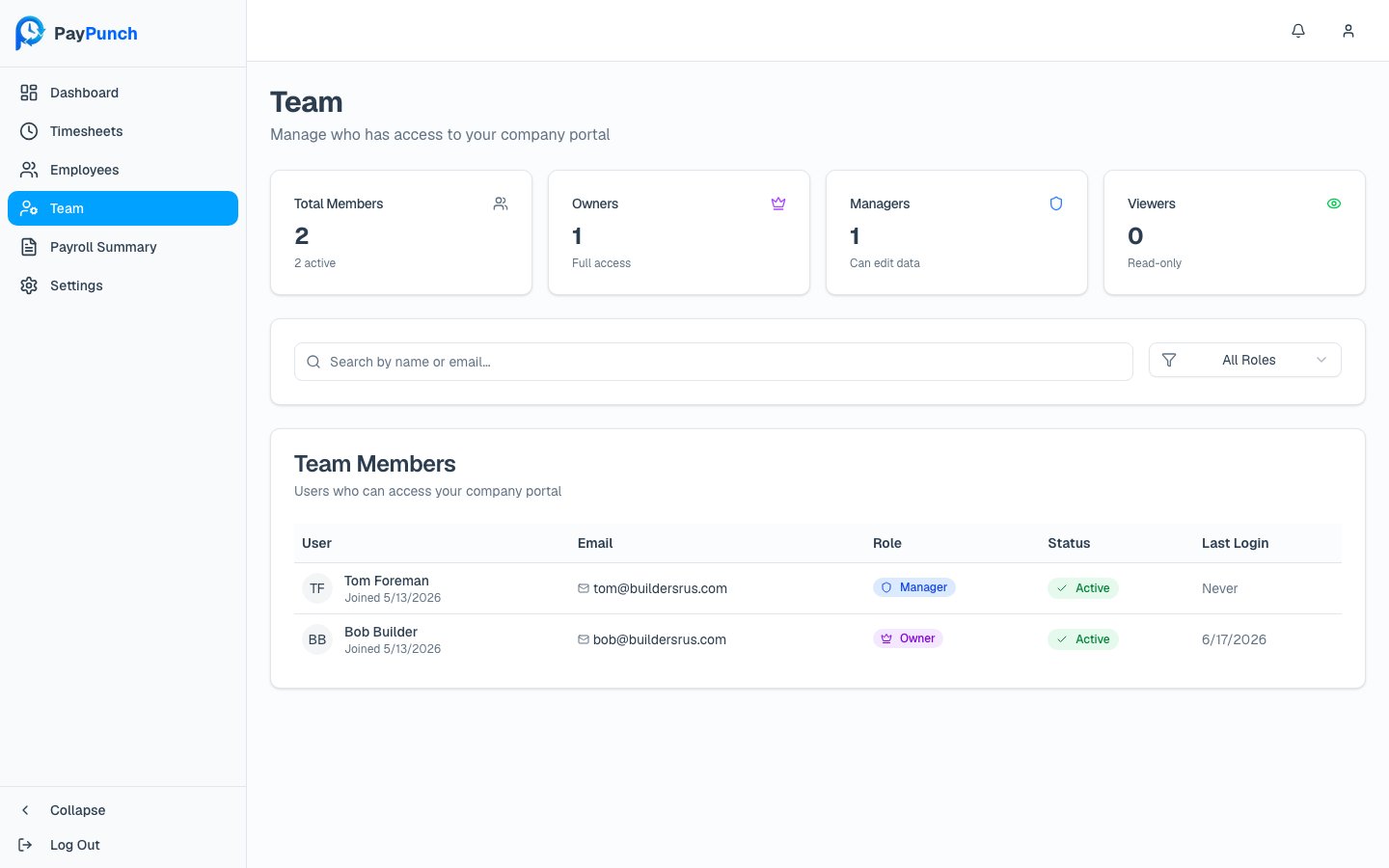
The Team screen (in the sidebar as Team) controls who at your company can sign in to the portal and what they can do. The header reads Team“Manage who has access to your company portal.”
Company users / Team screen
Managing team members is Owner-only. Managers and Viewers can see the team list, but the Invite User button and the per-row actions menu appear only for Owners.

The three roles

RoleBadgeWhat they can do
OwnerOwner”Full access, can manage users.” Everything below, plus inviting, role changes, and deactivation.
ManagerManager”Can edit employees and timesheets.” Review and correct time, submit payroll, approve summaries, edit settings.
ViewerViewer”Read-only access.” Can view but not change anything.
Four cards at the top count your team: Total Members (with active count), Owners, Managers, and Viewers.

The team table

ColumnWhat it shows
UserName and join date
EmailEmail address
RoleOwner, Manager, or Viewer badge
StatusActive, Pending (invitation not yet accepted), Expired, or Inactive
Last LoginMost recent sign-in, or “Never”
ActionsOwner-only menu: Change Role, Deactivate / Reactivate
Search with “Search by name or email…” and filter by role (All Roles, Owners, Managers, Viewers).

Inviting a team member (Owner only)

1

Open the invite dialog

Click Invite User. The Invite Team Member dialog explains: “Send an invitation to a new team member. They will receive an email with instructions to set up their account.”
2

Fill in their details

Enter First Name, Last Name, and Email, then pick a Role — each option shows its description (Owner / Manager / Viewer). All fields are required.
3

Send

Click Send Invitation. You’ll see “Invitation sent”“[name] has been invited to join your team.” The person receives an email with a setup link and shows as Pending until they accept (the invitation expires after 7 days).

Changing a role (Owner only)

From a user’s actions menu, choose Change Role, pick the new role, and click Update Role. You’ll see “Role updated.”
You can’t change your own role, and you can’t remove the last Owner — at least one Owner must always remain.

Deactivating or reactivating (Owner only)

To revoke access, choose Deactivate from the actions menu. The dialog asks “Are you sure you want to deactivate [name]? They will no longer be able to access the company portal.” Confirm with Deactivate. Deactivation is reversible — an inactive user shows a Reactivate action.
You can’t deactivate yourself, and you can’t deactivate the last active Owner.