

PayPunch is in beta. Features and screens are actively evolving, so a label
or button you see in the app may look slightly different here. If something
doesn’t match, let us know.
Where your PIN comes from
You don’t create your own account — your manager or bookkeeper sets it up for you and gives you:- An Employee ID (sometimes your work email or phone number can be used instead), and
- A starting PIN.
Didn’t get a PIN, or forgot it? Ask your manager or bookkeeper. They can look up your
Employee ID and reset your PIN for you. For security, PayPunch never shows your PIN to
anyone — even your manager only sees that one exists, not what it is.
Sign in for the first time
1
Open PayPunch
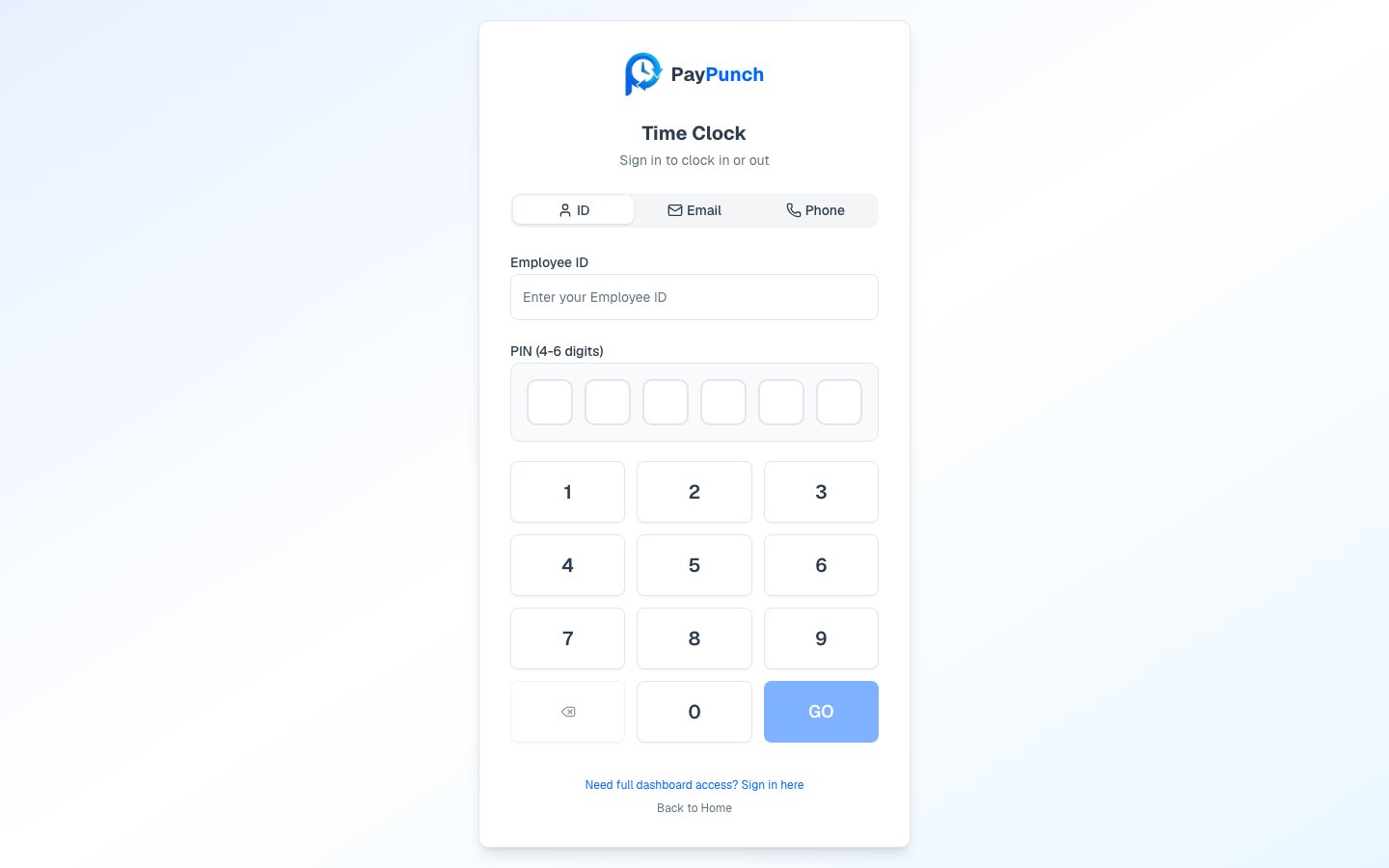
Go to the time clock screen — either the shared tablet/computer at your workplace, or
the PayPunch app on your own phone. You’ll land on the Time Clock sign-in page.
2
Choose how to identify yourself
At the top you’ll see three tabs: ID, Email, and Phone. Pick whichever
one your employer told you to use, then type your Employee ID, email, or phone number.
3
Enter your PIN
Tap your PIN on the on-screen keypad. Each digit shows as a dot, so people nearby
can’t read it. Made a mistake? Tap the delete (⌫) key to clear the last digit.
4
Tap GO
Press GO to sign in. If your ID and PIN match, you’ll go straight to the clock
screen, ready to clock in.
Changing your PIN
It’s a good idea to change your starting PIN to something only you know. When you change your PIN, PayPunch asks for:1
Your current PIN
Confirms it’s really you.
2
Your new PIN
4 to 6 digits. It must be different from your current PIN.
3
Confirm your new PIN
Type the new PIN again so there are no typos. Both entries must match.
Changing your own PIN is available in the PayPunch mobile app. If you don’t see the
option, or you’re locked out, ask your manager or bookkeeper to reset it for you.
Good to know
- Your PIN is private. Don’t share it. Anyone with your PIN could clock in or out as you.
- Sessions don’t last forever. On a shared time clock, your session ends quickly so the next person can use it. You’ll enter your PIN again each time.
- A new PIN takes effect right away. Use the new one the next time you sign in.
Next: Clock in and out
Now that you can sign in, learn how to start and end your shift.