

Open a profile
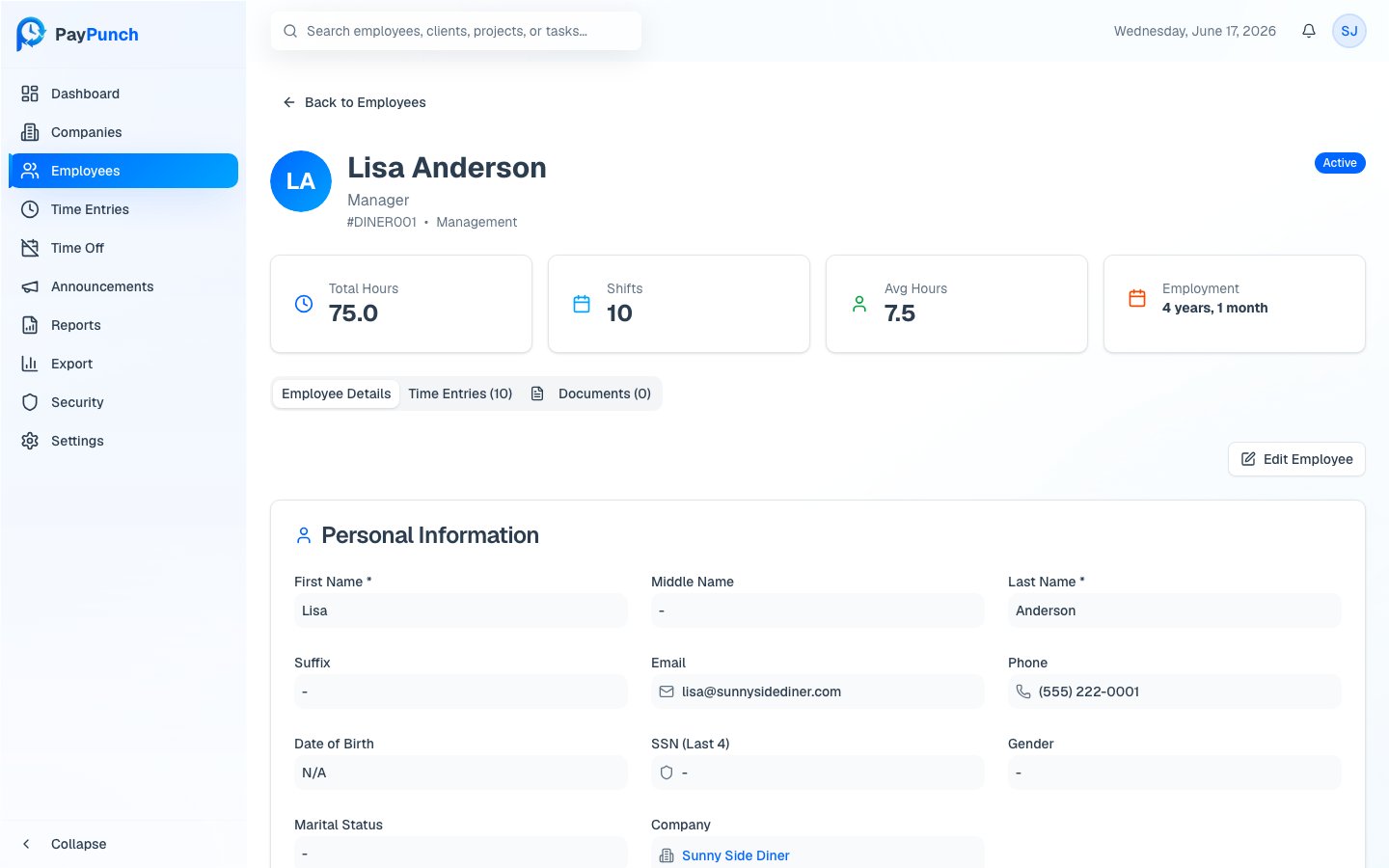
From the Employees roster, click View Details on any worker. The profile header shows the employee’s name, job title, employee number, department, and an Active / Inactive status badge, plus four quick stats: Total Hours, Shifts, Avg Hours, and Employment length. The profile is organized into three tabs:- Employee Details — all editable fields (below)
- Time Entries — this employee’s shifts
- Documents — uploaded and missing documents
Edit employee details
On the Employee Details tab, click Edit Employee, make your changes, then click Save Changes (or Cancel to discard). Fields are grouped into cards:First Name and Last Name are required. Sensitive numbers — SSN, routing,
and account — store only the last four digits.
Pay-rate history
Whenever you change an employee’s Pay Rate or Pay Type, PayPunch automatically closes the current rate and records a new entry in the Pay Rate History card. Each row shows the Effective Date, Rate, Type, Changed By (Admin or Client), Reason, and Status (the current rate is flagged, older rates show “Until ”).Time entries and documents
- The Time Entries tab lists this employee’s shifts with Date, Clock In, Clock Out, Total Hours, and Status (Completed or In Progress).
- The Documents tab shows onboarding status, uploaded documents, and uploaders for any missing required documents (Government ID, W-4 Form, Direct Deposit Authorization) plus optional I-9 and other documents. See Documents & Compliance.