

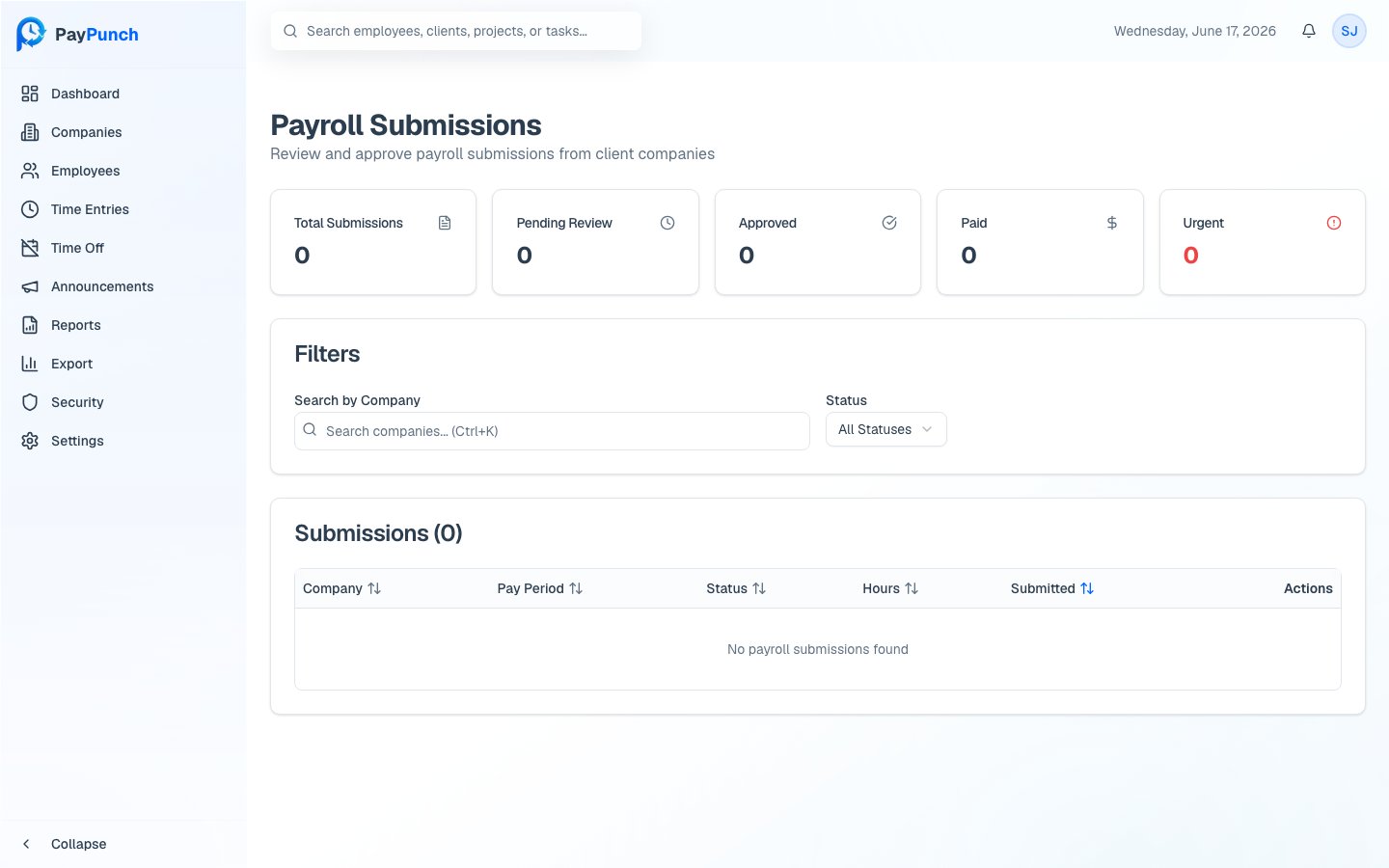
The Payroll Submissions page
Open Payroll from the sidebar to see Payroll Submissions — every client company’s submission for review. Summary cards show Total Submissions, Pending Review, Approved, Paid, and Urgent (within 24 hours of a deadline). The table lists each submission’s Company, Pay period, Status, Total hours, and Submitted date, and is sortable. Use the Search box to find a company and the Status dropdown to filter (All Statuses, Submitted,
Reviewing, Approved, Paid, Completed).
The submission lifecycle
A submission moves through these statuses:When a submission is rejected or has changes requested, it returns to
Submitted so the client can correct and resubmit.
How a pay period flows
1
Client submits
A client company submits its time data for the pay period. The submission
appears in your Pending Review queue as Submitted.
2
You review
Open the submission to see the per-employee breakdown of regular, overtime,
and PTO hours and pay totals.
3
You decide
Approve, Reject, or Request Changes — see
Approving Payroll.
4
Export to QuickBooks
Generate the IIF file and send it to QuickBooks. This moves the submission to
In QuickBooks. See IIF Export.
5
Mark as paid
Once liabilities are paid, mark the submission Paid, closing the cycle.