

PayPunch is in beta. Features and screens are actively evolving, so a label
or button you see in the app may look slightly different here. If something
doesn’t match, let us know.
Who the portal is for
PayPunch follows a three-tier model: a bookkeeping organization (admin) manages many client companies, and each client company has employees who track time. You log in to the client portal as a member of one client company.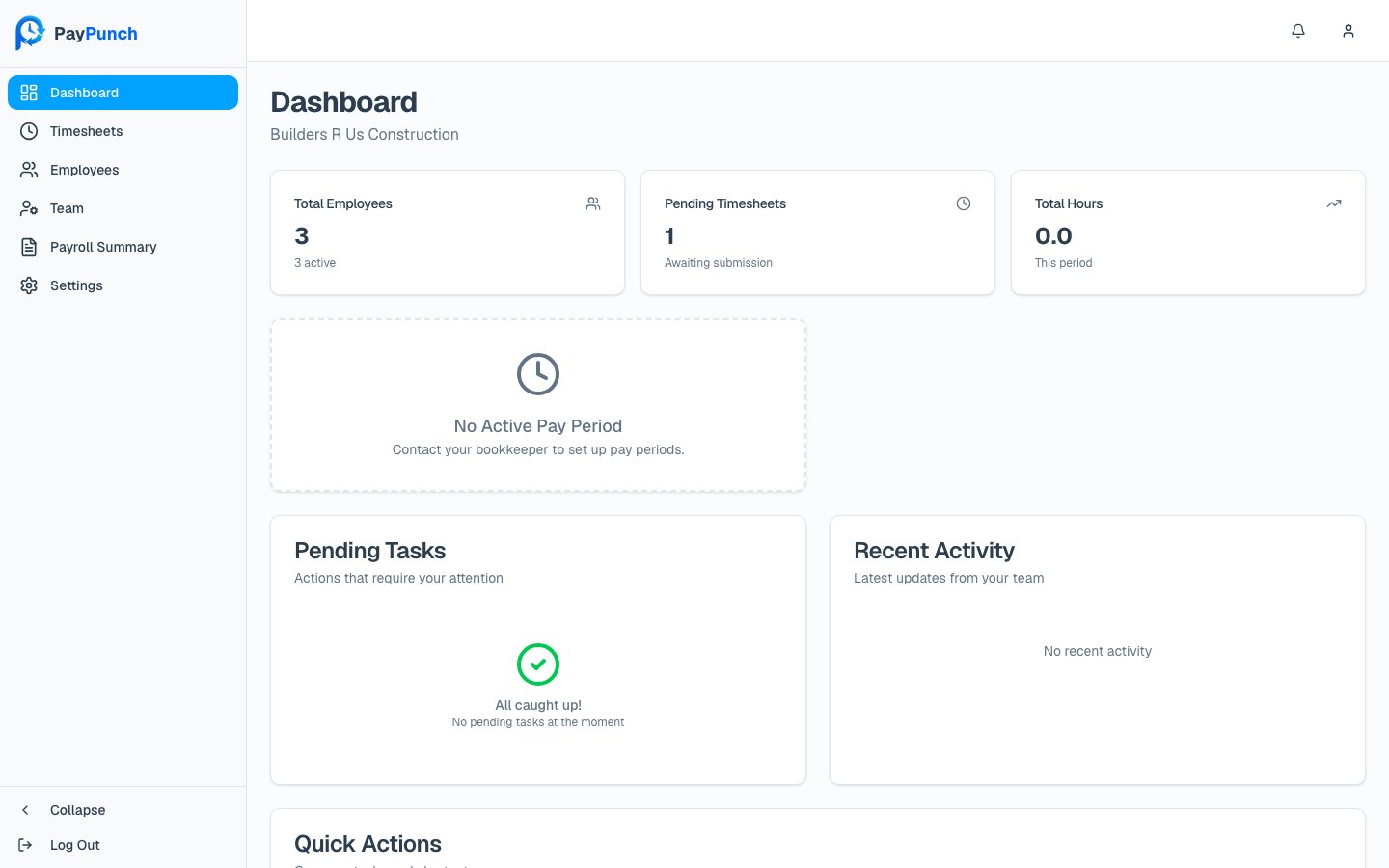
What you can do here
Dashboard
See the current pay period, deadline, pending tasks, and recent activity at a glance.
Timesheets
Browse each pay period and open it to review your team’s hours.
Reviewing time
Inspect, correct, and reject individual time entries before payroll.
Submitting payroll
Hand the approved period to your bookkeeper — the key client action each period.
Payroll summary
Review and approve the summary your bookkeeper sends back.
Employees
View your workforce and update basic employee details.
Reports
Pull hours and payroll data and export to CSV, Excel, or PDF.
Team (company users)
Invite and manage who can sign in to your company portal.
Settings
Manage company info, pay-period rules, and QuickBooks details.
Notifications
Stay on top of approvals, deadlines, and payroll status updates.
Roles and what they can do
Every person in your company portal has one of three roles. Your role controls which actions you see.Throughout this guide, actions limited to certain roles are flagged — for example,
Owner only for inviting team members, or Owner / Manager for editing time and
submitting payroll. Where no flag appears, any signed-in user (including a Viewer) can
see the screen.
Signing in
You and your team sign in athttps://paypunch.io/login with the email and password
from your bookkeeper’s invitation. There’s no separate client login page — the same login
serves admins and client companies and routes you to your company dashboard. See
Logging in for details.
The pay-period loop
Most of your work follows one repeating loop each pay period:1
Review
Open the period’s timesheets and check each employee’s entries.
2
Correct or reject
Fix bad punches or reject entries so employees can resubmit.
3
Submit
Submit the period to your bookkeeper once all entries are approved.
4
Approve the summary
When your bookkeeper sends the payroll summary back, approve it to close the loop.