

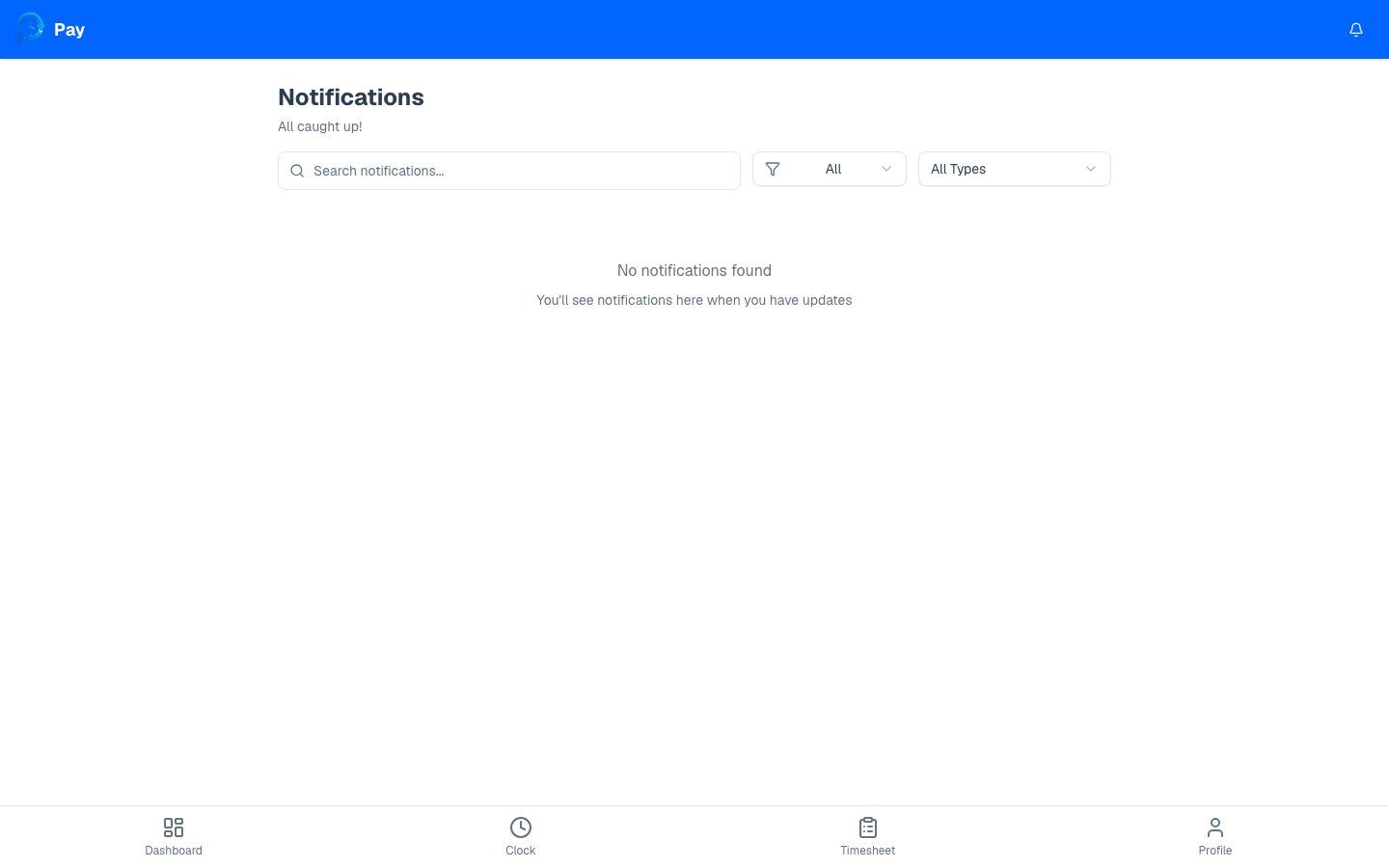
The notification bell
A bell icon sits at the top of every screen. When you have unread notifications, it shows a count. Tap it for a quick peek, or open the full Notifications page to see everything.On the Notifications page
The page lists your notifications newest first, and tells you how many are unread (or “All caught up!” when there are none). You can:- Search — type to find a notification by its title or message.
- Filter by read status — show All, Unread, or Read.
- Filter by type — narrow to a specific kind of notification (see below).
- Page through older notifications when you have a lot.
Types you might see
Manage your notifications
1
Open a notification
Tap it to read the details. If it links somewhere (like a rejected entry), it takes
you straight there.
2
Mark as read
Opening a notification marks it read. To clear them all at once, tap Mark all as
read.
3
Delete one
Hover or tap the menu on a notification and choose Delete notification to remove
it.