

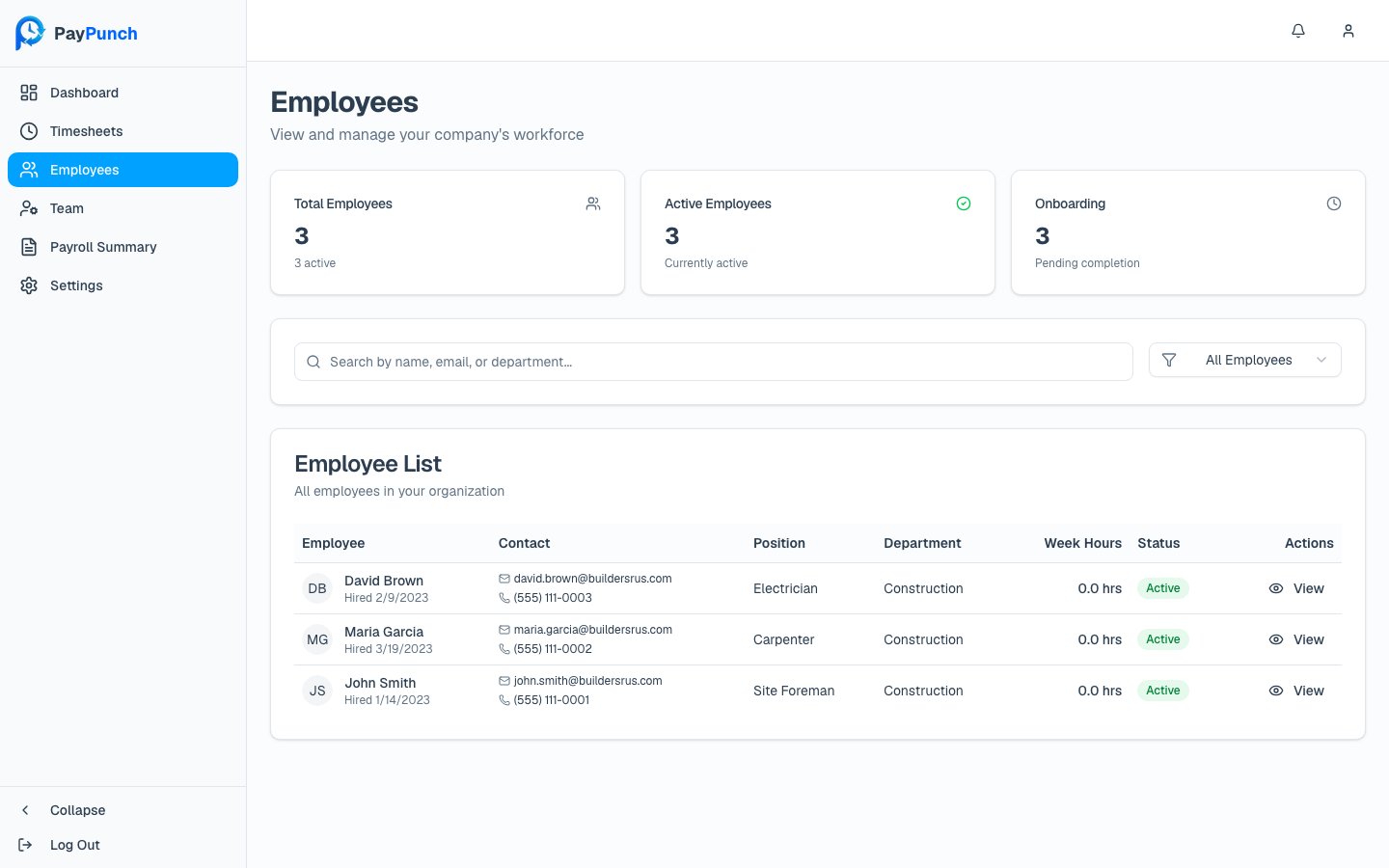
Finding employees
- Search by name, email, or department using the box labeled “Search by name, email, or department…”
- Filter by status with the dropdown: All Employees, Active Only, or Inactive Only.
The employee table
When nothing matches, the table shows “No employees found” — “Try adjusting your
search or filters.”
Viewing and editing an employee
Click View to open the employee’s profile. The detail page shows their profile, address, employment status, onboarding state, pay rate, pay type, and recent time entries.- What you can edit
- What's read-only
With the Owner or Manager role, click Edit Employee to change everyday
details, then Save Changes (or Cancel to discard):
- First, middle, and last name, and suffix
- Email and phone
- Job title and department
- Street address, line 2, city, state, and ZIP
- Employment status (Active / Inactive)
Editing requires Owner or Manager. A Viewer can open and read employee profiles
but won’t see the Edit Employee button. The list itself is view-only for everyone —
employees are added and removed by your bookkeeper, not from the client portal.