

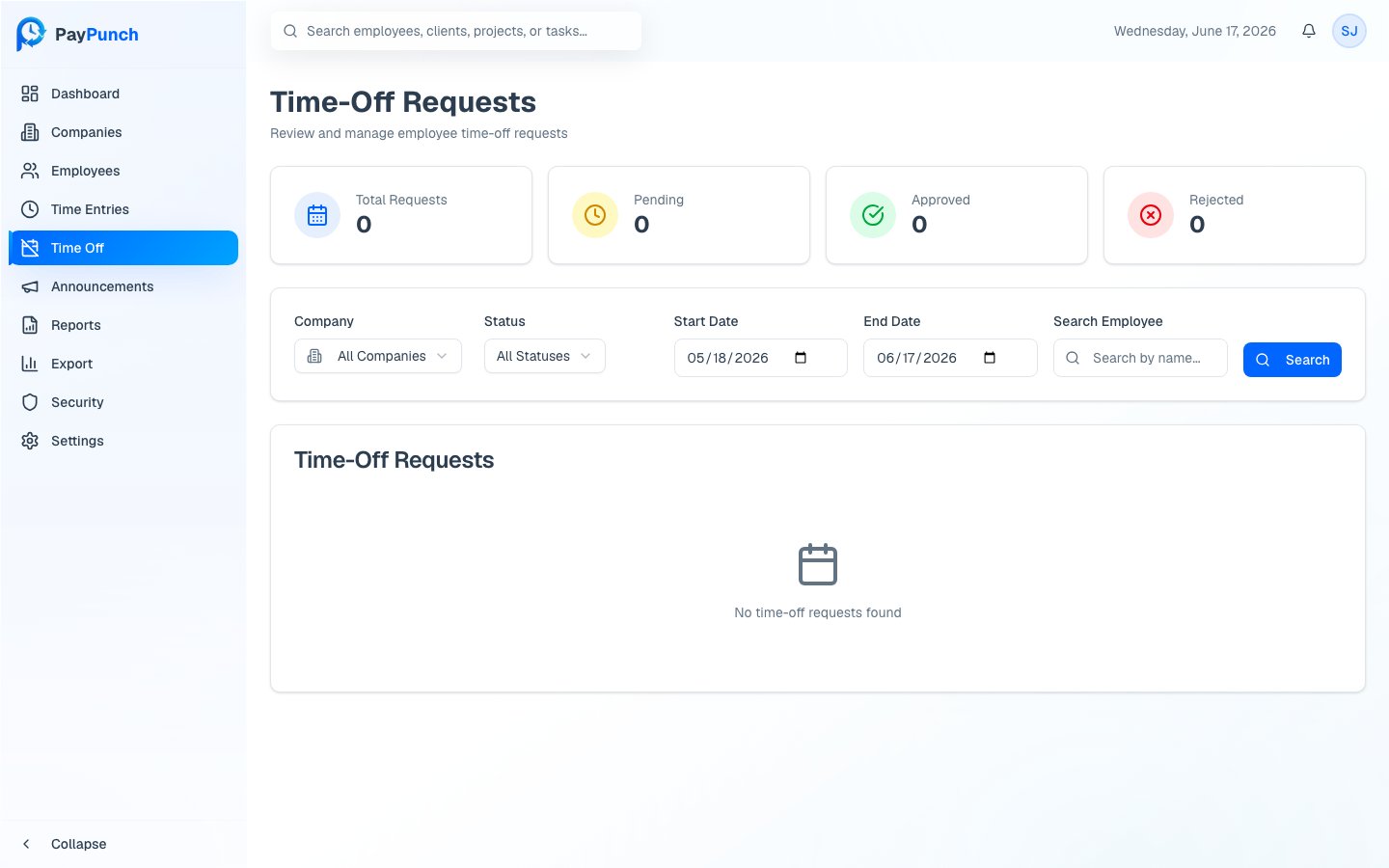
The Time-Off Requests page
Open Time-Off Requests from the sidebar. Four cards show Total Requests, Pending, Approved, and Rejected. The table lists Employee, Company, Type, Dates, Hours, Status, and Submitted date.Request types and statuses
- Type badges: PTO, Sick, Personal, and Unpaid.
- Status badges: Pending, Approved, and Rejected.
Filters
Filter by Company, Status (All Statuses, Pending, Approved,
Rejected), a Start Date / End Date range, and a Search Employee box,
then click Search.
Approve a request
1
Open the approve dialog
On a Pending request, click Approve.
2
Confirm or change the type
The dialog shows the employee, dates, hours, and any employee notes. Use
Approve as Type to keep the requested type or change it — for example,
approve as Unpaid if the employee’s PTO balance is insufficient.
3
Approve
Click Approve Request. The employee is notified automatically.
Reject a request
1
Open the reject dialog
On a Pending request, click Reject.
2
Give a reason
Enter a Reason for Rejection — this is required. The employee sees this
explanation.
3
Reject
Click Reject Request. The employee is notified.