

The round trip
A period travels back and forth between you and your bookkeeper:1
You submit
You submit the period — its status becomes Pending Approval on the bookkeeper’s side.
2
Your bookkeeper reviews
They check the numbers and send the summary back to you (status Awaiting Review).
3
You approve
You review the summary and click Approve Payroll — status becomes Approved and
your bookkeeper finishes processing.
The summaries list
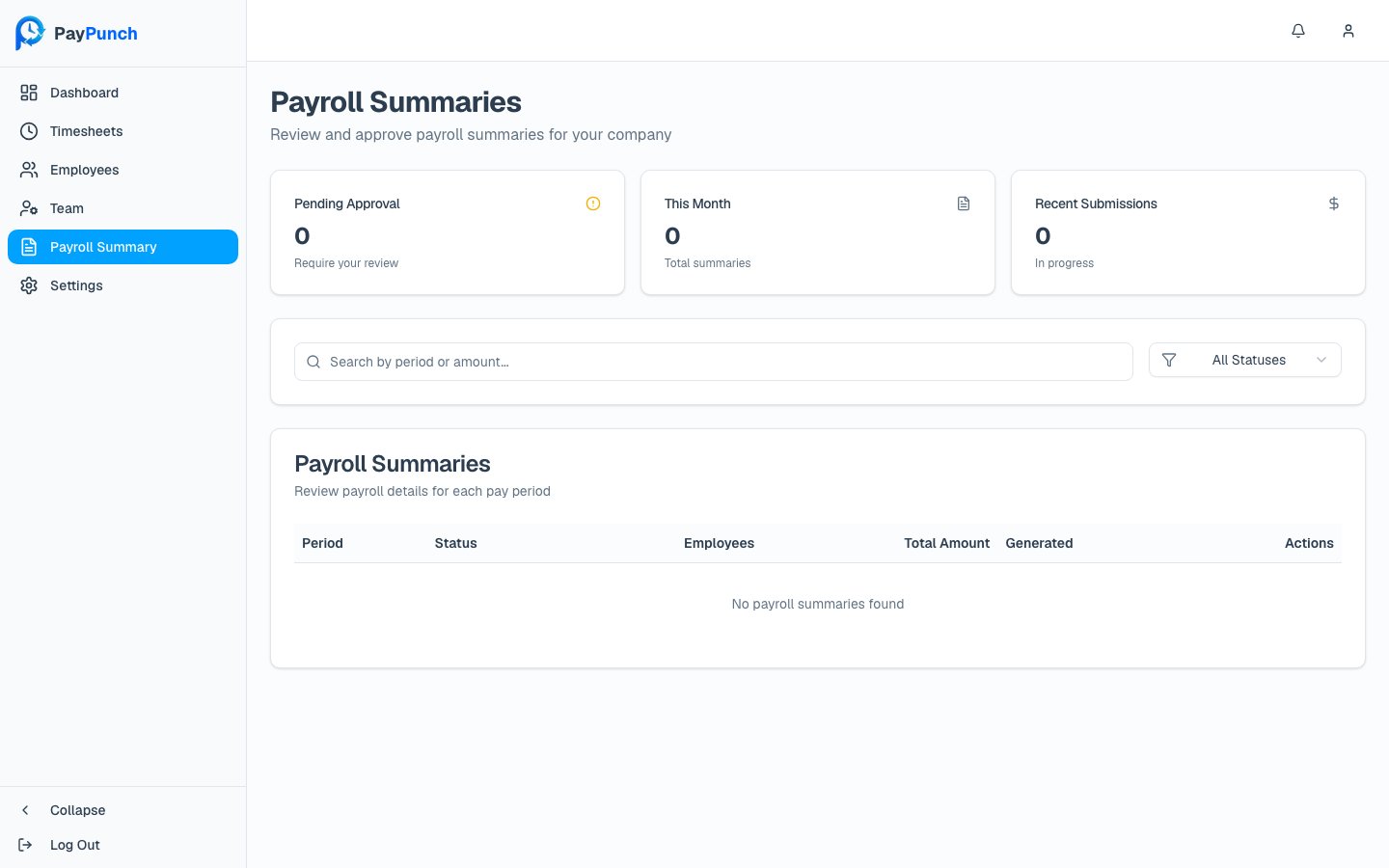
Three cards summarize your queue: Pending Approval (“Require your review”), This Month, and Recent Submissions. You can search with “Search by period or amount…” and filter by status (All Statuses, Customer Submitted, Customer Approved, Summary Sent, Completed).Status badges
Reviewing and approving a summary
Click View (or Review) to open a summary. The detail page shows the period, its status, when it was submitted, the pay-period type, and payroll details such as the submission ID and the generated IIF file name. When a summary is Awaiting Review, an Approval Required banner appears — “This payroll summary requires your review and approval before processing” — along with an approval section:1
Add notes (optional)
Use the Notes (Optional) box to add any comments for your bookkeeper.
2
Confirm
Check “I approve this payroll summary for processing.” By approving, you confirm the
details are accurate and authorize payment processing.
3
Approve
Click Approve Payroll. While it processes you’ll see “Approving…”, then you’re
returned to the summaries list with the status updated to Approved and a
confirmation that the summary was approved.
You can approve only once the summary is back from your bookkeeper (status Awaiting
Review). A summary that’s still Pending Approval can’t be approved yet — your
bookkeeper has to send it back first. Approving requires the Owner or Manager
role.