

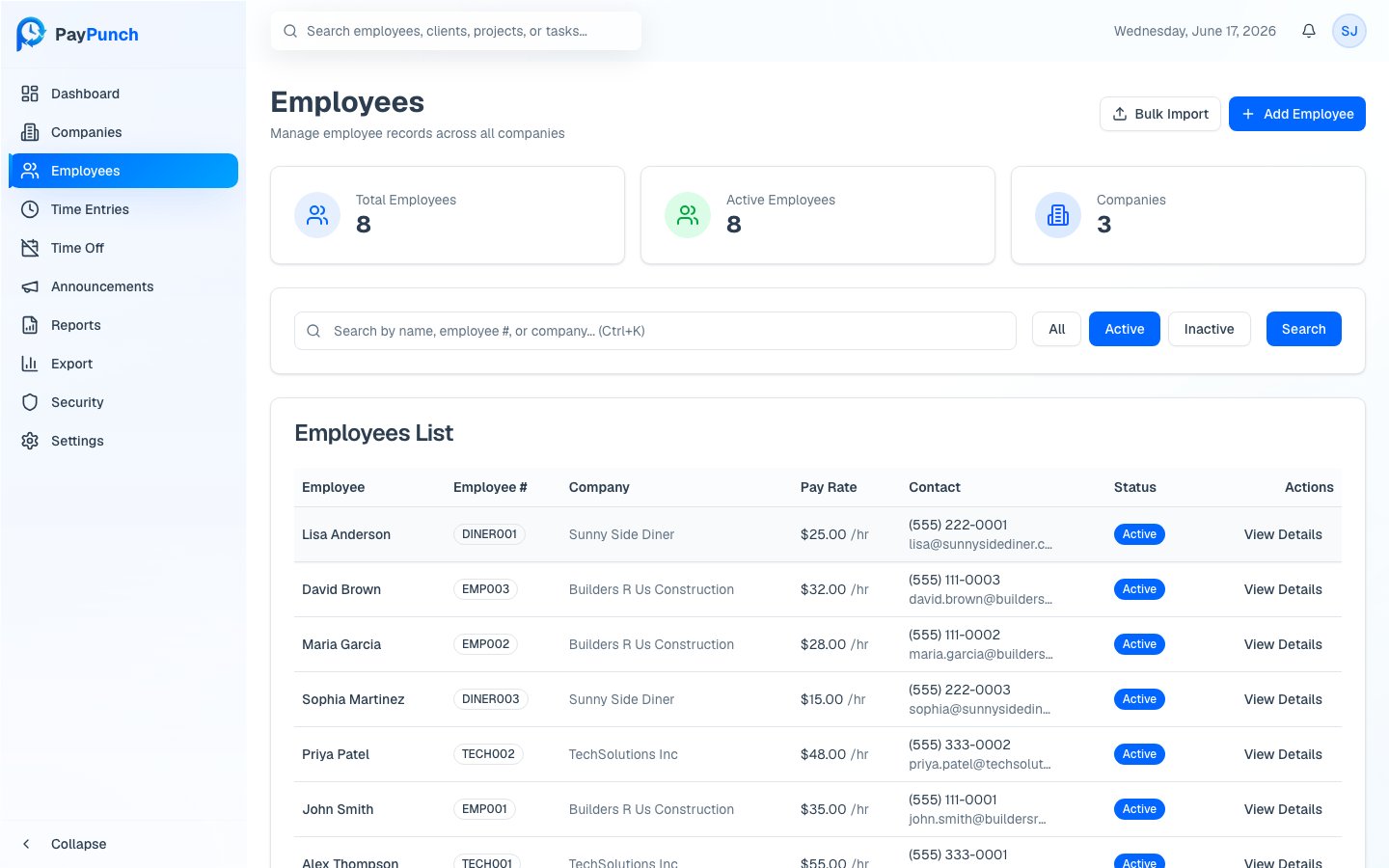
The roster
Open Employees from the sidebar. Three cards at the top show Total Employees, Active Employees, and Companies. The table shows each worker’s Employee, Employee #, Company, Pay Rate, Contact, and Status (Active or Inactive). Click View Details on any row to open that employee’s profile.Search and filter
- Use the search box to find a worker by name, employee #, or company. Press Ctrl+K / Cmd+K to focus it.
- Filter the roster with the All, Active, and Inactive buttons.
Add an employee
You have two paths, both reachable from the top of the Employees page:Add Employee
Walk one new hire through guided onboarding.
Bulk Import
Import many employees at once from a CSV or Excel file.
Edit or deactivate an employee
Open an employee’s profile to edit their personal, employment, compensation, and tax details, or to review their pay and time history. See Employee Profiles for the full field reference.Removing an employee is a soft delete — their status becomes Inactive and
a termination date is recorded, but their time entries and history are kept for
reporting and payroll.
Where to go next
Import employees
CSV / Excel bulk import.
Onboard an employee
Guided new-hire setup.
Employee profiles
Profile, pay history, and documents.