

What you can edit yourself
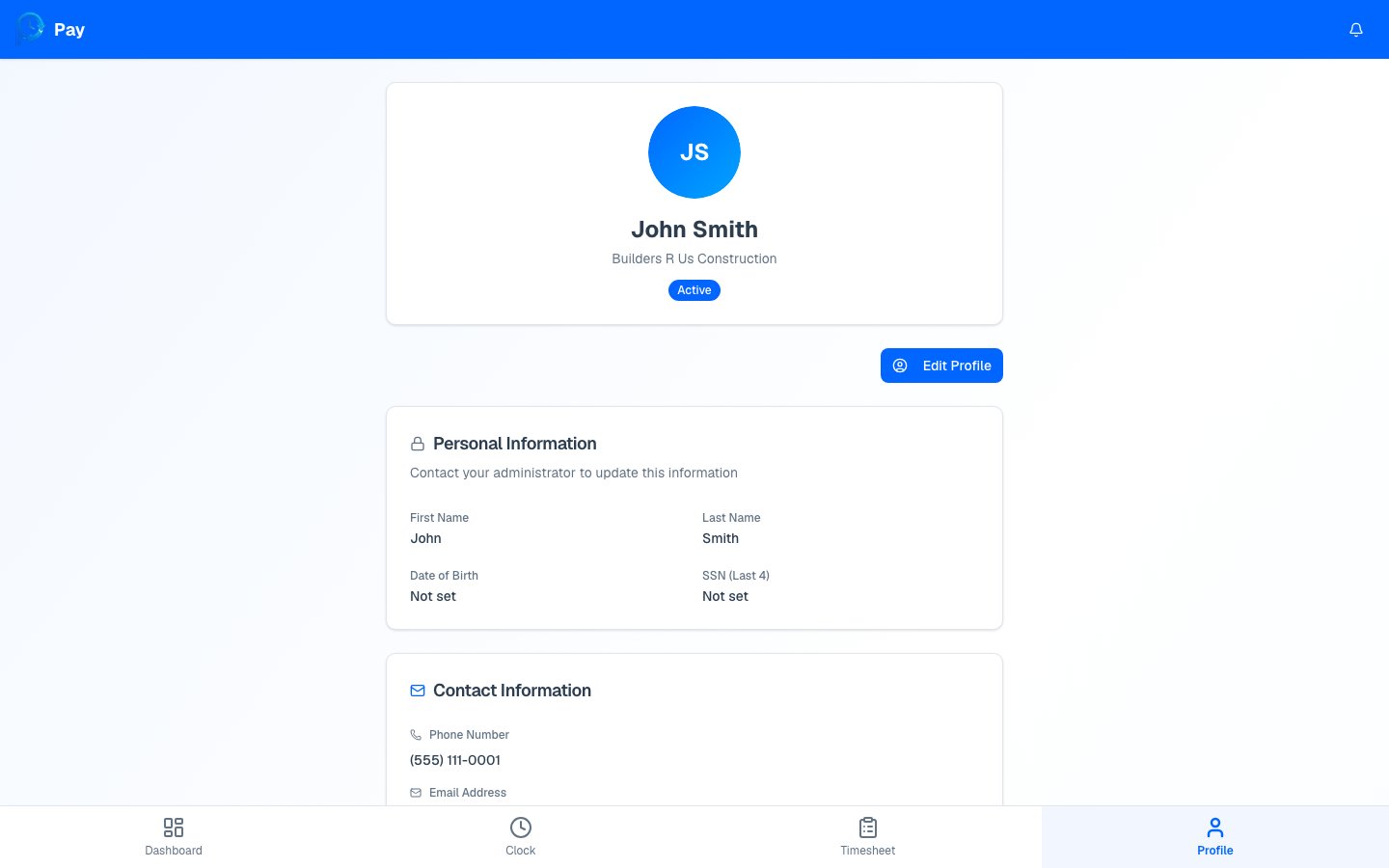
Tap Edit Profile to update these, then tap Save Changes:- Contact information — your phone number and email address.
- Address — street, city, state, and ZIP.
- Emergency contact — name, phone, and relationship.
What only your employer can change
Some details are view-only to protect your records. You’ll see them on your profile, but to change them you’ll need to contact your manager or bookkeeper:- Personal info — your first and last name, date of birth, and the last 4 digits of your SSN.
- Employment info — your company, employee number, hire date, pay rate, and pay type.
- Direct deposit — your bank and account details.
Sections marked with a lock icon say “Contact your administrator to update this
information.” That’s expected — these fields can’t be edited from your profile.
Save or cancel
1
Tap Edit Profile
The editable fields become text boxes.
2
Make your changes
Update your contact info, address, or emergency contact.
3
Save or cancel
Tap Save Changes to keep your edits, or Cancel to discard them and go back to
your saved details.