

PayPunch is in beta. Features and screens are actively evolving, so a label
or button you see in the app may look slightly different here. If something
doesn’t match, let us know.
What you can do
Clock in and out
Start and end your shift with one tap.
Take breaks
Start and end breaks during your shift.
See your timesheet
Review your hours and their approval status.
Fix rejected entries
Correct and resubmit any entry sent back to you.
Request time off
Ask for PTO, sick, or personal days.
View pay & documents
Download pay stubs, check earnings, upload forms.
How you sign in
PayPunch uses a PIN — a short 4 to 6 digit code, like the one you use at an ATM. You do not need a password or an email account to clock in. There are two ways you’ll use PayPunch:1
On a shared time clock (kiosk)
Many workplaces set up a tablet or computer by the door as a time clock. You enter
your Employee ID (or email/phone) and PIN to clock in or out, then the screen resets
for the next person. See Use a shared time clock.
2
On your own phone
If your employer gives you access on your own device, you sign in with your PIN and get
your personal dashboard, timesheet, breaks, and profile.
Your manager or bookkeeper creates your account and gives you your first PIN. If you
don’t know your Employee ID or PIN, ask them — they can look it up or reset it for you.
Your dashboard
Once you’re signed in on your own device, your dashboard is home base. It shows whether you’re currently clocked in, your hours this week and this pay period, your recent entries, and quick buttons to the time clock and timesheet. If any of your entries were rejected, a red banner appears at the top so you can fix them.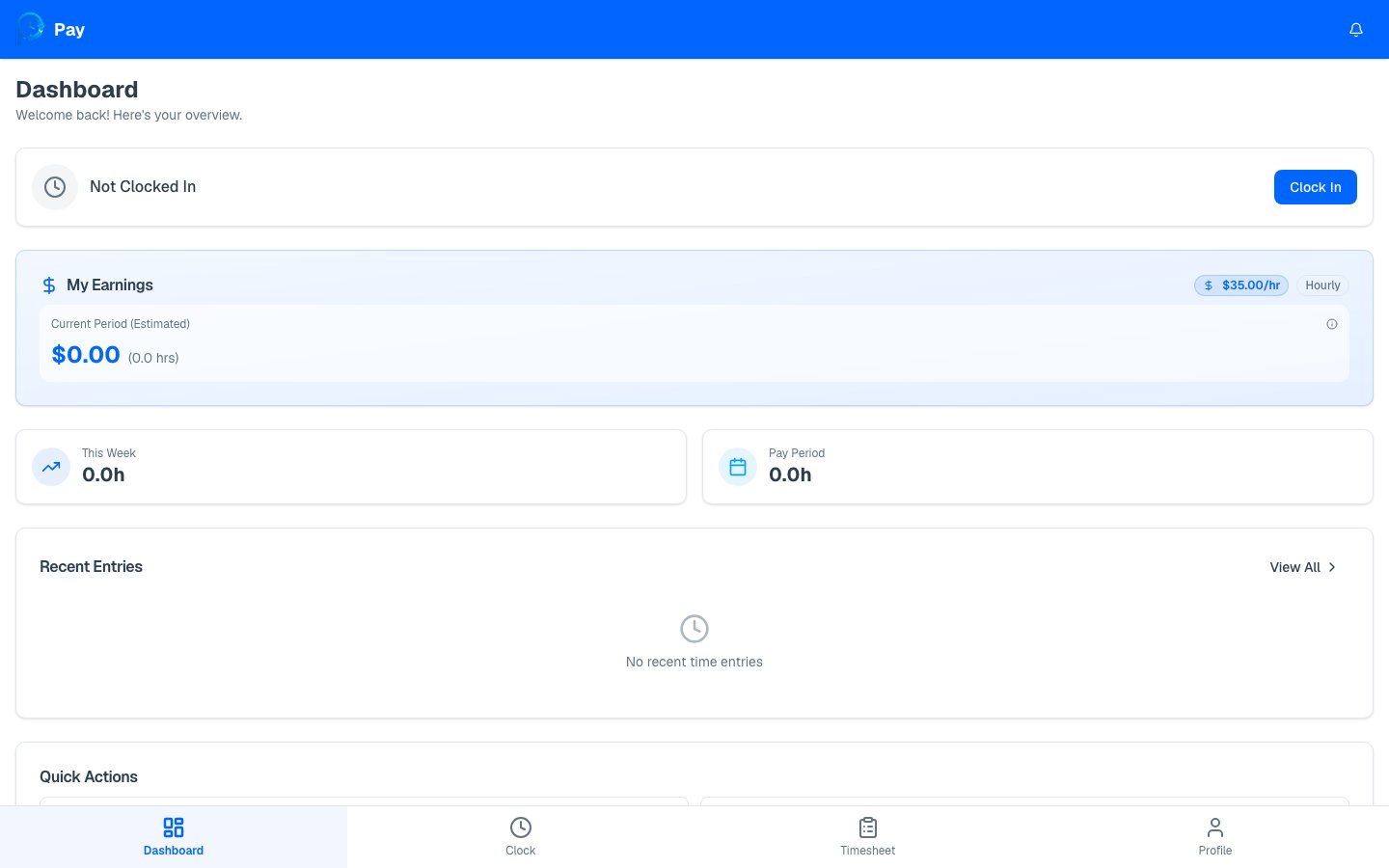
Where to go next
Get your PIN set up
First sign-in and changing your PIN.
Clock in for the first time
A step-by-step walkthrough.