> ## Documentation Index
> Fetch the complete documentation index at: https://docs.paypunch.io/llms.txt
> Use this file to discover all available pages before exploring further.
# Use a Shared Time Clock
> How to clock in and out on a shared kiosk device using your Employee ID and PIN.
A **time clock kiosk** is a shared tablet or computer your workplace sets up — usually
near the entrance — that everyone uses to clock in and out. Because lots of people share
it, you enter your **PIN every time**, and the screen resets after you're done so the next
person can use it.
This is different from using PayPunch on your own phone. On the kiosk you sign in fresh
each time and just clock in or out. The personal app keeps you signed in and adds breaks,
job codes, and your full timesheet. See [Clocking in & out](/employee/clocking-in-out)
for the personal version.
## Sign in and clock in
Walk up to the shared device. It shows the PayPunch **Time Clock** sign-in screen.
Choose the **ID**, **Email**, or **Phone** tab, type your identifier, then tap your
PIN on the keypad and press **GO**.
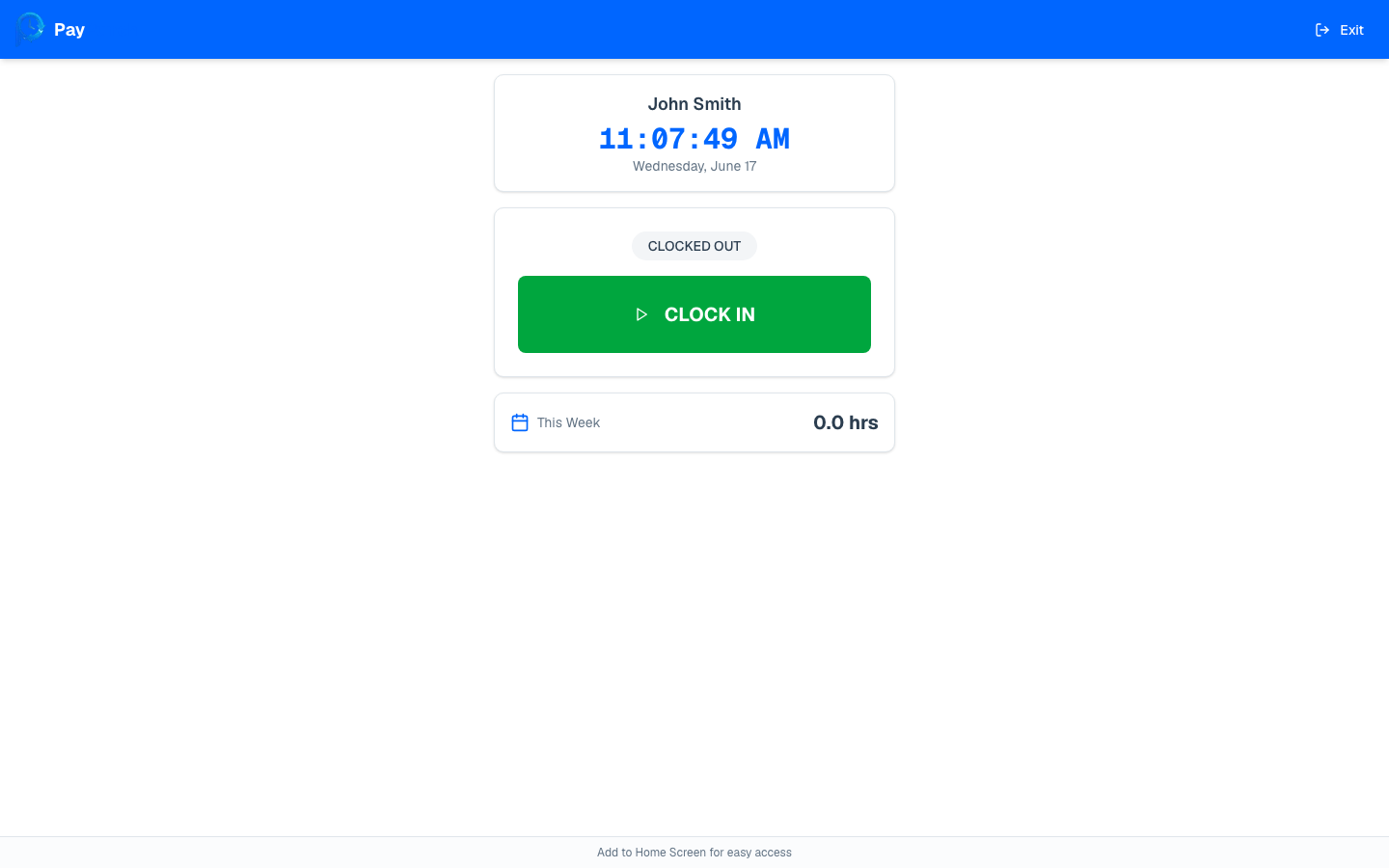
The clock screen shows **your name** and the current time so you know it's your
session. A **CLOCKED IN** or **CLOCKED OUT** badge tells you your current status.
Press the green **CLOCK IN** button. You'll see a "Successfully clocked in!" message
and a timer showing your current shift.
 ## Clock out
Come back to the kiosk and enter your ID and PIN just like before. (The screen reset
after your last visit, so this is normal.)
The button is now red and says **CLOCK OUT**. Press it. You'll see a message with how
many hours you worked, and your weekly total updates.
The kiosk also shows your **hours this week** and the time you clocked in, so you can
quickly confirm everything looks right before you walk away.
## Kiosk etiquette
Never share your PIN or clock in for a coworker. Each person must use their own PIN —
it's tied to their pay.
* **Always enter your own PIN.** The session belongs to whoever just signed in.
* **Wait for the confirmation** ("Successfully clocked in!" or your hours worked) before
stepping away, so you know it went through.
* **The screen resets on its own** after a short time. If you walk up and see someone
else's name or a sign-in screen, just start fresh with your own PIN.
## If you get an error
| Message | What to do |
| --------------------------------- | --------------------------------------------------------------------------------------------------------- |
| Invalid credentials / Invalid PIN | Re-enter carefully; confirm the right tab (ID/Email/Phone). Ask your manager to reset your PIN if needed. |
| Your company account is inactive | Let your manager or bookkeeper know. |
| Failed to load data | Tap to retry; if it keeps failing, tell your manager — the device may have lost its connection. |
If you forgot to clock in or out, learn how corrections work.
## Clock out
Come back to the kiosk and enter your ID and PIN just like before. (The screen reset
after your last visit, so this is normal.)
The button is now red and says **CLOCK OUT**. Press it. You'll see a message with how
many hours you worked, and your weekly total updates.
The kiosk also shows your **hours this week** and the time you clocked in, so you can
quickly confirm everything looks right before you walk away.
## Kiosk etiquette
Never share your PIN or clock in for a coworker. Each person must use their own PIN —
it's tied to their pay.
* **Always enter your own PIN.** The session belongs to whoever just signed in.
* **Wait for the confirmation** ("Successfully clocked in!" or your hours worked) before
stepping away, so you know it went through.
* **The screen resets on its own** after a short time. If you walk up and see someone
else's name or a sign-in screen, just start fresh with your own PIN.
## If you get an error
| Message | What to do |
| --------------------------------- | --------------------------------------------------------------------------------------------------------- |
| Invalid credentials / Invalid PIN | Re-enter carefully; confirm the right tab (ID/Email/Phone). Ask your manager to reset your PIN if needed. |
| Your company account is inactive | Let your manager or bookkeeper know. |
| Failed to load data | Tap to retry; if it keeps failing, tell your manager — the device may have lost its connection. |
If you forgot to clock in or out, learn how corrections work.