> ## Documentation Index
> Fetch the complete documentation index at: https://docs.paypunch.io/llms.txt
> Use this file to discover all available pages before exploring further.
# Employee Overview
> What you can do in PayPunch as an employee, and how you sign in with your PIN.
PayPunch is how you track your hours at work. You clock in when you start, clock out when
you finish, and PayPunch keeps a running record so your hours are ready for payroll — no
paper timesheets, no guessing.
**PayPunch is in beta.** Features and screens are actively evolving, so a label
or button you see in the app may look slightly different here. If something
doesn't match, [let us know](/resources/getting-support).
## What you can do
Start and end your shift with one tap.
Start and end breaks during your shift.
Review your hours and their approval status.
Correct and resubmit any entry sent back to you.
Ask for PTO, sick, or personal days.
Download pay stubs, check earnings, upload forms.
## How you sign in
PayPunch uses a **PIN** — a short 4 to 6 digit code, like the one you use at an ATM. You
do **not** need a password or an email account to clock in.
There are two ways you'll use PayPunch:
Many workplaces set up a tablet or computer by the door as a **time clock**. You enter
your Employee ID (or email/phone) and PIN to clock in or out, then the screen resets
for the next person. See [Use a shared time clock](/employee/timeclock-kiosk).
If your employer gives you access on your own device, you sign in with your PIN and get
your personal dashboard, timesheet, breaks, and profile.
Your manager or bookkeeper creates your account and gives you your first PIN. If you
don't know your Employee ID or PIN, ask them — they can look it up or reset it for you.
## Your dashboard
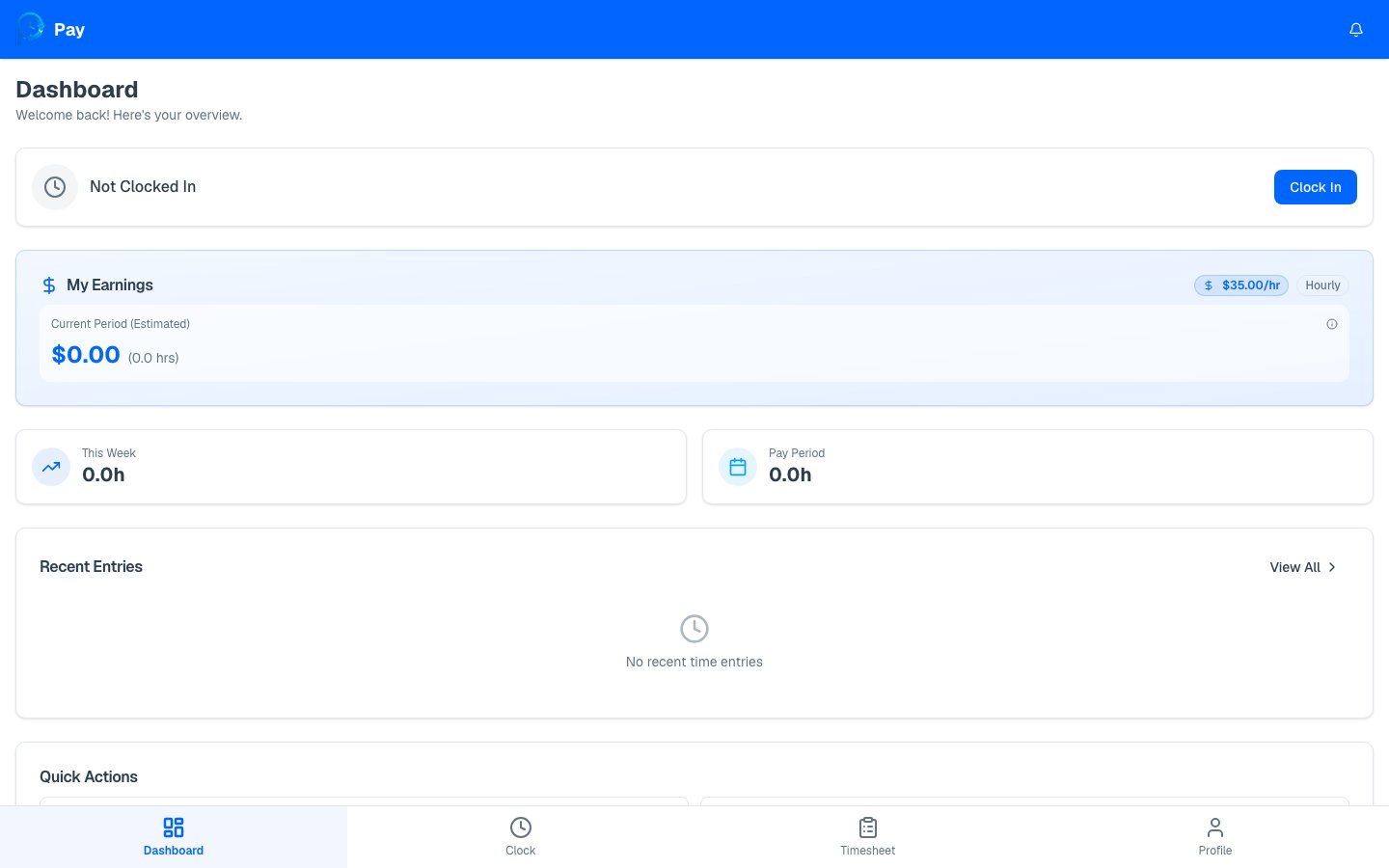
Once you're signed in on your own device, your dashboard is home base. It shows whether
you're currently clocked in, your hours this week and this pay period, your recent
entries, and quick buttons to the time clock and timesheet. If any of your entries were
rejected, a red banner appears at the top so you can fix them.
 ## Where to go next
First sign-in and changing your PIN.
A step-by-step walkthrough.
## Where to go next
First sign-in and changing your PIN.
A step-by-step walkthrough.