> ## Documentation Index
> Fetch the complete documentation index at: https://docs.paypunch.io/llms.txt
> Use this file to discover all available pages before exploring further.
# Notifications
> Stay on top of approvals, document requests, and reminders inside PayPunch.
Notifications keep you in the loop — when an entry needs attention, a document is
verified, or a timesheet is due, PayPunch lets you know.
 ## The notification bell
A **bell icon** sits at the top of every screen. When you have unread notifications, it
shows a count. Tap it for a quick peek, or open the full **Notifications** page to see
everything.
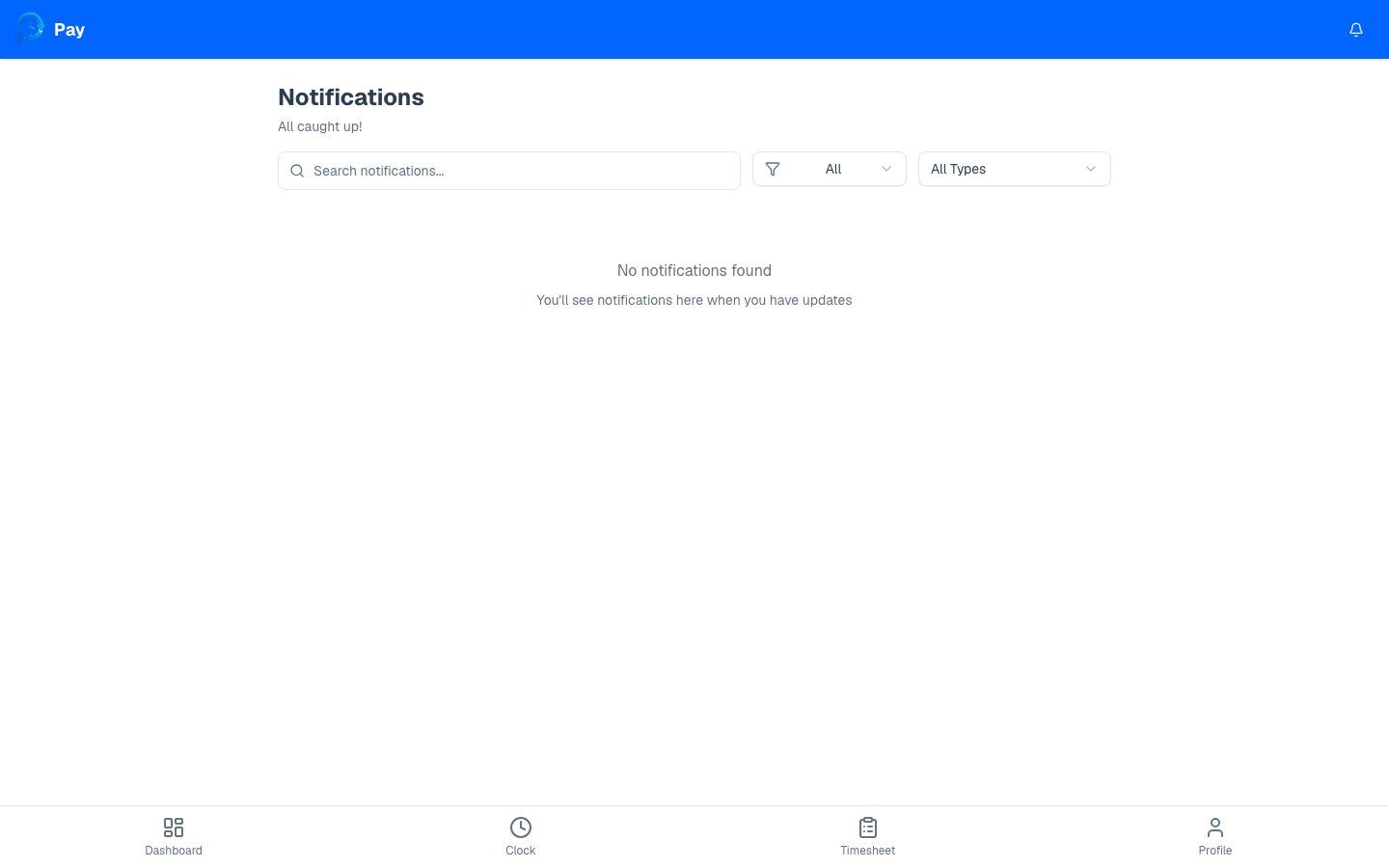
## On the Notifications page
The page lists your notifications newest first, and tells you how many are unread (or
**"All caught up!"** when there are none). You can:
* **Search** — type to find a notification by its title or message.
* **Filter by read status** — show **All**, **Unread**, or **Read**.
* **Filter by type** — narrow to a specific kind of notification (see below).
* **Page through** older notifications when you have a lot.
## Types you might see
| Type | What it tells you |
| ------------------------------------------- | ---------------------------------------- |
| **Approval Needed** | Something is waiting on a review. |
| **Payroll Submitted / Approved / Rejected** | Updates as payroll moves along. |
| **Document Required** | Your employer needs a document from you. |
| **Document Verified** | A document you uploaded was accepted. |
| **Timesheet Due** | A reminder to get your hours in. |
| **System Update** | General app announcements. |
## Manage your notifications
Tap it to read the details. If it links somewhere (like a rejected entry), it takes
you straight there.
Opening a notification marks it read. To clear them all at once, tap **Mark all as
read**.
Hover or tap the menu on a notification and choose **Delete notification** to remove
it.
Check your notifications regularly — a **Document Required** or **Timesheet Due** alert
usually means there's an action only you can take.
## The notification bell
A **bell icon** sits at the top of every screen. When you have unread notifications, it
shows a count. Tap it for a quick peek, or open the full **Notifications** page to see
everything.
## On the Notifications page
The page lists your notifications newest first, and tells you how many are unread (or
**"All caught up!"** when there are none). You can:
* **Search** — type to find a notification by its title or message.
* **Filter by read status** — show **All**, **Unread**, or **Read**.
* **Filter by type** — narrow to a specific kind of notification (see below).
* **Page through** older notifications when you have a lot.
## Types you might see
| Type | What it tells you |
| ------------------------------------------- | ---------------------------------------- |
| **Approval Needed** | Something is waiting on a review. |
| **Payroll Submitted / Approved / Rejected** | Updates as payroll moves along. |
| **Document Required** | Your employer needs a document from you. |
| **Document Verified** | A document you uploaded was accepted. |
| **Timesheet Due** | A reminder to get your hours in. |
| **System Update** | General app announcements. |
## Manage your notifications
Tap it to read the details. If it links somewhere (like a rejected entry), it takes
you straight there.
Opening a notification marks it read. To clear them all at once, tap **Mark all as
read**.
Hover or tap the menu on a notification and choose **Delete notification** to remove
it.
Check your notifications regularly — a **Document Required** or **Timesheet Due** alert
usually means there's an action only you can take.