> ## Documentation Index
> Fetch the complete documentation index at: https://docs.paypunch.io/llms.txt
> Use this file to discover all available pages before exploring further.
# My Timesheet
> View your recorded hours, filter by date and status, and track approvals.
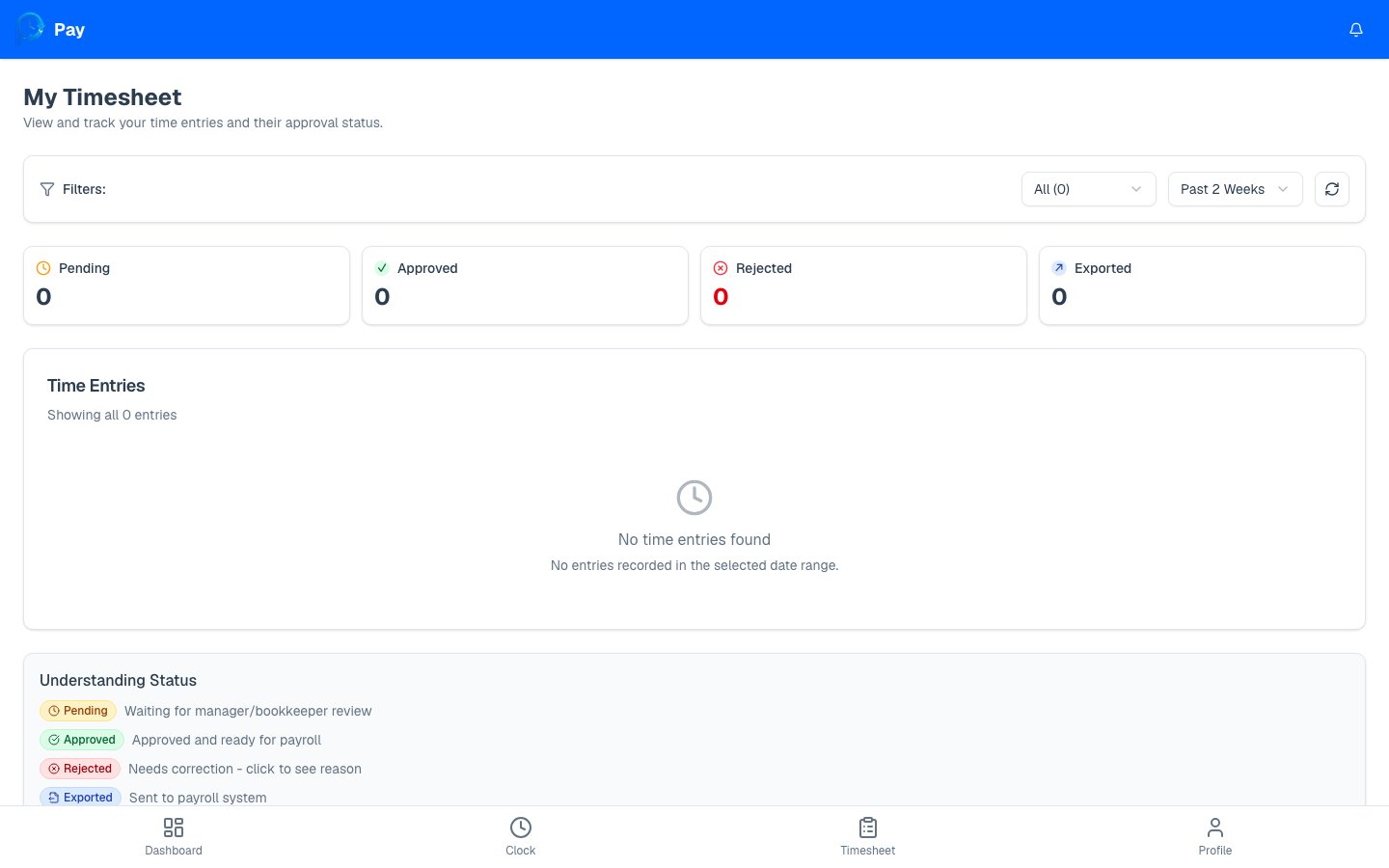
Your timesheet is the full record of your time entries — every shift you've clocked,
how many hours it was, and where it stands in the approval process.
 ## What you'll see
Each entry on your timesheet shows the **date**, your **clock in** and **clock out**
times, the **job code** (if used), your **break** time, and the **total hours**. If your
employer shares pay info, you'll also see estimated **earnings** for each entry.
## Filtering your entries
At the top of the page you can narrow down what's shown:
* **Status** — show everything, or just **Pending**, **Approved**, **Rejected**, or
**Exported** entries.
* **Date range** — **Past Week**, **Past 2 Weeks**, or **Past Month**.
* **Refresh** — tap the refresh button to pull in your latest entries.
The colored summary cards (Pending, Approved, Rejected, Exported) double as quick
filters — tap one to instantly see just those entries.
## Understanding entry status
Every entry moves through these stages:
| Status | What it means |
| ------------ | ---------------------------------------------------------------- |
| **Pending** | Waiting for your manager or bookkeeper to review it. |
| **Approved** | Reviewed and approved — ready for payroll. |
| **Rejected** | Sent back to you to fix. Needs correction before it can be paid. |
| **Exported** | Sent to the payroll/accounting system. All done. |
If you have any **Rejected** entries, a red **"Action Required"** banner appears at the
top of your timesheet with a **Review & Correct** button. Rejected time isn't paid until
you fix and resubmit it — see [Fixing rejected entries](/employee/rejected-entries).
## Reading the totals
When you've filtered to a date range, PayPunch adds up your **regular hours**, **overtime
hours**, and **total hours** for that period. If pay info is shared with you, it also
estimates your earnings for the period.
Hours show as **In Progress** for any shift you're currently clocked into — they'll
finalize once you clock out.
Handle entries sent back for correction.
Understand how your hours turn into pay.
## What you'll see
Each entry on your timesheet shows the **date**, your **clock in** and **clock out**
times, the **job code** (if used), your **break** time, and the **total hours**. If your
employer shares pay info, you'll also see estimated **earnings** for each entry.
## Filtering your entries
At the top of the page you can narrow down what's shown:
* **Status** — show everything, or just **Pending**, **Approved**, **Rejected**, or
**Exported** entries.
* **Date range** — **Past Week**, **Past 2 Weeks**, or **Past Month**.
* **Refresh** — tap the refresh button to pull in your latest entries.
The colored summary cards (Pending, Approved, Rejected, Exported) double as quick
filters — tap one to instantly see just those entries.
## Understanding entry status
Every entry moves through these stages:
| Status | What it means |
| ------------ | ---------------------------------------------------------------- |
| **Pending** | Waiting for your manager or bookkeeper to review it. |
| **Approved** | Reviewed and approved — ready for payroll. |
| **Rejected** | Sent back to you to fix. Needs correction before it can be paid. |
| **Exported** | Sent to the payroll/accounting system. All done. |
If you have any **Rejected** entries, a red **"Action Required"** banner appears at the
top of your timesheet with a **Review & Correct** button. Rejected time isn't paid until
you fix and resubmit it — see [Fixing rejected entries](/employee/rejected-entries).
## Reading the totals
When you've filtered to a date range, PayPunch adds up your **regular hours**, **overtime
hours**, and **total hours** for that period. If pay info is shared with you, it also
estimates your earnings for the period.
Hours show as **In Progress** for any shift you're currently clocked into — they'll
finalize once you clock out.
Handle entries sent back for correction.
Understand how your hours turn into pay.