> ## Documentation Index
> Fetch the complete documentation index at: https://docs.paypunch.io/llms.txt
> Use this file to discover all available pages before exploring further.
# Your PIN & First Sign-In
> How to sign in to PayPunch for the first time with your PIN, and how to change it.
Your **PIN** is your key to PayPunch. It's a short code, 4 to 6 digits long, that you use
to clock in, clock out, and open your timesheet. You don't need a password or an email
login to use the time clock.
**PayPunch is in beta.** Features and screens are actively evolving, so a label
or button you see in the app may look slightly different here. If something
doesn't match, [let us know](/resources/getting-support).
## Where your PIN comes from
You don't create your own account — your manager or bookkeeper sets it up for you and
gives you:
* An **Employee ID** (sometimes your work email or phone number can be used instead), and
* A starting **PIN**.
Didn't get a PIN, or forgot it? Ask your manager or bookkeeper. They can look up your
Employee ID and reset your PIN for you. For security, PayPunch never shows your PIN to
anyone — even your manager only sees that one exists, not what it is.
## Sign in for the first time
Go to the time clock screen — either the shared tablet/computer at your workplace, or
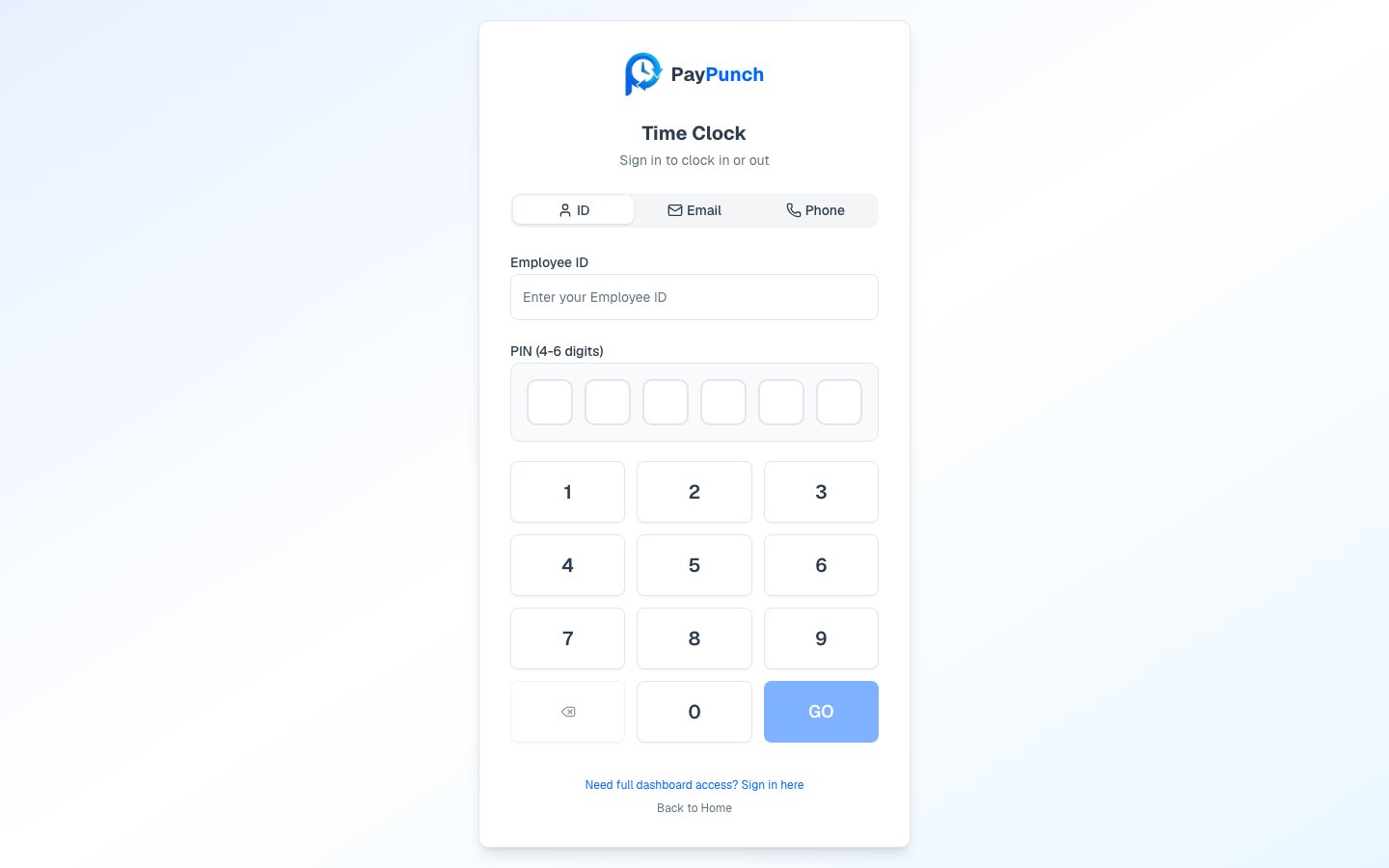
the PayPunch app on your own phone. You'll land on the **Time Clock** sign-in page.
At the top you'll see three tabs: **ID**, **Email**, and **Phone**. Pick whichever
one your employer told you to use, then type your Employee ID, email, or phone number.
Tap your PIN on the on-screen keypad. Each digit shows as a dot, so people nearby
can't read it. Made a mistake? Tap the delete (⌫) key to clear the last digit.
Press **GO** to sign in. If your ID and PIN match, you'll go straight to the clock
screen, ready to clock in.
 If you see **"Invalid credentials"** or **"Invalid PIN"**, your PIN is cleared so you can
try again. Double-check you picked the right tab (ID vs. Email vs. Phone). Still stuck?
Your manager can reset your PIN.
## Changing your PIN
It's a good idea to change your starting PIN to something only you know. When you change
your PIN, PayPunch asks for:
Confirms it's really you.
4 to 6 digits. It must be **different** from your current PIN.
Type the new PIN again so there are no typos. Both entries must match.
Pick a PIN that's easy for you to remember but hard for others to guess. Avoid obvious
choices like `1234`, `0000`, or your birth year.
Changing your own PIN is available in the PayPunch mobile app. If you don't see the
option, or you're locked out, ask your manager or bookkeeper to reset it for you.
## Good to know
* **Your PIN is private.** Don't share it. Anyone with your PIN could clock in or out as
you.
* **Sessions don't last forever.** On a shared time clock, your session ends quickly so
the next person can use it. You'll enter your PIN again each time.
* **A new PIN takes effect right away.** Use the new one the next time you sign in.
Now that you can sign in, learn how to start and end your shift.
If you see **"Invalid credentials"** or **"Invalid PIN"**, your PIN is cleared so you can
try again. Double-check you picked the right tab (ID vs. Email vs. Phone). Still stuck?
Your manager can reset your PIN.
## Changing your PIN
It's a good idea to change your starting PIN to something only you know. When you change
your PIN, PayPunch asks for:
Confirms it's really you.
4 to 6 digits. It must be **different** from your current PIN.
Type the new PIN again so there are no typos. Both entries must match.
Pick a PIN that's easy for you to remember but hard for others to guess. Avoid obvious
choices like `1234`, `0000`, or your birth year.
Changing your own PIN is available in the PayPunch mobile app. If you don't see the
option, or you're locked out, ask your manager or bookkeeper to reset it for you.
## Good to know
* **Your PIN is private.** Don't share it. Anyone with your PIN could clock in or out as
you.
* **Sessions don't last forever.** On a shared time clock, your session ends quickly so
the next person can use it. You'll enter your PIN again each time.
* **A new PIN takes effect right away.** Use the new one the next time you sign in.
Now that you can sign in, learn how to start and end your shift.