> ## Documentation Index
> Fetch the complete documentation index at: https://docs.paypunch.io/llms.txt
> Use this file to discover all available pages before exploring further.
# Timesheets
> Browse pay periods, see how many employees have reported, and open a period to review hours before submitting payroll.
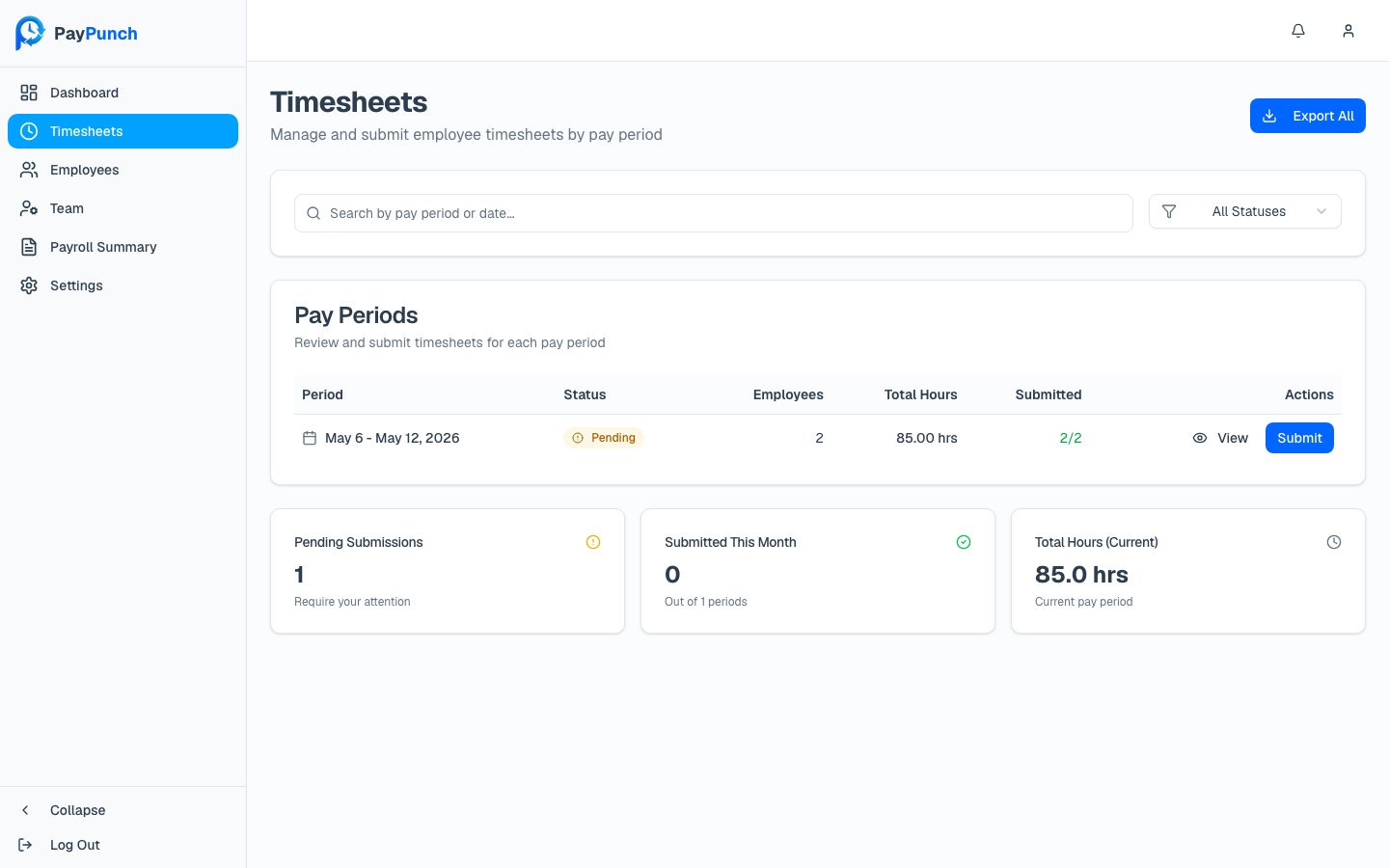
The **Timesheets** screen is your list of pay periods. From here you see the status of each
period, how complete it is, and you open a period to review the underlying hours. The
header reads **Timesheets** — *"Manage and submit employee timesheets by pay period."*
 ## Finding a period
* **Search** with *"Search by pay period or date…"*
* **Filter by status** with the dropdown: **All Statuses**, **Pending**, **Submitted**, or
**Approved**.
## The pay-period table
| Column | What it shows |
| --------------- | --------------------------------------------------------------------- |
| **Period** | The date range, e.g. *Mon, Jan 1 – Sun, Jan 7, 2025* |
| **Status** | **Pending**, **Submitted**, or **Approved** (see below) |
| **Employees** | How many employees are in the period |
| **Total Hours** | Total hours logged in the period |
| **Submitted** | How many employees have reported, as *X/Y* (green when everyone's in) |
| **Actions** | **View**, plus **Submit** on periods still open |
### Status badges
The period is still open and hasn't been submitted to your bookkeeper.
You've sent the period to your bookkeeper; it's being processed.
The period has been approved.
## Working a period
* Click **View** to open the period and [review each employee's time](/client/reviewing-time).
* Click **Submit** (shown only on **open / pending** periods) to start
[submitting payroll](/client/submitting-payroll) for that period.
At the bottom, three cards summarize your workload: **Pending Submissions** (periods that
need your attention), **Submitted This Month**, and **Total Hours (Current)** for the
period in progress.
The **Submitted** column (*X/Y*) is the fastest way to spot a period that isn't ready —
if it isn't green, someone's hours are still missing or unapproved.
The **Export All** and per-period **Export** buttons are placeholders in the current
beta. To pull data out today, use [Reports](/client/reports), which exports to CSV,
Excel, and PDF.
## Finding a period
* **Search** with *"Search by pay period or date…"*
* **Filter by status** with the dropdown: **All Statuses**, **Pending**, **Submitted**, or
**Approved**.
## The pay-period table
| Column | What it shows |
| --------------- | --------------------------------------------------------------------- |
| **Period** | The date range, e.g. *Mon, Jan 1 – Sun, Jan 7, 2025* |
| **Status** | **Pending**, **Submitted**, or **Approved** (see below) |
| **Employees** | How many employees are in the period |
| **Total Hours** | Total hours logged in the period |
| **Submitted** | How many employees have reported, as *X/Y* (green when everyone's in) |
| **Actions** | **View**, plus **Submit** on periods still open |
### Status badges
The period is still open and hasn't been submitted to your bookkeeper.
You've sent the period to your bookkeeper; it's being processed.
The period has been approved.
## Working a period
* Click **View** to open the period and [review each employee's time](/client/reviewing-time).
* Click **Submit** (shown only on **open / pending** periods) to start
[submitting payroll](/client/submitting-payroll) for that period.
At the bottom, three cards summarize your workload: **Pending Submissions** (periods that
need your attention), **Submitted This Month**, and **Total Hours (Current)** for the
period in progress.
The **Submitted** column (*X/Y*) is the fastest way to spot a period that isn't ready —
if it isn't green, someone's hours are still missing or unapproved.
The **Export All** and per-period **Export** buttons are placeholders in the current
beta. To pull data out today, use [Reports](/client/reports), which exports to CSV,
Excel, and PDF.