> ## Documentation Index
> Fetch the complete documentation index at: https://docs.paypunch.io/llms.txt
> Use this file to discover all available pages before exploring further.
# Submitting Payroll
> The key client action each period — review the totals, confirm the hours are accurate, and submit the period to your bookkeeper for processing.
Submitting payroll is the moment you hand a finished pay period to your bookkeeper. Once
you submit, PayPunch locks the period, generates the QuickBooks export, and notifies your
bookkeeper to process it. This is the most important thing you do each period — take a
minute to get it right.
 **Submitting requires the Owner or Manager role.** A **Viewer** can't submit payroll.
## Before you start
* Every employee's entries for the period should be **Approved**. If any are still pending,
finish [reviewing time](/client/reviewing-time) first — the submit screen will block you
until they're cleared.
* The period must not be **locked**.
## Submit a period step by step
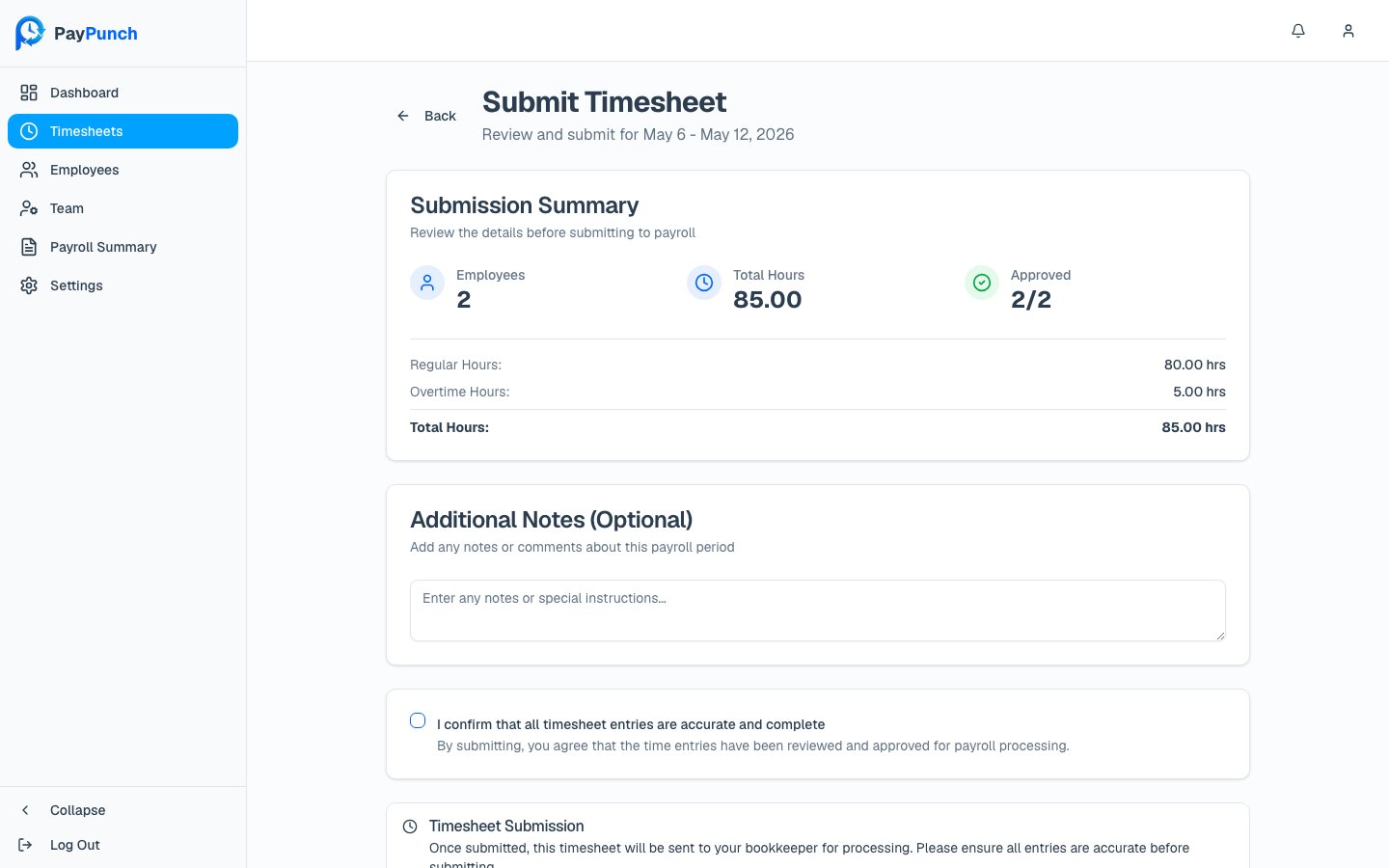
From [Timesheets](/client/timesheets), click **Submit** on the open period (or open the
period and click **Submit Timesheet**). The header reads **Submit Timesheet** —
*"Review and submit for \[date range]."*
If you see a red **"Cannot Submit Yet"** warning — *"You have N employee(s) with pending
time entries. All entries must be approved before submission."* — go back and
[review those entries](/client/reviewing-time). The confirmation checkbox and submit
button stay disabled until none remain.
Check the **Submission Summary** card: **Employees**, **Total Hours**, and **Approved**
(shown as *X/Y*), plus a breakdown of **Regular Hours**, **Overtime Hours**, and **Total
Hours**. Make sure the numbers match what you expect.
Use **Additional Notes (Optional)** to pass any context to your bookkeeper —
*"Enter any notes or special instructions…"*
Check **"I confirm that all timesheet entries are accurate and complete."** By checking
it you agree the entries have been reviewed and approved for payroll processing.
Click **Submit Timesheet**. While it processes you'll see **"Submitting…"**, then
PayPunch returns you to the Timesheets list with the period now marked **Submitted**.
## What happens when you submit
Submitting does several things at once:
* The period's status changes to **Submitted** and the period is **locked** so entries
can't be changed afterward.
* A **QuickBooks IIF file is generated** and emailed to the payroll contact.
* Your **bookkeeper is notified** that the period is ready to process.
You'll see a confirmation that your submission was sent to your bookkeeper for processing.
**Submitting locks the period.** Once submitted, you can't edit or reject entries for that
period from the client portal. Review carefully before you confirm — if you catch a
mistake after submitting, contact your bookkeeper.
## If the deadline has passed
If you submit after your company's submission deadline, PayPunch flags how late you are and
gives you the option to **submit anyway** (a force-submit). Submitting late still works, but
your bookkeeper has less time to process payroll — submit as early as you can.
## After you submit
Your bookkeeper reviews the hours and, when ready, sends a **payroll summary** back to you
for a final sign-off. Head to [Payroll summary](/client/payroll-summary) to approve it and
close the loop.
**Submitting requires the Owner or Manager role.** A **Viewer** can't submit payroll.
## Before you start
* Every employee's entries for the period should be **Approved**. If any are still pending,
finish [reviewing time](/client/reviewing-time) first — the submit screen will block you
until they're cleared.
* The period must not be **locked**.
## Submit a period step by step
From [Timesheets](/client/timesheets), click **Submit** on the open period (or open the
period and click **Submit Timesheet**). The header reads **Submit Timesheet** —
*"Review and submit for \[date range]."*
If you see a red **"Cannot Submit Yet"** warning — *"You have N employee(s) with pending
time entries. All entries must be approved before submission."* — go back and
[review those entries](/client/reviewing-time). The confirmation checkbox and submit
button stay disabled until none remain.
Check the **Submission Summary** card: **Employees**, **Total Hours**, and **Approved**
(shown as *X/Y*), plus a breakdown of **Regular Hours**, **Overtime Hours**, and **Total
Hours**. Make sure the numbers match what you expect.
Use **Additional Notes (Optional)** to pass any context to your bookkeeper —
*"Enter any notes or special instructions…"*
Check **"I confirm that all timesheet entries are accurate and complete."** By checking
it you agree the entries have been reviewed and approved for payroll processing.
Click **Submit Timesheet**. While it processes you'll see **"Submitting…"**, then
PayPunch returns you to the Timesheets list with the period now marked **Submitted**.
## What happens when you submit
Submitting does several things at once:
* The period's status changes to **Submitted** and the period is **locked** so entries
can't be changed afterward.
* A **QuickBooks IIF file is generated** and emailed to the payroll contact.
* Your **bookkeeper is notified** that the period is ready to process.
You'll see a confirmation that your submission was sent to your bookkeeper for processing.
**Submitting locks the period.** Once submitted, you can't edit or reject entries for that
period from the client portal. Review carefully before you confirm — if you catch a
mistake after submitting, contact your bookkeeper.
## If the deadline has passed
If you submit after your company's submission deadline, PayPunch flags how late you are and
gives you the option to **submit anyway** (a force-submit). Submitting late still works, but
your bookkeeper has less time to process payroll — submit as early as you can.
## After you submit
Your bookkeeper reviews the hours and, when ready, sends a **payroll summary** back to you
for a final sign-off. Head to [Payroll summary](/client/payroll-summary) to approve it and
close the loop.