> ## Documentation Index
> Fetch the complete documentation index at: https://docs.paypunch.io/llms.txt
> Use this file to discover all available pages before exploring further.
# Payroll Summary
> Review and approve the payroll summary your bookkeeper sends back after you submit a period — the final sign-off before payroll runs.
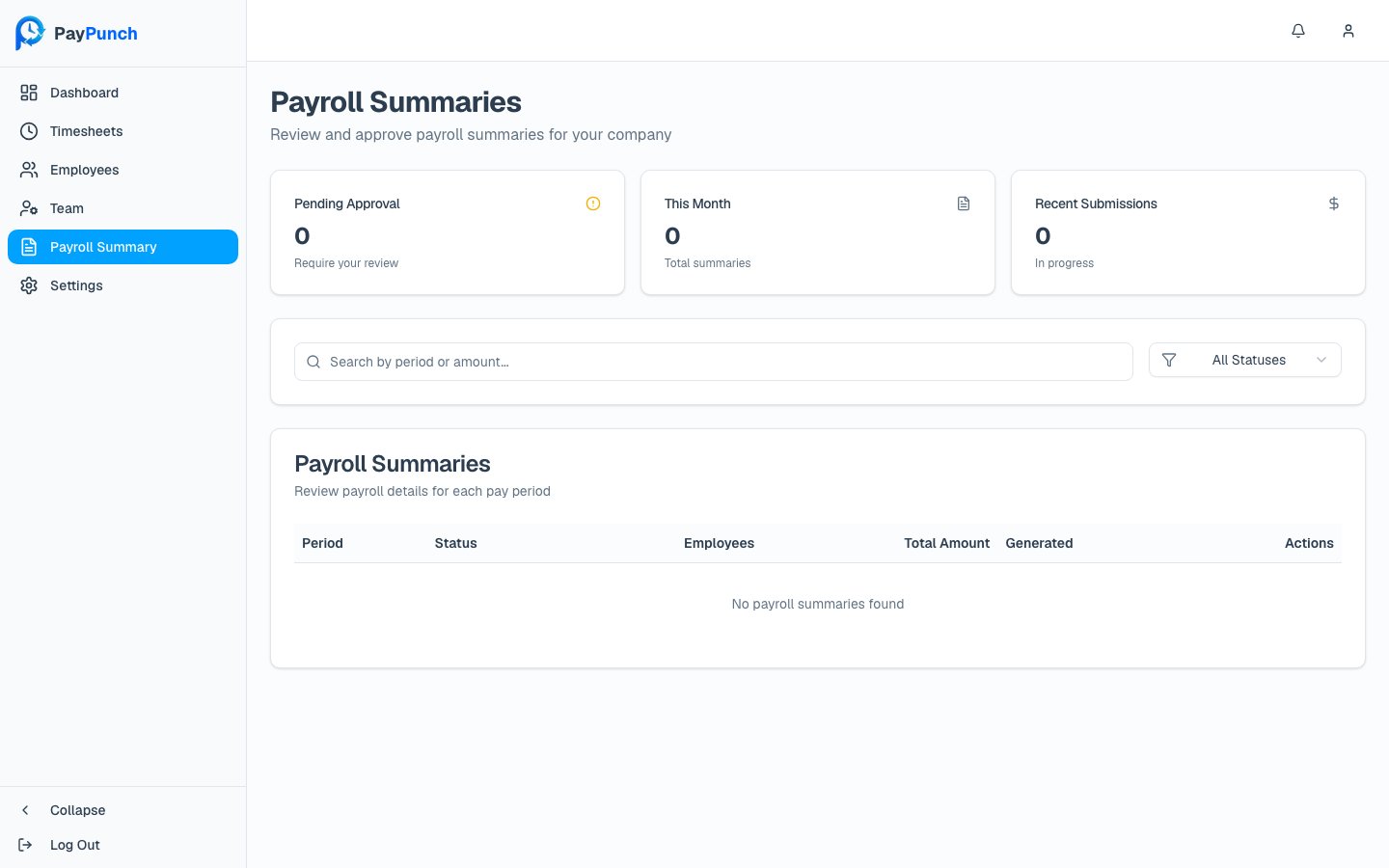
After you [submit a period](/client/submitting-payroll), your bookkeeper reviews the hours
and sends back a **payroll summary**. The **Payroll Summaries** screen is where you review
those summaries and give the final approval that lets payroll proceed. The header reads
**Payroll Summaries** — *"Review and approve payroll summaries for your company."*
 ## The round trip
A period travels back and forth between you and your bookkeeper:
You submit the period — its status becomes **Pending Approval** on the bookkeeper's side.
They check the numbers and send the summary back to you (status **Awaiting Review**).
You review the summary and click **Approve Payroll** — status becomes **Approved** and
your bookkeeper finishes processing.
## The summaries list
Three cards summarize your queue: **Pending Approval** (*"Require your review"*), **This
Month**, and **Recent Submissions**. You can search with *"Search by period or amount…"* and
filter by status (**All Statuses**, **Customer Submitted**, **Customer Approved**, **Summary
Sent**, **Completed**).
| Column | What it shows |
| ------------- | -------------------------------------------------- |
| **Period** | The pay-period date range |
| **Status** | Where the summary is in the round trip (see below) |
| **Generated** | When it was submitted |
| **Actions** | **View**, plus **Review** when it's waiting on you |
### Status badges
| Badge | Meaning |
| -------------------- | ------------------------------------------------------------------ |
| **Pending Approval** | You submitted it; your bookkeeper hasn't sent the summary back yet |
| **Awaiting Review** | The summary is back and waiting for **your** approval |
| **Approved** | You've approved it |
| **Completed** | Payroll processing is finished |
## Reviewing and approving a summary
Click **View** (or **Review**) to open a summary. The detail page shows the period, its
status, when it was submitted, the pay-period type, and payroll details such as the
submission ID and the generated **IIF file** name.
When a summary is **Awaiting Review**, an **Approval Required** banner appears —
*"This payroll summary requires your review and approval before processing"* — along with an
approval section:
Use the **Notes (Optional)** box to add any comments for your bookkeeper.
Check **"I approve this payroll summary for processing."** By approving, you confirm the
details are accurate and authorize payment processing.
Click **Approve Payroll**. While it processes you'll see **"Approving…"**, then you're
returned to the summaries list with the status updated to **Approved** and a
confirmation that the summary was approved.
**You can approve only once the summary is back from your bookkeeper** (status **Awaiting
Review**). A summary that's still **Pending Approval** can't be approved yet — your
bookkeeper has to send it back first. Approving requires the **Owner** or **Manager**
role.
No separate "request changes" button exists — if a summary looks wrong, add a note
explaining the issue and contact your bookkeeper rather than approving it.
## The round trip
A period travels back and forth between you and your bookkeeper:
You submit the period — its status becomes **Pending Approval** on the bookkeeper's side.
They check the numbers and send the summary back to you (status **Awaiting Review**).
You review the summary and click **Approve Payroll** — status becomes **Approved** and
your bookkeeper finishes processing.
## The summaries list
Three cards summarize your queue: **Pending Approval** (*"Require your review"*), **This
Month**, and **Recent Submissions**. You can search with *"Search by period or amount…"* and
filter by status (**All Statuses**, **Customer Submitted**, **Customer Approved**, **Summary
Sent**, **Completed**).
| Column | What it shows |
| ------------- | -------------------------------------------------- |
| **Period** | The pay-period date range |
| **Status** | Where the summary is in the round trip (see below) |
| **Generated** | When it was submitted |
| **Actions** | **View**, plus **Review** when it's waiting on you |
### Status badges
| Badge | Meaning |
| -------------------- | ------------------------------------------------------------------ |
| **Pending Approval** | You submitted it; your bookkeeper hasn't sent the summary back yet |
| **Awaiting Review** | The summary is back and waiting for **your** approval |
| **Approved** | You've approved it |
| **Completed** | Payroll processing is finished |
## Reviewing and approving a summary
Click **View** (or **Review**) to open a summary. The detail page shows the period, its
status, when it was submitted, the pay-period type, and payroll details such as the
submission ID and the generated **IIF file** name.
When a summary is **Awaiting Review**, an **Approval Required** banner appears —
*"This payroll summary requires your review and approval before processing"* — along with an
approval section:
Use the **Notes (Optional)** box to add any comments for your bookkeeper.
Check **"I approve this payroll summary for processing."** By approving, you confirm the
details are accurate and authorize payment processing.
Click **Approve Payroll**. While it processes you'll see **"Approving…"**, then you're
returned to the summaries list with the status updated to **Approved** and a
confirmation that the summary was approved.
**You can approve only once the summary is back from your bookkeeper** (status **Awaiting
Review**). A summary that's still **Pending Approval** can't be approved yet — your
bookkeeper has to send it back first. Approving requires the **Owner** or **Manager**
role.
No separate "request changes" button exists — if a summary looks wrong, add a note
explaining the issue and contact your bookkeeper rather than approving it.