> ## Documentation Index
> Fetch the complete documentation index at: https://docs.paypunch.io/llms.txt
> Use this file to discover all available pages before exploring further.
# Client Portal Overview
> What the PayPunch client portal is, who uses it, and what owners, managers, and viewers can do at a client company.
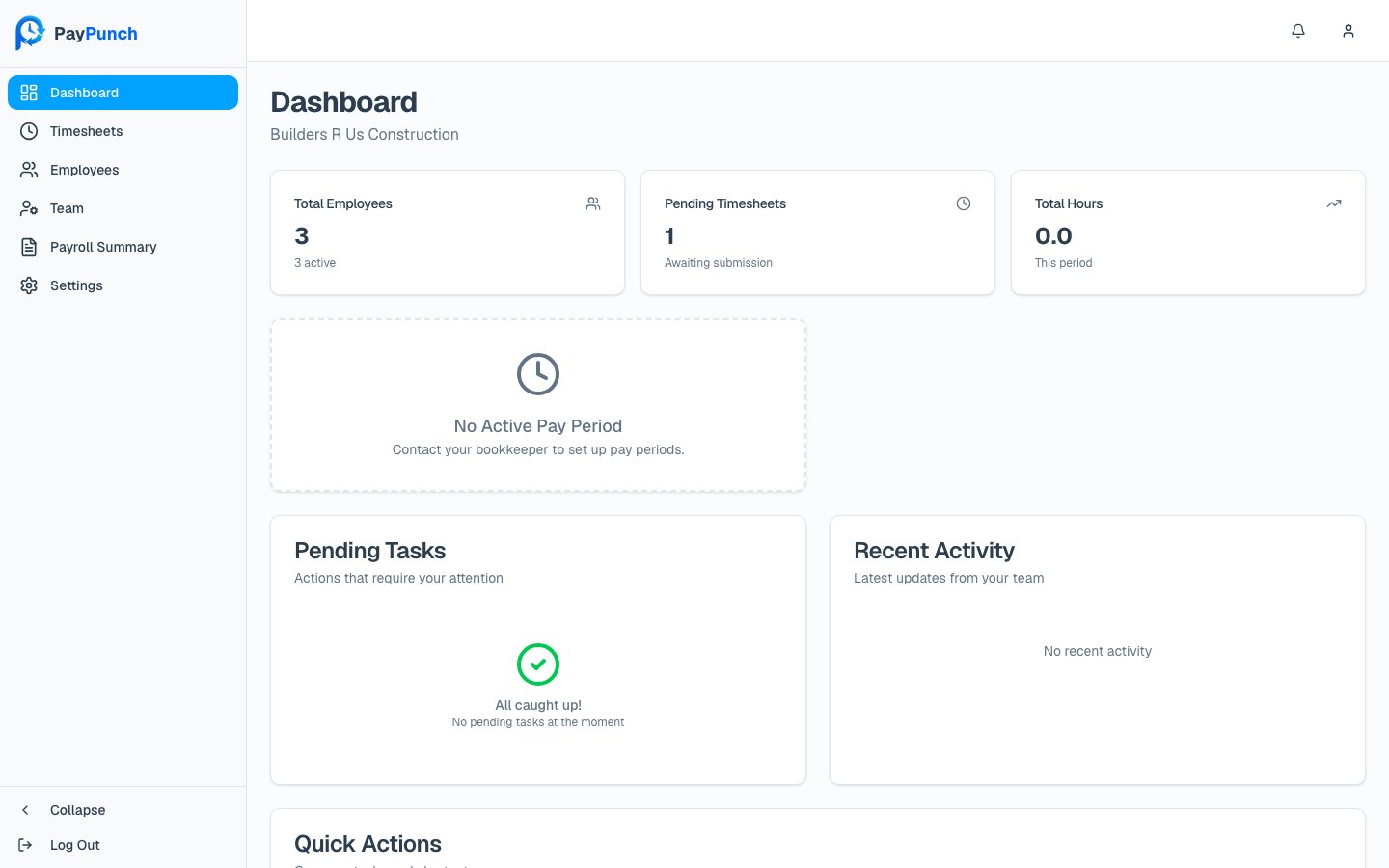
The **client portal** is where the people at your business — the owners and managers
of a company that a bookkeeper serves — review the hours your employees worked and send
each pay period on for payroll. Your bookkeeper set up your company and added your
employees; your job each period is to make sure the hours are right and **submit** them.
**PayPunch is in beta.** Features and screens are actively evolving, so a label
or button you see in the app may look slightly different here. If something
doesn't match, [let us know](/resources/getting-support).
## Who the portal is for
PayPunch follows a three-tier model: a **bookkeeping organization (admin)** manages many
**client companies**, and each client company has **employees** who track time. You log in
to the client portal as a member of one client company.
 ## What you can do here
See the current pay period, deadline, pending tasks, and recent activity at a glance.
Browse each pay period and open it to review your team's hours.
Inspect, correct, and reject individual time entries before payroll.
Hand the approved period to your bookkeeper — the key client action each period.
Review and approve the summary your bookkeeper sends back.
View your workforce and update basic employee details.
Pull hours and payroll data and export to CSV, Excel, or PDF.
Invite and manage who can sign in to your company portal.
Manage company info, pay-period rules, and QuickBooks details.
Stay on top of approvals, deadlines, and payroll status updates.
## Roles and what they can do
Every person in your company portal has one of three roles. Your role controls which
actions you see.
| Role | Badge | What they can do |
| ----------- | ------- | --------------------------------------------------------------------------------------------------------------------------- |
| **Owner** | Owner | Full access. Everything a manager can do, **plus** managing company users (inviting people, changing roles, deactivating). |
| **Manager** | Manager | Can edit employees and timesheets, correct and reject time entries, submit payroll, approve summaries, and change settings. |
| **Viewer** | Viewer | Read-only. Can view dashboards, employees, timesheets, and reports, but cannot edit, submit, or approve anything. |
Throughout this guide, actions limited to certain roles are flagged — for example,
**Owner only** for inviting team members, or **Owner / Manager** for editing time and
submitting payroll. Where no flag appears, any signed-in user (including a Viewer) can
see the screen.
## Signing in
You and your team sign in at **`https://paypunch.io/login`** with the email and password
from your bookkeeper's invitation. There's no separate client login page — the same login
serves admins and client companies and routes you to your company dashboard. See
[Logging in](/get-started/logging-in) for details.
## The pay-period loop
Most of your work follows one repeating loop each pay period:
Open the period's [timesheets](/client/timesheets) and check each employee's entries.
Fix bad punches or [reject entries](/client/reviewing-time) so employees can resubmit.
[Submit the period](/client/submitting-payroll) to your bookkeeper once all entries are approved.
When your bookkeeper sends the [payroll summary](/client/payroll-summary) back, approve it to close the loop.
## What you can do here
See the current pay period, deadline, pending tasks, and recent activity at a glance.
Browse each pay period and open it to review your team's hours.
Inspect, correct, and reject individual time entries before payroll.
Hand the approved period to your bookkeeper — the key client action each period.
Review and approve the summary your bookkeeper sends back.
View your workforce and update basic employee details.
Pull hours and payroll data and export to CSV, Excel, or PDF.
Invite and manage who can sign in to your company portal.
Manage company info, pay-period rules, and QuickBooks details.
Stay on top of approvals, deadlines, and payroll status updates.
## Roles and what they can do
Every person in your company portal has one of three roles. Your role controls which
actions you see.
| Role | Badge | What they can do |
| ----------- | ------- | --------------------------------------------------------------------------------------------------------------------------- |
| **Owner** | Owner | Full access. Everything a manager can do, **plus** managing company users (inviting people, changing roles, deactivating). |
| **Manager** | Manager | Can edit employees and timesheets, correct and reject time entries, submit payroll, approve summaries, and change settings. |
| **Viewer** | Viewer | Read-only. Can view dashboards, employees, timesheets, and reports, but cannot edit, submit, or approve anything. |
Throughout this guide, actions limited to certain roles are flagged — for example,
**Owner only** for inviting team members, or **Owner / Manager** for editing time and
submitting payroll. Where no flag appears, any signed-in user (including a Viewer) can
see the screen.
## Signing in
You and your team sign in at **`https://paypunch.io/login`** with the email and password
from your bookkeeper's invitation. There's no separate client login page — the same login
serves admins and client companies and routes you to your company dashboard. See
[Logging in](/get-started/logging-in) for details.
## The pay-period loop
Most of your work follows one repeating loop each pay period:
Open the period's [timesheets](/client/timesheets) and check each employee's entries.
Fix bad punches or [reject entries](/client/reviewing-time) so employees can resubmit.
[Submit the period](/client/submitting-payroll) to your bookkeeper once all entries are approved.
When your bookkeeper sends the [payroll summary](/client/payroll-summary) back, approve it to close the loop.