> ## Documentation Index
> Fetch the complete documentation index at: https://docs.paypunch.io/llms.txt
> Use this file to discover all available pages before exploring further.
# Notifications
> Stay on top of approvals, deadlines, and payroll status updates with the notification bell and the full notifications page.
PayPunch keeps you posted on what needs your attention — a payroll summary to approve, a
deadline approaching, a document request. Notifications surface in two places: the **bell**
in the top bar (on every screen) and a full **Notifications** page.
 ## The notification bell
The **bell** in the header shows a red badge with your unread count (it reads **99+** above
99\) and refreshes automatically. Click it to open a dropdown of your most recent
notifications. From there you can:
* **Click a notification** to open it (and mark it read).
* Click **Mark all read** to clear every unread item at once.
* Click **View all notifications** to open the full page.
When you have nothing waiting, the dropdown shows **"No notifications yet."**
## The notifications page
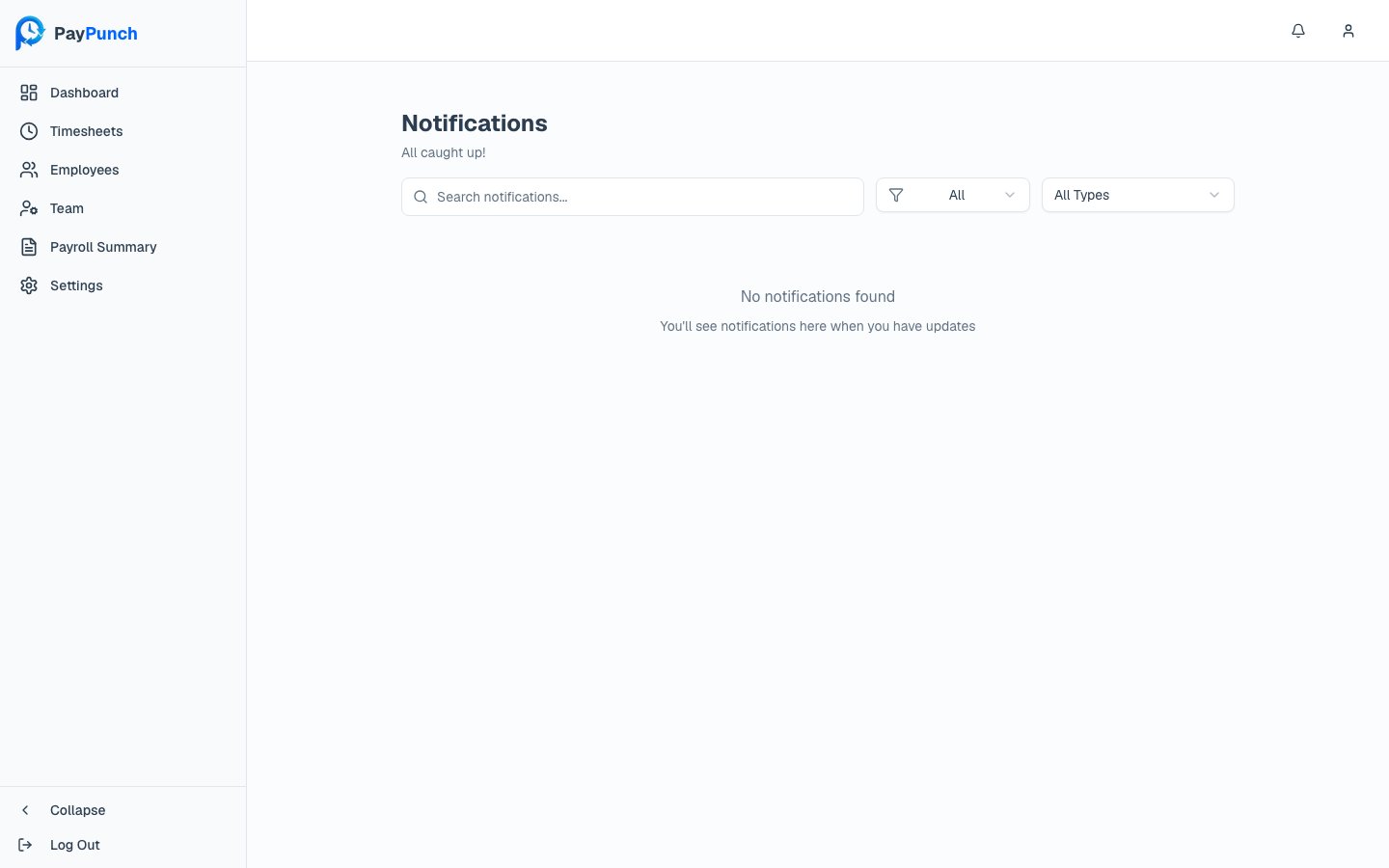
The full page header reads **Notifications** and tells you how many are unread (or **"All
caught up!"** when none are). Tools to find what you need:
* **Search** with *"Search notifications…"*
* **Read status** filter — **All**, **Unread**, or **Read**.
* **Type** filter — **All Types** or a specific type (see below).
* **Mark all as read** button when you have unread items.
Each notification shows a title, a short message, and how long ago it arrived; unread ones
are highlighted. Hover over a notification and use the menu to **Delete notification**. When
there are many, page through them with **Previous** / **Next**.
If nothing matches, you'll see **"No notifications found"** — *"Try adjusting your filters"*
(or, with none at all, *"You'll see notifications here when you have updates"*).
## What you get notified about
Notifications cover the events that matter to a client company, including:
Payroll Submitted, Payroll Approved, and Payroll Rejected updates.
**Approval Needed** when a payroll summary is waiting on you.
**Timesheet Due** reminders as a deadline approaches.
Document Required and Document Verified updates.
User invited, role changed, and employee onboarded events.
**System Update** announcements.
Many notifications link straight to the screen where you act on them — clicking an
**Approval Needed** notice, for example, takes you to the [payroll
summary](/client/payroll-summary) to approve.
## The notification bell
The **bell** in the header shows a red badge with your unread count (it reads **99+** above
99\) and refreshes automatically. Click it to open a dropdown of your most recent
notifications. From there you can:
* **Click a notification** to open it (and mark it read).
* Click **Mark all read** to clear every unread item at once.
* Click **View all notifications** to open the full page.
When you have nothing waiting, the dropdown shows **"No notifications yet."**
## The notifications page
The full page header reads **Notifications** and tells you how many are unread (or **"All
caught up!"** when none are). Tools to find what you need:
* **Search** with *"Search notifications…"*
* **Read status** filter — **All**, **Unread**, or **Read**.
* **Type** filter — **All Types** or a specific type (see below).
* **Mark all as read** button when you have unread items.
Each notification shows a title, a short message, and how long ago it arrived; unread ones
are highlighted. Hover over a notification and use the menu to **Delete notification**. When
there are many, page through them with **Previous** / **Next**.
If nothing matches, you'll see **"No notifications found"** — *"Try adjusting your filters"*
(or, with none at all, *"You'll see notifications here when you have updates"*).
## What you get notified about
Notifications cover the events that matter to a client company, including:
Payroll Submitted, Payroll Approved, and Payroll Rejected updates.
**Approval Needed** when a payroll summary is waiting on you.
**Timesheet Due** reminders as a deadline approaches.
Document Required and Document Verified updates.
User invited, role changed, and employee onboarded events.
**System Update** announcements.
Many notifications link straight to the screen where you act on them — clicking an
**Approval Needed** notice, for example, takes you to the [payroll
summary](/client/payroll-summary) to approve.