> ## Documentation Index
> Fetch the complete documentation index at: https://docs.paypunch.io/llms.txt
> Use this file to discover all available pages before exploring further.
# Employees
> View your company's workforce and update basic employee details — names, contact info, job title, department, and status.
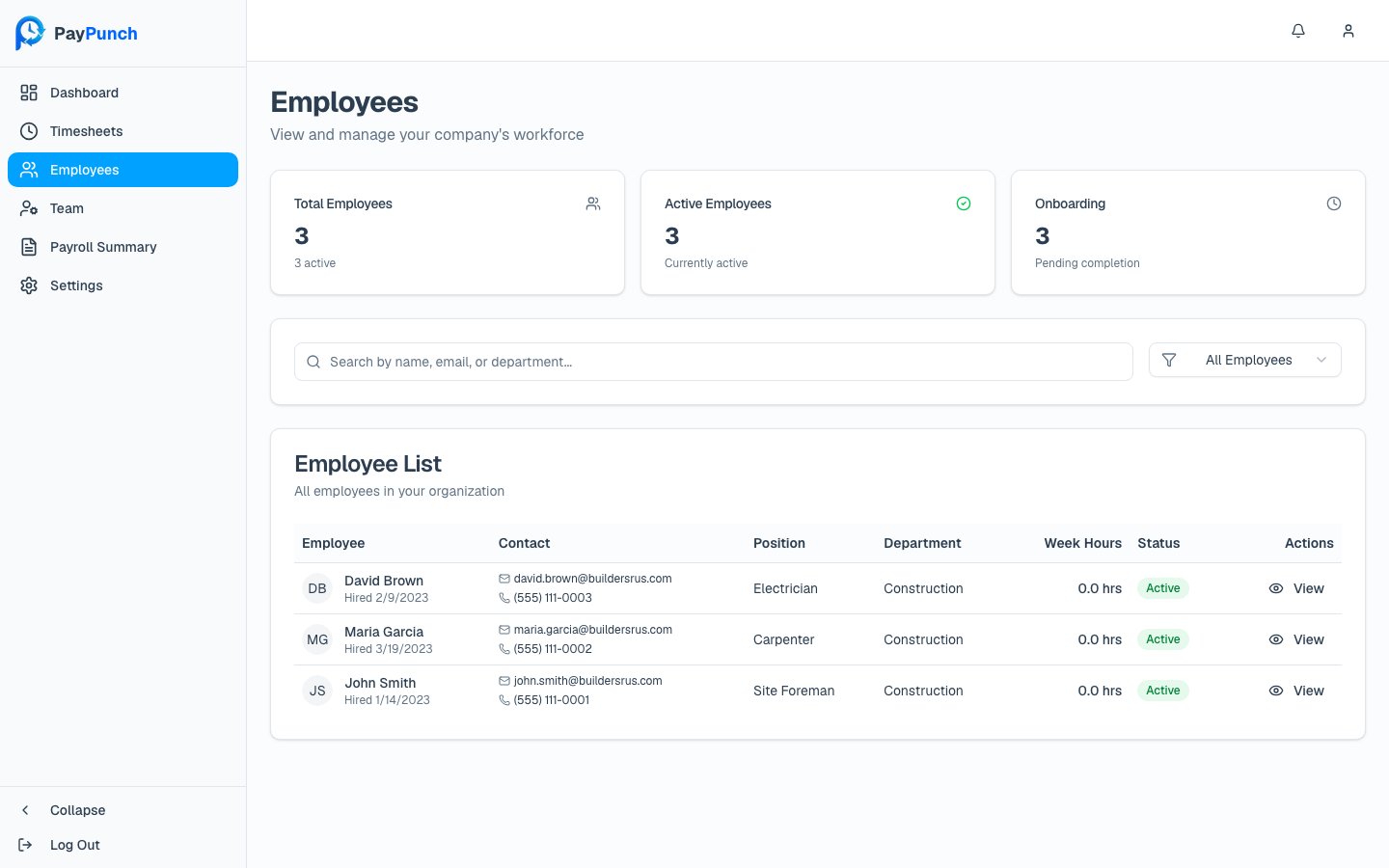
The **Employees** screen lists everyone on your team. Your bookkeeper adds employees and
controls sensitive payroll fields; from the client portal you can review the roster and
keep everyday details current. The header reads **Employees** — *"View and manage your
company's workforce."*
 ## Finding employees
* **Search** by name, email, or department using the box labeled *"Search by name, email,
or department…"*
* **Filter by status** with the dropdown: **All Employees**, **Active Only**, or
**Inactive Only**.
Three summary cards sit above the table: **Total Employees**, **Active Employees**, and
**Onboarding** (employees who haven't completed onboarding yet).
## The employee table
| Column | What it shows |
| -------------- | --------------------------------------------------- |
| **Employee** | Name and hire date ("Hired …" or "No hire date") |
| **Contact** | Email and phone |
| **Position** | Job title |
| **Department** | Department |
| **Week Hours** | Hours for the week |
| **Status** | **Active** (green) or **Inactive** |
| **Actions** | A **View** button that opens the employee's profile |
When nothing matches, the table shows **"No employees found"** — *"Try adjusting your
search or filters."*
## Viewing and editing an employee
Click **View** to open the employee's profile. The detail page shows their profile,
address, employment status, onboarding state, pay rate, pay type, and recent time entries.
With the **Owner** or **Manager** role, click **Edit Employee** to change everyday
details, then **Save Changes** (or **Cancel** to discard):
* First, middle, and last name, and suffix
* Email and phone
* Job title and department
* Street address, line 2, city, state, and ZIP
* Employment status (Active / Inactive)
On success you'll see **"Employee updated successfully."**
Some fields are managed only by your bookkeeper and appear read-only here:
* **Pay rate** and **pay type**
* **SSN**, tax information, and direct deposit details
The profile spells this out: *"Some fields like pay rate, pay type, SSN, tax
information, and direct deposit details can only be edited by your bookkeeper (admin).
Contact them if you need to update sensitive employee information."*
**Editing requires Owner or Manager.** A **Viewer** can open and read employee profiles
but won't see the **Edit Employee** button. The list itself is view-only for everyone —
employees are added and removed by your bookkeeper, not from the client portal.
PayPunch never exposes Social Security numbers, tax withholding, or direct-deposit
details to client users. If any of those need to change, contact your bookkeeper.
## Finding employees
* **Search** by name, email, or department using the box labeled *"Search by name, email,
or department…"*
* **Filter by status** with the dropdown: **All Employees**, **Active Only**, or
**Inactive Only**.
Three summary cards sit above the table: **Total Employees**, **Active Employees**, and
**Onboarding** (employees who haven't completed onboarding yet).
## The employee table
| Column | What it shows |
| -------------- | --------------------------------------------------- |
| **Employee** | Name and hire date ("Hired …" or "No hire date") |
| **Contact** | Email and phone |
| **Position** | Job title |
| **Department** | Department |
| **Week Hours** | Hours for the week |
| **Status** | **Active** (green) or **Inactive** |
| **Actions** | A **View** button that opens the employee's profile |
When nothing matches, the table shows **"No employees found"** — *"Try adjusting your
search or filters."*
## Viewing and editing an employee
Click **View** to open the employee's profile. The detail page shows their profile,
address, employment status, onboarding state, pay rate, pay type, and recent time entries.
With the **Owner** or **Manager** role, click **Edit Employee** to change everyday
details, then **Save Changes** (or **Cancel** to discard):
* First, middle, and last name, and suffix
* Email and phone
* Job title and department
* Street address, line 2, city, state, and ZIP
* Employment status (Active / Inactive)
On success you'll see **"Employee updated successfully."**
Some fields are managed only by your bookkeeper and appear read-only here:
* **Pay rate** and **pay type**
* **SSN**, tax information, and direct deposit details
The profile spells this out: *"Some fields like pay rate, pay type, SSN, tax
information, and direct deposit details can only be edited by your bookkeeper (admin).
Contact them if you need to update sensitive employee information."*
**Editing requires Owner or Manager.** A **Viewer** can open and read employee profiles
but won't see the **Edit Employee** button. The list itself is view-only for everyone —
employees are added and removed by your bookkeeper, not from the client portal.
PayPunch never exposes Social Security numbers, tax withholding, or direct-deposit
details to client users. If any of those need to change, contact your bookkeeper.