> ## Documentation Index
> Fetch the complete documentation index at: https://docs.paypunch.io/llms.txt
> Use this file to discover all available pages before exploring further.
# Dashboard
> Your company's home screen — current pay period, submission deadline, pending tasks, recent activity, and quick actions.
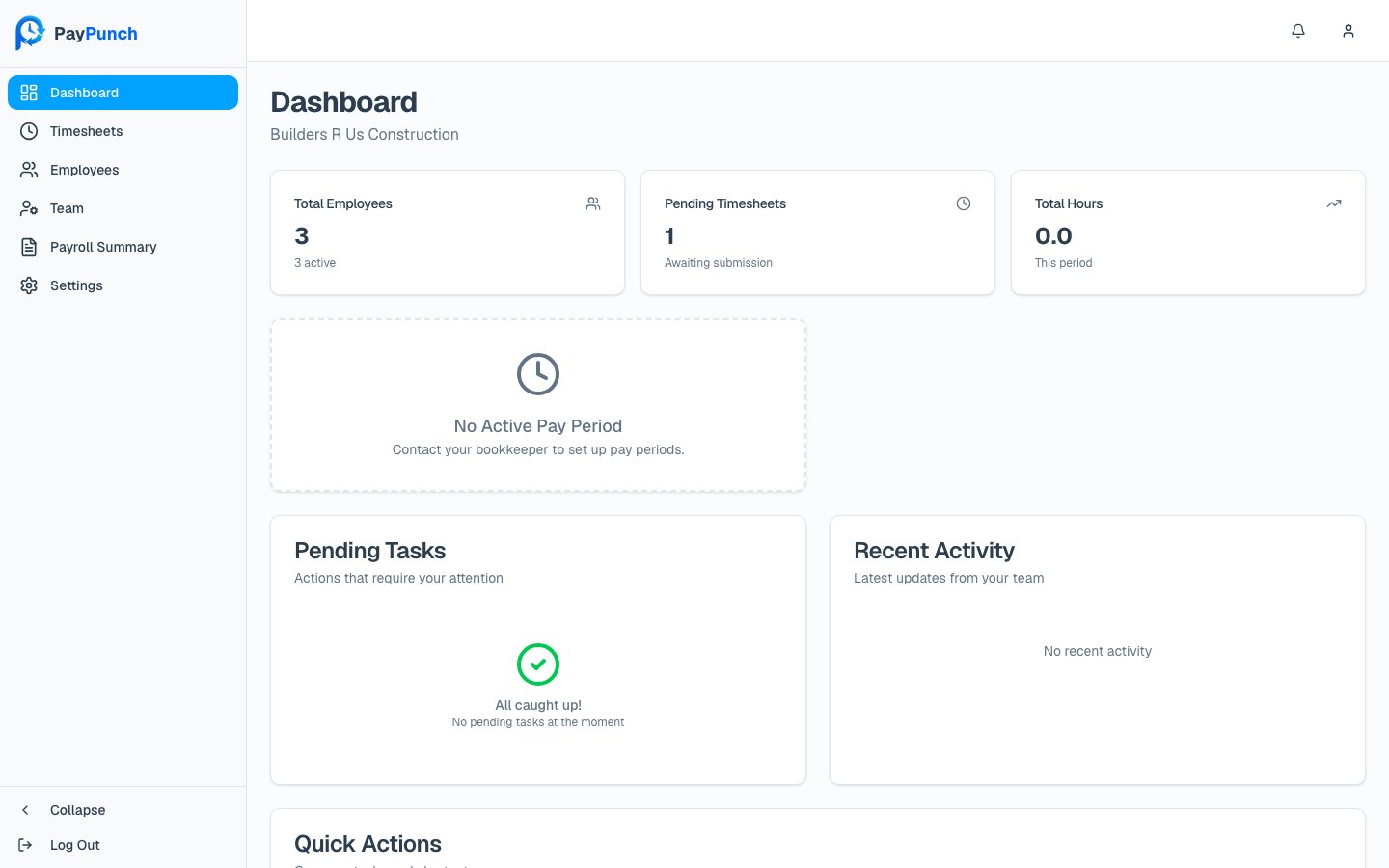
The **Dashboard** is the first screen you see after signing in. It gives you an at-a-glance
read on where the current pay period stands and what needs your attention. The page header
shows **Dashboard** and your company name.
 ## Stats at the top
Three cards summarize your company right now:
Your headcount, with the number currently **active** shown underneath.
Periods **awaiting submission**. A number above zero means there's work to do.
Hours logged **this period** so far.
## Submission deadline
When a deadline is approaching, a **deadline warning** appears showing the time remaining
until timesheets are due. The deadline is calculated from your company's pay-period
settings (how many days after the period ends, and the cutoff time). If the deadline has
already passed, see [Submitting payroll](/client/submitting-payroll) for how to submit late.
## Pay period
Below the stats, you'll see the **current pay period** and any **upcoming pay periods**,
each with its date range and pay date.
If you see **"No Active Pay Period"** with the message *"Contact your bookkeeper to set
up pay periods,"* your bookkeeper hasn't opened a period yet. Reach out to them — pay
periods are created on the admin side.
## Pending Tasks
The **Pending Tasks** card lists *"Actions that require your attention"* — for example,
submitting timesheets for the current week or reviewing a payroll summary. Each task shows
a title, a short description, and a due date, and an urgent task is flagged with an
**Urgent** badge. Click a task to jump straight to where you complete it.
When there's nothing outstanding, the card shows **"All caught up!"** with *"No pending
tasks at the moment."*
## Recent Activity
The **Recent Activity** card shows *"Latest updates from your team"* — recent timesheet,
employee, and payroll events with a relative timestamp (for example, "2 hours ago"). When
empty it reads **"No recent activity."**
## Quick Actions
The **Quick Actions** card gives you one-click shortcuts to common tasks:
View and approve hours.
View your employee list.
Review and approve.
If the dashboard fails to load, the page shows **"Failed to Load Dashboard"** with a
**Try Again** button that reloads the data.
## Stats at the top
Three cards summarize your company right now:
Your headcount, with the number currently **active** shown underneath.
Periods **awaiting submission**. A number above zero means there's work to do.
Hours logged **this period** so far.
## Submission deadline
When a deadline is approaching, a **deadline warning** appears showing the time remaining
until timesheets are due. The deadline is calculated from your company's pay-period
settings (how many days after the period ends, and the cutoff time). If the deadline has
already passed, see [Submitting payroll](/client/submitting-payroll) for how to submit late.
## Pay period
Below the stats, you'll see the **current pay period** and any **upcoming pay periods**,
each with its date range and pay date.
If you see **"No Active Pay Period"** with the message *"Contact your bookkeeper to set
up pay periods,"* your bookkeeper hasn't opened a period yet. Reach out to them — pay
periods are created on the admin side.
## Pending Tasks
The **Pending Tasks** card lists *"Actions that require your attention"* — for example,
submitting timesheets for the current week or reviewing a payroll summary. Each task shows
a title, a short description, and a due date, and an urgent task is flagged with an
**Urgent** badge. Click a task to jump straight to where you complete it.
When there's nothing outstanding, the card shows **"All caught up!"** with *"No pending
tasks at the moment."*
## Recent Activity
The **Recent Activity** card shows *"Latest updates from your team"* — recent timesheet,
employee, and payroll events with a relative timestamp (for example, "2 hours ago"). When
empty it reads **"No recent activity."**
## Quick Actions
The **Quick Actions** card gives you one-click shortcuts to common tasks:
View and approve hours.
View your employee list.
Review and approve.
If the dashboard fails to load, the page shows **"Failed to Load Dashboard"** with a
**Try Again** button that reloads the data.