> ## Documentation Index
> Fetch the complete documentation index at: https://docs.paypunch.io/llms.txt
> Use this file to discover all available pages before exploring further.
# Company Users
> Manage who can sign in to your company portal — invite team members, change their roles, and deactivate access. Owners only.
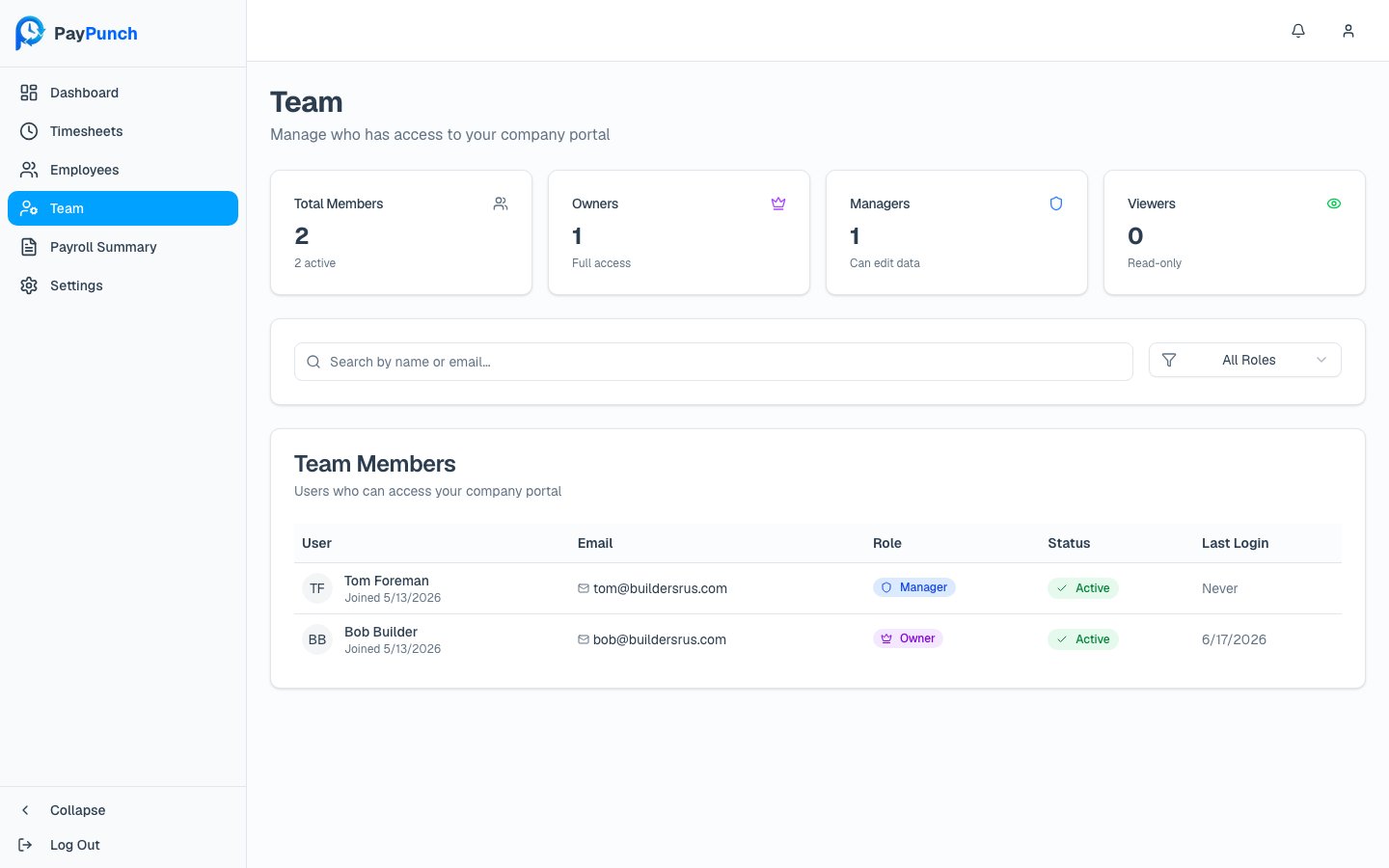
The **Team** screen (in the sidebar as **Team**) controls who at your company can sign in to
the portal and what they can do. The header reads **Team** — *"Manage who has access to
your company portal."*
 **Managing team members is Owner-only.** Managers and Viewers can see the team list, but
the **Invite User** button and the per-row actions menu appear only for **Owners**.
## The three roles
| Role | Badge | What they can do |
| ----------- | ------- | ----------------------------------------------------------------------------------------------------------------- |
| **Owner** | Owner | *"Full access, can manage users."* Everything below, plus inviting, role changes, and deactivation. |
| **Manager** | Manager | *"Can edit employees and timesheets."* Review and correct time, submit payroll, approve summaries, edit settings. |
| **Viewer** | Viewer | *"Read-only access."* Can view but not change anything. |
Four cards at the top count your team: **Total Members** (with active count), **Owners**,
**Managers**, and **Viewers**.
## The team table
| Column | What it shows |
| -------------- | ----------------------------------------------------------------------------------- |
| **User** | Name and join date |
| **Email** | Email address |
| **Role** | Owner, Manager, or Viewer badge |
| **Status** | **Active**, **Pending** (invitation not yet accepted), **Expired**, or **Inactive** |
| **Last Login** | Most recent sign-in, or "Never" |
| **Actions** | Owner-only menu: **Change Role**, **Deactivate** / **Reactivate** |
Search with *"Search by name or email…"* and filter by role (**All Roles**, **Owners**,
**Managers**, **Viewers**).
## Inviting a team member (Owner only)
Click **Invite User**. The **Invite Team Member** dialog explains: *"Send an invitation
to a new team member. They will receive an email with instructions to set up their
account."*
Enter **First Name**, **Last Name**, and **Email**, then pick a **Role** — each option
shows its description (Owner / Manager / Viewer). All fields are required.
Click **Send Invitation**. You'll see **"Invitation sent"** — *"\[name] has been invited
to join your team."* The person receives an email with a setup link and shows as
**Pending** until they accept (the invitation expires after 7 days).
## Changing a role (Owner only)
From a user's actions menu, choose **Change Role**, pick the new role, and click **Update
Role**. You'll see **"Role updated."**
You **can't change your own role**, and you **can't remove the last Owner** — at least one
Owner must always remain.
## Deactivating or reactivating (Owner only)
To revoke access, choose **Deactivate** from the actions menu. The dialog asks *"Are you
sure you want to deactivate \[name]? They will no longer be able to access the company
portal."* Confirm with **Deactivate**. Deactivation is reversible — an inactive user shows a
**Reactivate** action.
You **can't deactivate yourself**, and you **can't deactivate the last active Owner**.
**Managing team members is Owner-only.** Managers and Viewers can see the team list, but
the **Invite User** button and the per-row actions menu appear only for **Owners**.
## The three roles
| Role | Badge | What they can do |
| ----------- | ------- | ----------------------------------------------------------------------------------------------------------------- |
| **Owner** | Owner | *"Full access, can manage users."* Everything below, plus inviting, role changes, and deactivation. |
| **Manager** | Manager | *"Can edit employees and timesheets."* Review and correct time, submit payroll, approve summaries, edit settings. |
| **Viewer** | Viewer | *"Read-only access."* Can view but not change anything. |
Four cards at the top count your team: **Total Members** (with active count), **Owners**,
**Managers**, and **Viewers**.
## The team table
| Column | What it shows |
| -------------- | ----------------------------------------------------------------------------------- |
| **User** | Name and join date |
| **Email** | Email address |
| **Role** | Owner, Manager, or Viewer badge |
| **Status** | **Active**, **Pending** (invitation not yet accepted), **Expired**, or **Inactive** |
| **Last Login** | Most recent sign-in, or "Never" |
| **Actions** | Owner-only menu: **Change Role**, **Deactivate** / **Reactivate** |
Search with *"Search by name or email…"* and filter by role (**All Roles**, **Owners**,
**Managers**, **Viewers**).
## Inviting a team member (Owner only)
Click **Invite User**. The **Invite Team Member** dialog explains: *"Send an invitation
to a new team member. They will receive an email with instructions to set up their
account."*
Enter **First Name**, **Last Name**, and **Email**, then pick a **Role** — each option
shows its description (Owner / Manager / Viewer). All fields are required.
Click **Send Invitation**. You'll see **"Invitation sent"** — *"\[name] has been invited
to join your team."* The person receives an email with a setup link and shows as
**Pending** until they accept (the invitation expires after 7 days).
## Changing a role (Owner only)
From a user's actions menu, choose **Change Role**, pick the new role, and click **Update
Role**. You'll see **"Role updated."**
You **can't change your own role**, and you **can't remove the last Owner** — at least one
Owner must always remain.
## Deactivating or reactivating (Owner only)
To revoke access, choose **Deactivate** from the actions menu. The dialog asks *"Are you
sure you want to deactivate \[name]? They will no longer be able to access the company
portal."* Confirm with **Deactivate**. Deactivation is reversible — an inactive user shows a
**Reactivate** action.
You **can't deactivate yourself**, and you **can't deactivate the last active Owner**.