> ## Documentation Index
> Fetch the complete documentation index at: https://docs.paypunch.io/llms.txt
> Use this file to discover all available pages before exploring further.
# Time-Off Requests
> Review, approve, and reject employee time-off requests, with optional type reclassification.
Employees submit time-off requests from their own portal; you review and decide
on them here. Approving a request records it against the employee, and you can
reclassify the leave type at approval time if a balance doesn't cover it.
 ## The Time-Off Requests page
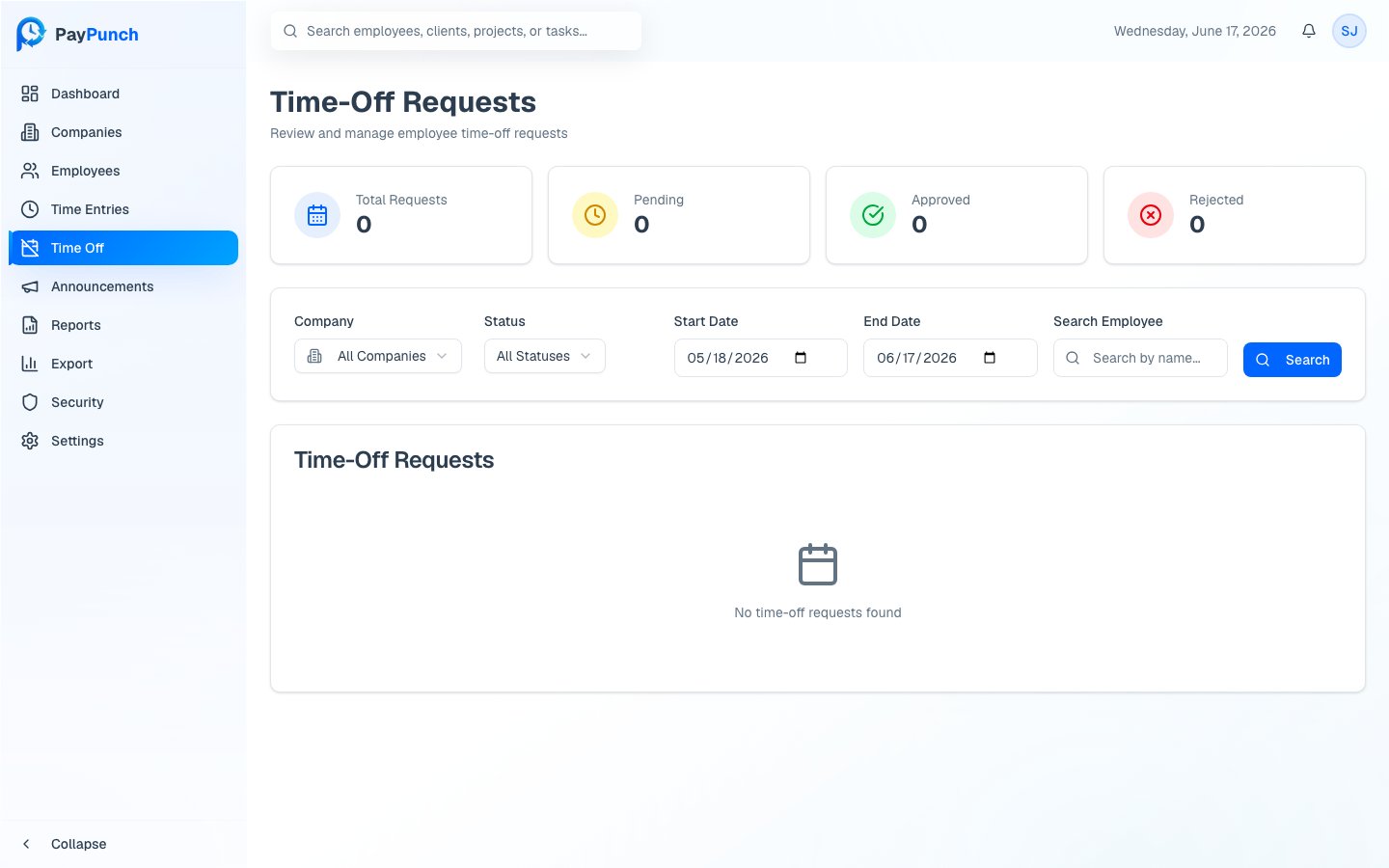
Open **Time-Off Requests** from the sidebar. Four cards show **Total Requests**,
**Pending**, **Approved**, and **Rejected**.
The table lists **Employee**, **Company**, **Type**, **Dates**, **Hours**,
**Status**, and **Submitted** date.
### Request types and statuses
* **Type** badges: **PTO**, **Sick**, **Personal**, and **Unpaid**.
* **Status** badges: **Pending**, **Approved**, and **Rejected**.
### Filters
Filter by **Company**, **Status** (`All Statuses`, `Pending`, `Approved`,
`Rejected`), a **Start Date** / **End Date** range, and a **Search Employee** box,
then click **Search**.
## Approve a request
On a **Pending** request, click **Approve**.
The dialog shows the employee, dates, hours, and any employee notes. Use
**Approve as Type** to keep the requested type or change it — for example,
approve as **Unpaid** if the employee's PTO balance is insufficient.
Click **Approve Request**. The employee is notified automatically.
## Reject a request
On a **Pending** request, click **Reject**.
Enter a **Reason for Rejection** — this is required. The employee sees this
explanation.
Click **Reject Request**. The employee is notified.
You can only approve or reject requests that are still **Pending**. Once a request
is approved or rejected, use **View** to see its full details, including the
decision date and any rejection reason.
## View past decisions
For approved or rejected requests, click **View** to open the **Time-Off Request
Details** dialog. It shows the full request plus when it was approved or rejected
and the rejection reason, if any.
## The Time-Off Requests page
Open **Time-Off Requests** from the sidebar. Four cards show **Total Requests**,
**Pending**, **Approved**, and **Rejected**.
The table lists **Employee**, **Company**, **Type**, **Dates**, **Hours**,
**Status**, and **Submitted** date.
### Request types and statuses
* **Type** badges: **PTO**, **Sick**, **Personal**, and **Unpaid**.
* **Status** badges: **Pending**, **Approved**, and **Rejected**.
### Filters
Filter by **Company**, **Status** (`All Statuses`, `Pending`, `Approved`,
`Rejected`), a **Start Date** / **End Date** range, and a **Search Employee** box,
then click **Search**.
## Approve a request
On a **Pending** request, click **Approve**.
The dialog shows the employee, dates, hours, and any employee notes. Use
**Approve as Type** to keep the requested type or change it — for example,
approve as **Unpaid** if the employee's PTO balance is insufficient.
Click **Approve Request**. The employee is notified automatically.
## Reject a request
On a **Pending** request, click **Reject**.
Enter a **Reason for Rejection** — this is required. The employee sees this
explanation.
Click **Reject Request**. The employee is notified.
You can only approve or reject requests that are still **Pending**. Once a request
is approved or rejected, use **View** to see its full details, including the
decision date and any rejection reason.
## View past decisions
For approved or rejected requests, click **View** to open the **Time-Off Request
Details** dialog. It shows the full request plus when it was approved or rejected
and the rejection reason, if any.