> ## Documentation Index
> Fetch the complete documentation index at: https://docs.paypunch.io/llms.txt
> Use this file to discover all available pages before exploring further.
# Time Entries
> Review, edit, approve, reject, and force-clock-out employee time entries before payroll.
**Time Entries** is where you review the hours your employees logged and get them
ready for payroll. From here you approve good entries, fix mistakes, reject bad
ones, and clean up shifts where someone forgot to clock out.
 ## The Time Entries page
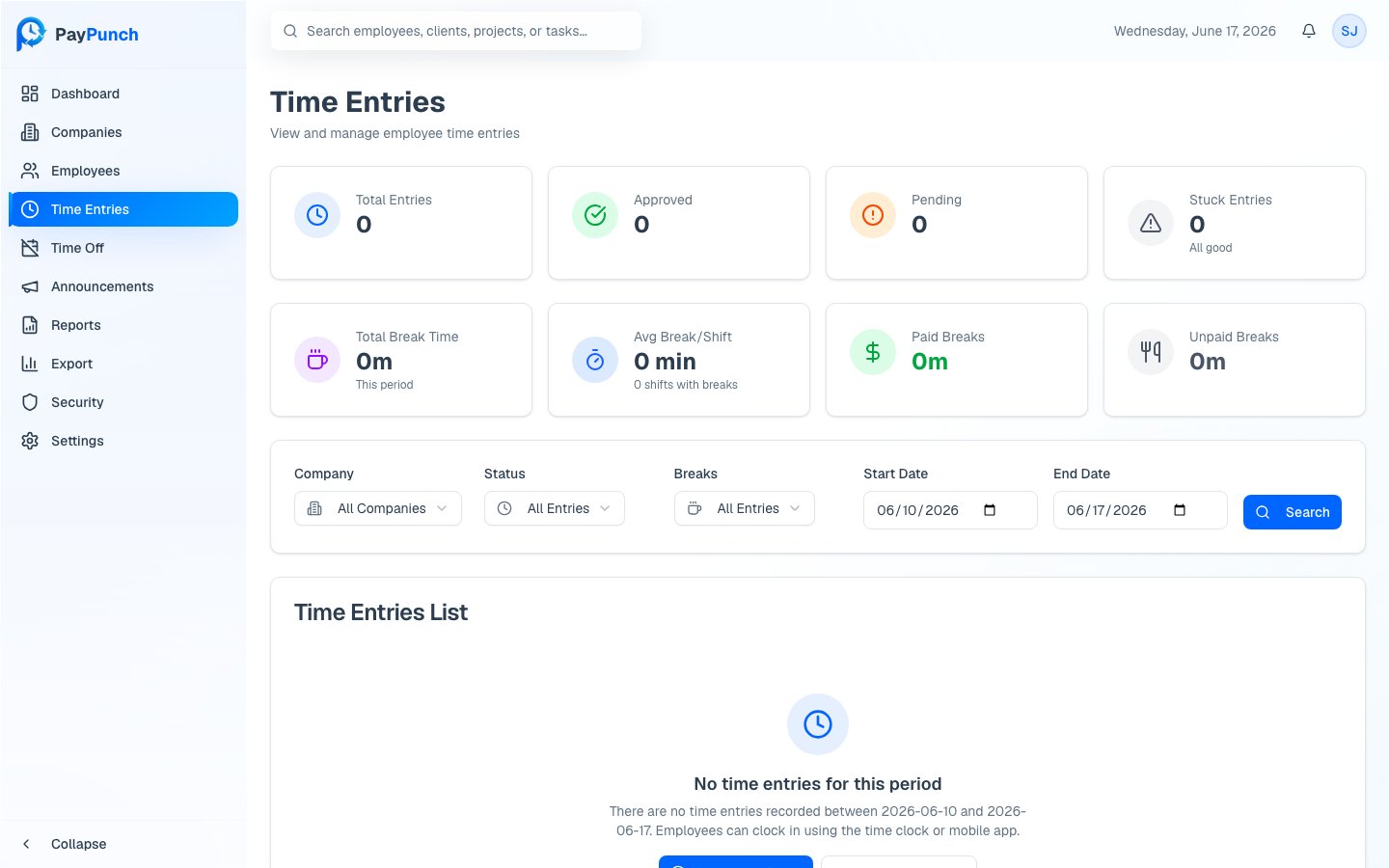
Open **Time Entries** from the sidebar. Four cards summarize the current view:
**Total Entries**, **Approved**, **Pending**, and **Stuck Entries** (with an
*"All good"* or *"Need attention"* status).
The table shows **Employee**, **Company**, **Clock In**, **Clock Out**, **Hours**,
**Breaks**, and **Status** for each entry.
### Status badges
| Badge | Meaning |
| ----------------- | ---------------------------------------------- |
| **Approved** | Reviewed and ready for payroll |
| **Pending** | Awaiting your review |
| **Rejected** | Marked as not valid |
| **Active** | Currently clocked in (no clock-out yet) |
| **Stuck (Xh Ym)** | Clocked in more than 8 hours with no clock-out |
### Filters
Narrow the list with the **Company** dropdown, the **Status** filter
(`All Entries`, `Stuck (>8h)`, `Active (Normal)`, `Completed`), the **Breaks**
filter (`Has Breaks` / `No Breaks`), and a **Start Date** / **End Date** range,
then click **Search**.
The dashboard's stuck-entry **View All** and **Review** links open this page
pre-filtered, so you can go straight from an alert to the entry that needs fixing.
## Approve or reject an entry
Open the **⋯** (more) menu on any row:
* **Approve** — marks the entry approved (available once the entry has a
clock-out and isn't already approved).
* **Reject** — opens a **Reject Time Entry?** confirmation showing the clock-in,
clock-out, and hours. Confirm to mark it rejected; you can change the status
again later if needed.
## Edit an entry
Choose **Edit Entry** to open the **Edit Time Entry** dialog. You can adjust:
* **Clock Out** time
* **Break (minutes)**
* **Employee Notes** and **Admin Notes** (admin notes are internal and not shown
to the employee)
The **Clock In** time can't be modified. Break records created by the employee are
shown for reference but are managed by the employee. Saving an edit recalculates
regular and overtime hours and marks the entry as edited by an admin.
## Force clock-out (forgotten clock-outs)
When an employee forgets to clock out, their shift stays open and shows as
**Stuck**. Resolve it with **Force Clock Out**:
From the entry's **⋯** menu, choose **Force Clock Out** (shown only for
entries with no clock-out).
The dialog shows the clock-in time and elapsed duration, and warns that the
employee will be clocked out **at the current time** and the entry marked as
edited by admin.
Add an **Admin Notes** comment, for example *"Employee forgot to clock out."*
Click **Force Clock Out**. PayPunch sets the clock-out, recalculates hours,
and stamps an admin note on the entry.
## Breaks at a glance
Below the table, break analytics cards summarize **Total Break Time**, **Avg
Break/Shift**, **Paid Breaks**, and **Unpaid Breaks** so you can spot unusual
patterns across the filtered entries.
You can't edit or force-clock-out an entry whose **pay period is locked**, or one
that has already been **exported** to QuickBooks. Unlock the period first (a
SUPER\_ADMIN action) — see [Pay Periods & Locking](/admin/pay-periods-and-locking).
## The Time Entries page
Open **Time Entries** from the sidebar. Four cards summarize the current view:
**Total Entries**, **Approved**, **Pending**, and **Stuck Entries** (with an
*"All good"* or *"Need attention"* status).
The table shows **Employee**, **Company**, **Clock In**, **Clock Out**, **Hours**,
**Breaks**, and **Status** for each entry.
### Status badges
| Badge | Meaning |
| ----------------- | ---------------------------------------------- |
| **Approved** | Reviewed and ready for payroll |
| **Pending** | Awaiting your review |
| **Rejected** | Marked as not valid |
| **Active** | Currently clocked in (no clock-out yet) |
| **Stuck (Xh Ym)** | Clocked in more than 8 hours with no clock-out |
### Filters
Narrow the list with the **Company** dropdown, the **Status** filter
(`All Entries`, `Stuck (>8h)`, `Active (Normal)`, `Completed`), the **Breaks**
filter (`Has Breaks` / `No Breaks`), and a **Start Date** / **End Date** range,
then click **Search**.
The dashboard's stuck-entry **View All** and **Review** links open this page
pre-filtered, so you can go straight from an alert to the entry that needs fixing.
## Approve or reject an entry
Open the **⋯** (more) menu on any row:
* **Approve** — marks the entry approved (available once the entry has a
clock-out and isn't already approved).
* **Reject** — opens a **Reject Time Entry?** confirmation showing the clock-in,
clock-out, and hours. Confirm to mark it rejected; you can change the status
again later if needed.
## Edit an entry
Choose **Edit Entry** to open the **Edit Time Entry** dialog. You can adjust:
* **Clock Out** time
* **Break (minutes)**
* **Employee Notes** and **Admin Notes** (admin notes are internal and not shown
to the employee)
The **Clock In** time can't be modified. Break records created by the employee are
shown for reference but are managed by the employee. Saving an edit recalculates
regular and overtime hours and marks the entry as edited by an admin.
## Force clock-out (forgotten clock-outs)
When an employee forgets to clock out, their shift stays open and shows as
**Stuck**. Resolve it with **Force Clock Out**:
From the entry's **⋯** menu, choose **Force Clock Out** (shown only for
entries with no clock-out).
The dialog shows the clock-in time and elapsed duration, and warns that the
employee will be clocked out **at the current time** and the entry marked as
edited by admin.
Add an **Admin Notes** comment, for example *"Employee forgot to clock out."*
Click **Force Clock Out**. PayPunch sets the clock-out, recalculates hours,
and stamps an admin note on the entry.
## Breaks at a glance
Below the table, break analytics cards summarize **Total Break Time**, **Avg
Break/Shift**, **Paid Breaks**, and **Unpaid Breaks** so you can spot unusual
patterns across the filtered entries.
You can't edit or force-clock-out an entry whose **pay period is locked**, or one
that has already been **exported** to QuickBooks. Unlock the period first (a
SUPER\_ADMIN action) — see [Pay Periods & Locking](/admin/pay-periods-and-locking).