> ## Documentation Index
> Fetch the complete documentation index at: https://docs.paypunch.io/llms.txt
> Use this file to discover all available pages before exploring further.
# Organization Settings
> Configure your bookkeeper organization details and payroll calculation rules.
**Organization Settings** is where you set up your bookkeeping organization's
details and the payroll rules PayPunch applies everywhere — most importantly how
overtime is calculated.
 ## Open settings
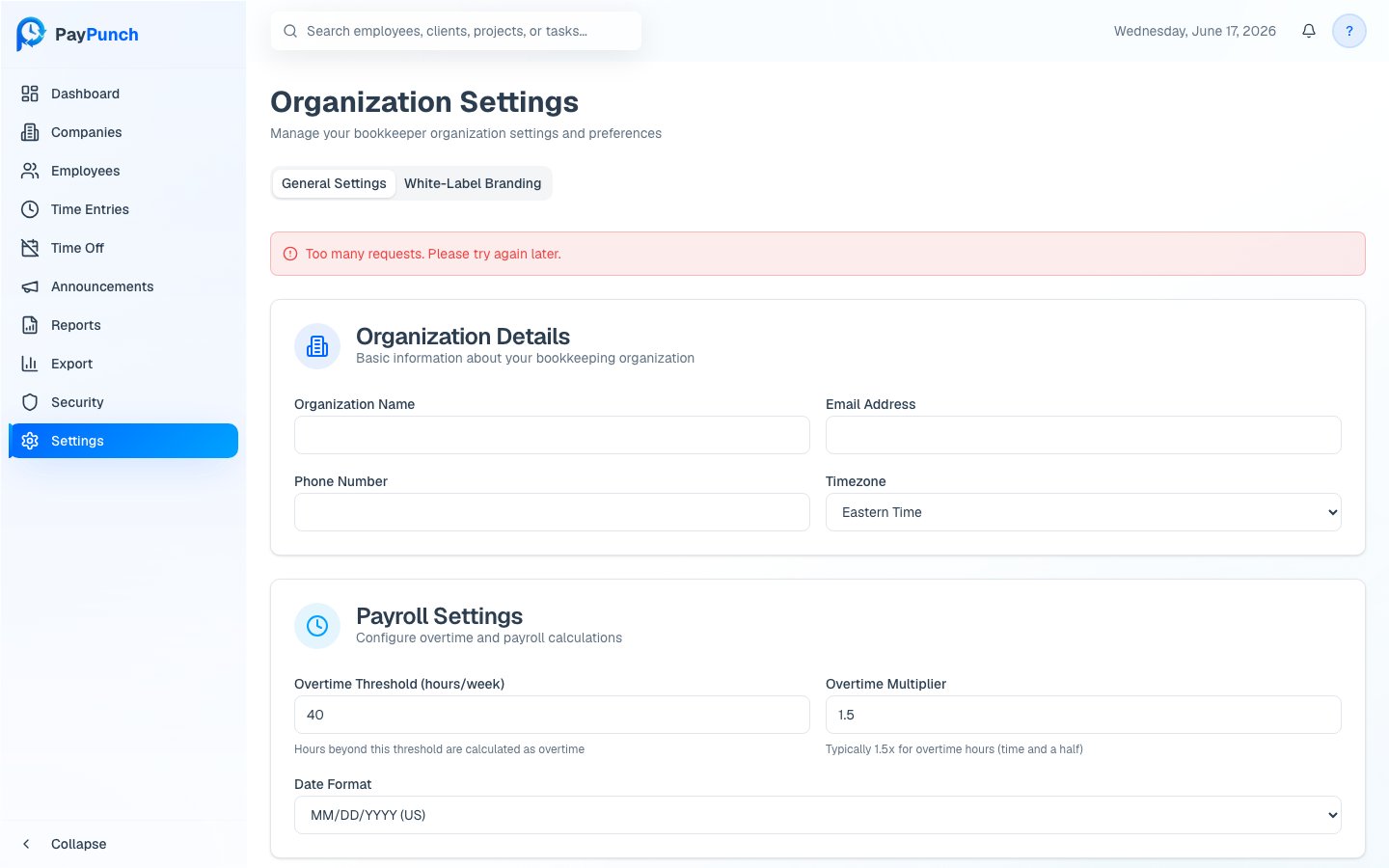
Open **Settings** from the sidebar. The page has two tabs: **General Settings**
and **White-Label Branding** (see [Branding](/admin/branding)).
## Organization details
Under **Organization Details**, set your organization's identity:
* **Organization Name** (required)
* **Email Address** (required)
* **Phone Number**
* **Timezone** (Eastern, Central, Mountain, or Pacific Time)
## Payroll settings
Under **Payroll Settings**, configure how hours and pay are calculated:
* **Overtime Threshold (hours/week)** — hours beyond this in a week are treated as
overtime (commonly 40).
* **Overtime Multiplier** — the overtime rate, typically **1.5×** (time and a half).
* **Date Format** — `MM/DD/YYYY (US)`, `DD/MM/YYYY (International)`, or
`YYYY-MM-DD (ISO)`.
Update any field on the **General Settings** tab.
Click **Save Settings**. You'll see **Settings saved successfully!** when it's
stored.
The **overtime threshold** and **multiplier** drive how every time entry's regular
and overtime hours are computed. Changing them affects future calculations — set
them to match your clients' payroll rules.
## Where to go next
Customize the app's logo, colors, and name.
Manage your holiday calendar.
## Open settings
Open **Settings** from the sidebar. The page has two tabs: **General Settings**
and **White-Label Branding** (see [Branding](/admin/branding)).
## Organization details
Under **Organization Details**, set your organization's identity:
* **Organization Name** (required)
* **Email Address** (required)
* **Phone Number**
* **Timezone** (Eastern, Central, Mountain, or Pacific Time)
## Payroll settings
Under **Payroll Settings**, configure how hours and pay are calculated:
* **Overtime Threshold (hours/week)** — hours beyond this in a week are treated as
overtime (commonly 40).
* **Overtime Multiplier** — the overtime rate, typically **1.5×** (time and a half).
* **Date Format** — `MM/DD/YYYY (US)`, `DD/MM/YYYY (International)`, or
`YYYY-MM-DD (ISO)`.
Update any field on the **General Settings** tab.
Click **Save Settings**. You'll see **Settings saved successfully!** when it's
stored.
The **overtime threshold** and **multiplier** drive how every time entry's regular
and overtime hours are computed. Changing them affects future calculations — set
them to match your clients' payroll rules.
## Where to go next
Customize the app's logo, colors, and name.
Manage your holiday calendar.