> ## Documentation Index
> Fetch the complete documentation index at: https://docs.paypunch.io/llms.txt
> Use this file to discover all available pages before exploring further.
# Payroll Workflow
> Understand the payroll submission lifecycle — from client submission through review, approval, QuickBooks, and paid.
PayPunch moves each pay period through a defined **payroll workflow**: a client
company submits its payroll, you (the bookkeeper) review and approve it, it goes
to QuickBooks via the IIF export, and the liabilities are marked paid. This page
explains the lifecycle; [Approving Payroll](/admin/approving-payroll) covers the
buttons you click at each step.
 ## The Payroll Submissions page
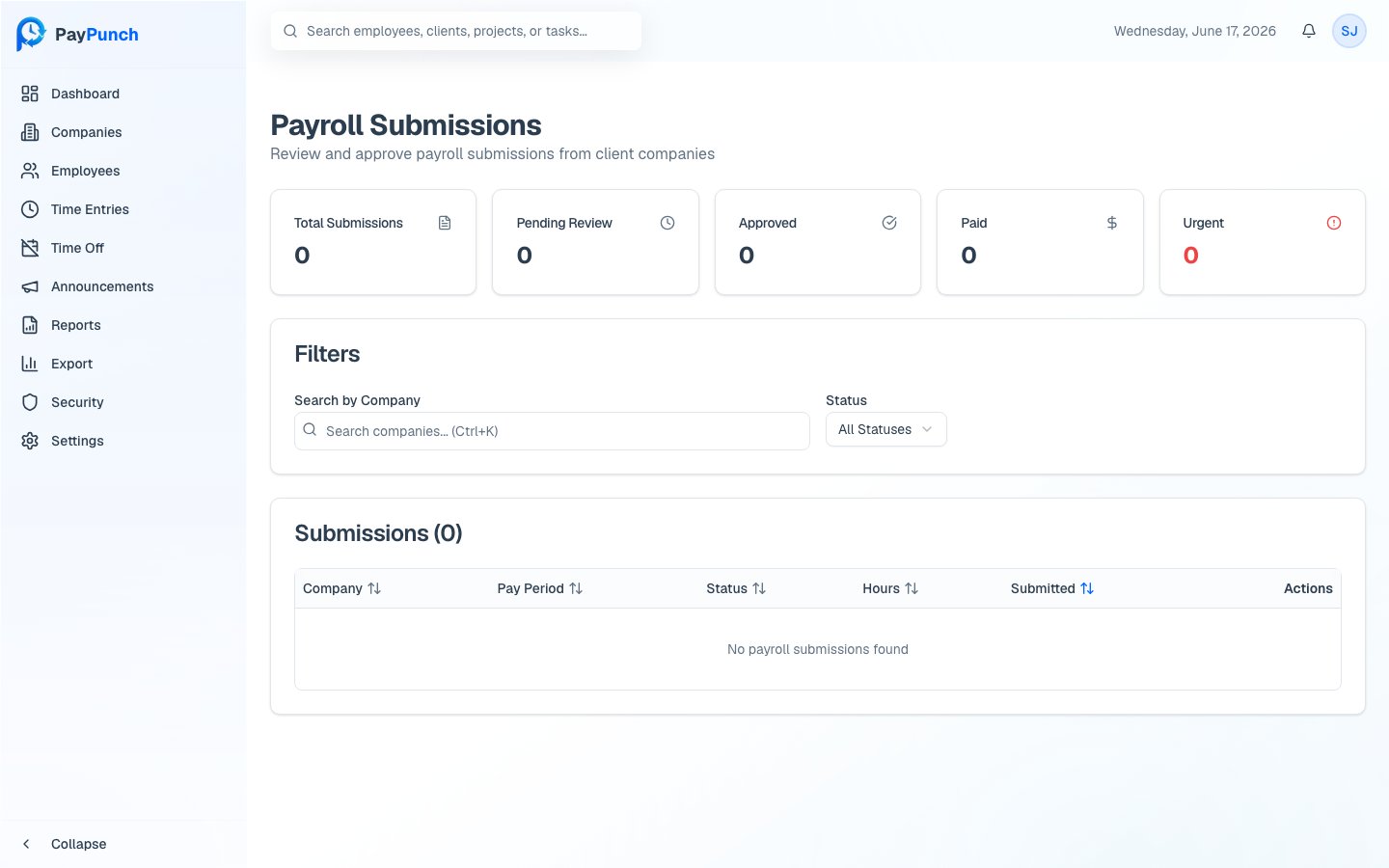
Open **Payroll** from the sidebar to see **Payroll Submissions** — every client
company's submission for review. Summary cards show **Total Submissions**,
**Pending Review**, **Approved**, **Paid**, and **Urgent** (within 24 hours of a
deadline).
The table lists each submission's **Company**, **Pay period**, **Status**, **Total
hours**, and **Submitted** date, and is sortable. Use the **Search** box to find a
company and the **Status** dropdown to filter (`All Statuses`, `Submitted`,
`Reviewing`, `Approved`, `Paid`, `Completed`).
## The submission lifecycle
A submission moves through these statuses:
| Status | What it means |
| --------------------- | ----------------------------------------- |
| **Draft** | Started by the client, not yet submitted |
| **Submitted** | Client submitted; waiting for your review |
| **Reviewing** | You're reviewing the submission |
| **Summary Sent** | A payroll summary was sent to the client |
| **Customer Approved** | The client approved the summary |
| **Approved** | You approved the payroll |
| **In QuickBooks** | The IIF was generated/sent to QuickBooks |
| **Paid** | Liabilities marked paid |
| **Completed** | The cycle is closed |
When a submission is **rejected** or has **changes requested**, it returns to
**Submitted** so the client can correct and resubmit.
## How a pay period flows
A client company submits its time data for the pay period. The submission
appears in your **Pending Review** queue as **Submitted**.
Open the submission to see the per-employee breakdown of regular, overtime,
and PTO hours and pay totals.
**Approve**, **Reject**, or **Request Changes** — see
[Approving Payroll](/admin/approving-payroll).
Generate the IIF file and send it to QuickBooks. This moves the submission to
**In QuickBooks**. See [IIF Export](/admin/iif-export).
Once liabilities are paid, mark the submission **Paid**, closing the cycle.
## Workflow history
Every submission keeps a **Workflow History** timeline recording each action
(submitted, approved, rejected, changes requested, marked paid), who performed it
(admin or client), the status transition, the timestamp, and any comment — so you
always have a clear audit trail.
Approving or paying a submission **automatically locks** its pay period so the
underlying time entries can't change after the fact. See
[Pay Periods & Locking](/admin/pay-periods-and-locking).
## The Payroll Submissions page
Open **Payroll** from the sidebar to see **Payroll Submissions** — every client
company's submission for review. Summary cards show **Total Submissions**,
**Pending Review**, **Approved**, **Paid**, and **Urgent** (within 24 hours of a
deadline).
The table lists each submission's **Company**, **Pay period**, **Status**, **Total
hours**, and **Submitted** date, and is sortable. Use the **Search** box to find a
company and the **Status** dropdown to filter (`All Statuses`, `Submitted`,
`Reviewing`, `Approved`, `Paid`, `Completed`).
## The submission lifecycle
A submission moves through these statuses:
| Status | What it means |
| --------------------- | ----------------------------------------- |
| **Draft** | Started by the client, not yet submitted |
| **Submitted** | Client submitted; waiting for your review |
| **Reviewing** | You're reviewing the submission |
| **Summary Sent** | A payroll summary was sent to the client |
| **Customer Approved** | The client approved the summary |
| **Approved** | You approved the payroll |
| **In QuickBooks** | The IIF was generated/sent to QuickBooks |
| **Paid** | Liabilities marked paid |
| **Completed** | The cycle is closed |
When a submission is **rejected** or has **changes requested**, it returns to
**Submitted** so the client can correct and resubmit.
## How a pay period flows
A client company submits its time data for the pay period. The submission
appears in your **Pending Review** queue as **Submitted**.
Open the submission to see the per-employee breakdown of regular, overtime,
and PTO hours and pay totals.
**Approve**, **Reject**, or **Request Changes** — see
[Approving Payroll](/admin/approving-payroll).
Generate the IIF file and send it to QuickBooks. This moves the submission to
**In QuickBooks**. See [IIF Export](/admin/iif-export).
Once liabilities are paid, mark the submission **Paid**, closing the cycle.
## Workflow history
Every submission keeps a **Workflow History** timeline recording each action
(submitted, approved, rejected, changes requested, marked paid), who performed it
(admin or client), the status transition, the timestamp, and any comment — so you
always have a clear audit trail.
Approving or paying a submission **automatically locks** its pay period so the
underlying time entries can't change after the fact. See
[Pay Periods & Locking](/admin/pay-periods-and-locking).