> ## Documentation Index
> Fetch the complete documentation index at: https://docs.paypunch.io/llms.txt
> Use this file to discover all available pages before exploring further.
# Admin Dashboard Overview
> Tour the bookkeeper admin dashboard — stats, stuck clock-out alerts, and quick actions.
The dashboard is the first screen you see after signing in to PayPunch as a
bookkeeper. It gives you an at-a-glance picture of every client company and
employee you manage, surfaces work that needs attention, and links you straight
into the most common tasks.
**PayPunch is in beta.** Features and screens are actively evolving, so a label
or button you see in the app may look slightly different here. If something
doesn't match, [let us know](/resources/getting-support).
 ## Reading your stats
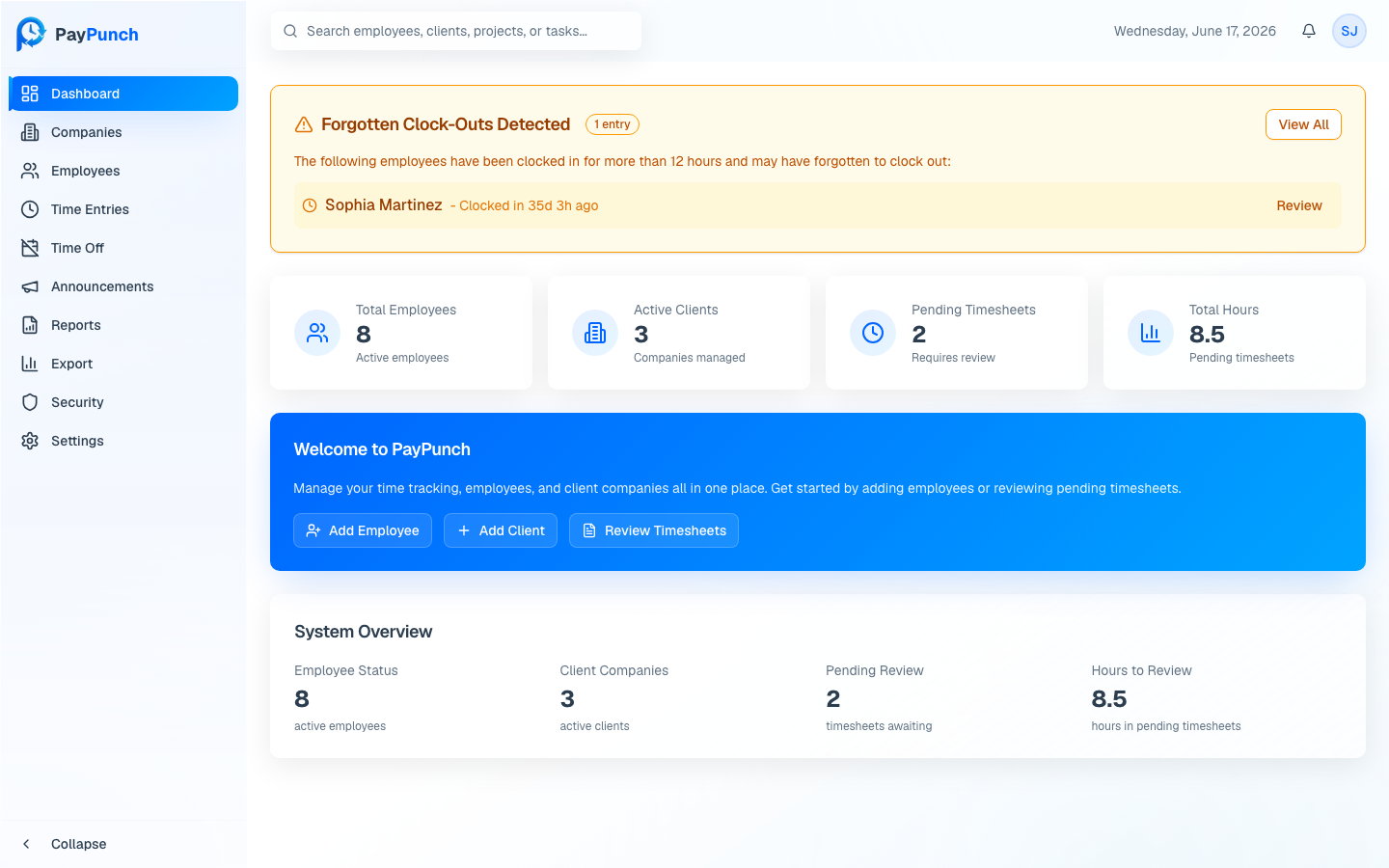
Four cards across the top summarize your whole organization:
| Card | What it shows |
| ---------------------- | -------------------------------------------- |
| **Total Employees** | Active employees across all client companies |
| **Active Clients** | Client companies you currently manage |
| **Pending Timesheets** | Time entries waiting for your review |
| **Total Hours** | Hours contained in those pending timesheets |
The **System Overview** card lower on the page repeats these numbers with a
short label (for example, *"timesheets awaiting"* and *"hours in pending
timesheets"*) so you can confirm what each figure represents.
## Forgotten clock-out alerts
If any employee has been clocked in for more than 8 hours, a **Forgotten
Clock-Outs Detected** banner appears at the top of the dashboard with an amber
border. It lists each affected employee and how long ago they clocked in.
The banner shows a badge with the number of stuck entries, for example
`3 entries`.
Click **Review** next to an employee to open that exact entry in **Time
Entries**.
Click **View All** to open Time Entries filtered to stuck entries.
Resolving stuck entries is usually a **Force Clock Out** on the time entry. See
[Time Entries](/admin/time-entries) for the full procedure.
## Quick actions
The **Welcome to PayPunch** card gives you three shortcuts for the work you do
most:
Start onboarding a new employee.
Add a new client company.
Open pending time entries for approval.
## Where to go next
Add and organize the companies you do payroll for.
Approve, edit, and reject employee hours.
Take submissions from review to paid.
Generate the flagship IIF file.
## Reading your stats
Four cards across the top summarize your whole organization:
| Card | What it shows |
| ---------------------- | -------------------------------------------- |
| **Total Employees** | Active employees across all client companies |
| **Active Clients** | Client companies you currently manage |
| **Pending Timesheets** | Time entries waiting for your review |
| **Total Hours** | Hours contained in those pending timesheets |
The **System Overview** card lower on the page repeats these numbers with a
short label (for example, *"timesheets awaiting"* and *"hours in pending
timesheets"*) so you can confirm what each figure represents.
## Forgotten clock-out alerts
If any employee has been clocked in for more than 8 hours, a **Forgotten
Clock-Outs Detected** banner appears at the top of the dashboard with an amber
border. It lists each affected employee and how long ago they clocked in.
The banner shows a badge with the number of stuck entries, for example
`3 entries`.
Click **Review** next to an employee to open that exact entry in **Time
Entries**.
Click **View All** to open Time Entries filtered to stuck entries.
Resolving stuck entries is usually a **Force Clock Out** on the time entry. See
[Time Entries](/admin/time-entries) for the full procedure.
## Quick actions
The **Welcome to PayPunch** card gives you three shortcuts for the work you do
most:
Start onboarding a new employee.
Add a new client company.
Open pending time entries for approval.
## Where to go next
Add and organize the companies you do payroll for.
Approve, edit, and reject employee hours.
Take submissions from review to paid.
Generate the flagship IIF file.