> ## Documentation Index
> Fetch the complete documentation index at: https://docs.paypunch.io/llms.txt
> Use this file to discover all available pages before exploring further.
# Job Codes
> Create cost and project codes per client company for time allocation and billing.
**Job codes** let a client company tag time entries against a project, cost
center, or billable task. Employees can pick a job code when they clock in, and
codes flow through to reports and the QuickBooks IIF export. Job codes are
managed **per company**.
 ## Open a company's job codes
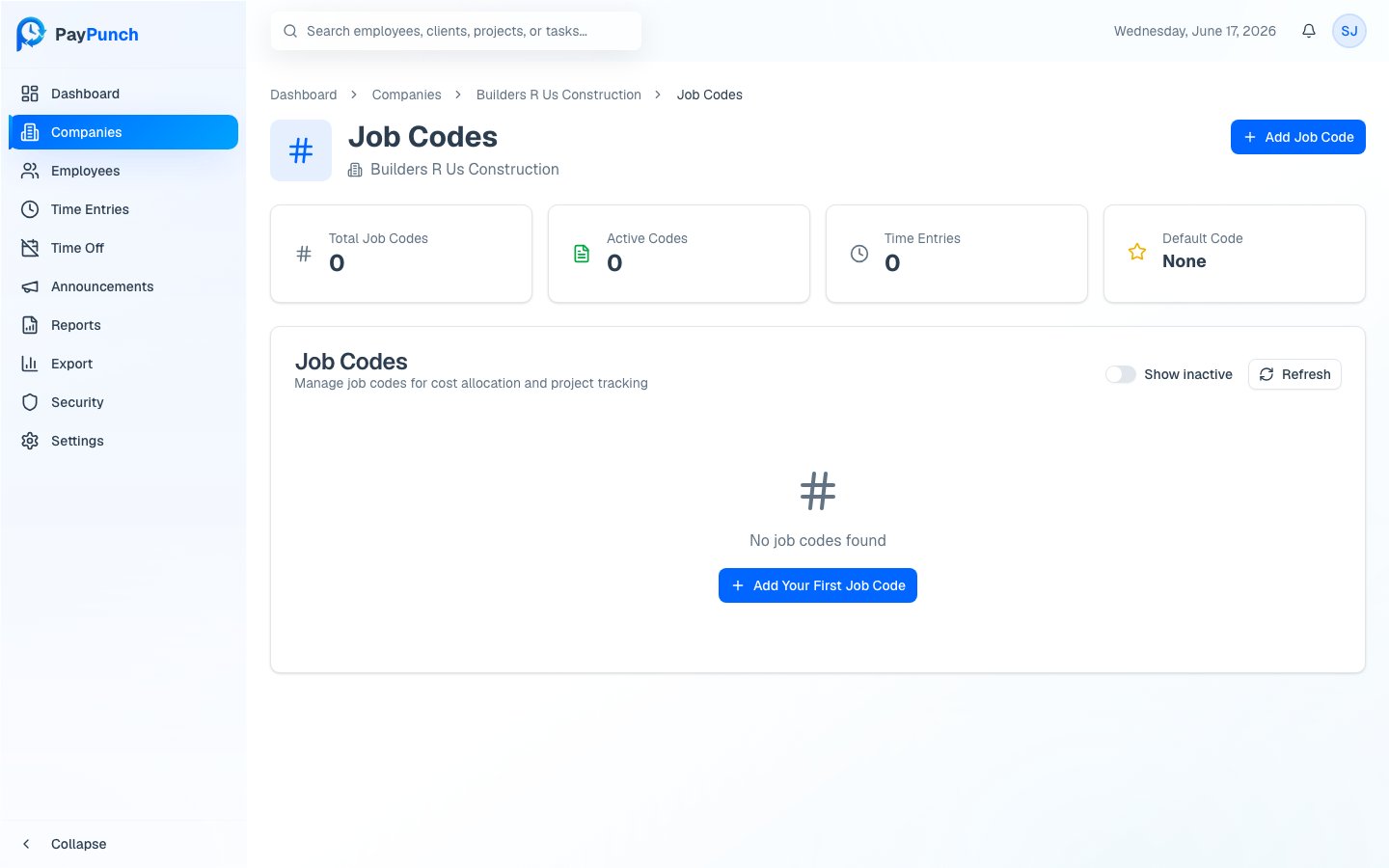
From a company's detail page, open **Job Codes**. The breadcrumb shows
**Dashboard → Companies → {Company} → Job Codes**.
Summary cards at the top show **Total Job Codes**, **Active Codes**, **Time
Entries** (total usage across all codes), and the current **Default Code**.
The table lists each code with its **Code**, **Description**, **Bill Rate**,
**Default** marker, **Status**, and **Usage** count.
## Add a job code
Click **Add Job Code**.
Type a **Code** (required) — letters, numbers, hyphens, and underscores only;
it's automatically uppercased (for example, `PROJ001`).
Add a **Description** (for example, *Main construction project*) and a
**Bill Rate (\$/hr)**.
Toggle **Set as default job code** so this code is pre-selected for new time
entries.
Click **Create Job Code**.
## Edit or set a default
Use the **⋯** (more) menu on any row:
* **Edit** — change the code, description, bill rate, default flag, or active status.
* **Set as Default** — mark this code as the company's default (available on
active, non-default codes). Only one code is the default at a time.
* **Deactivate / Reactivate** — toggle whether the code can be used on new entries.
## Show inactive codes
By default the table hides inactive codes. Turn on the **Show inactive** switch
to see every code, including deactivated ones.
## Deactivating a code that's in use
When you delete (deactivate) a code that's already on time entries, PayPunch
warns you and **preserves the historical data**:
A code used in existing time entries is **deactivated, not erased**. The
confirmation dialog tells you how many entries use it, and historical data is
kept so past reports and exports stay accurate.
## Open a company's job codes
From a company's detail page, open **Job Codes**. The breadcrumb shows
**Dashboard → Companies → {Company} → Job Codes**.
Summary cards at the top show **Total Job Codes**, **Active Codes**, **Time
Entries** (total usage across all codes), and the current **Default Code**.
The table lists each code with its **Code**, **Description**, **Bill Rate**,
**Default** marker, **Status**, and **Usage** count.
## Add a job code
Click **Add Job Code**.
Type a **Code** (required) — letters, numbers, hyphens, and underscores only;
it's automatically uppercased (for example, `PROJ001`).
Add a **Description** (for example, *Main construction project*) and a
**Bill Rate (\$/hr)**.
Toggle **Set as default job code** so this code is pre-selected for new time
entries.
Click **Create Job Code**.
## Edit or set a default
Use the **⋯** (more) menu on any row:
* **Edit** — change the code, description, bill rate, default flag, or active status.
* **Set as Default** — mark this code as the company's default (available on
active, non-default codes). Only one code is the default at a time.
* **Deactivate / Reactivate** — toggle whether the code can be used on new entries.
## Show inactive codes
By default the table hides inactive codes. Turn on the **Show inactive** switch
to see every code, including deactivated ones.
## Deactivating a code that's in use
When you delete (deactivate) a code that's already on time entries, PayPunch
warns you and **preserves the historical data**:
A code used in existing time entries is **deactivated, not erased**. The
confirmation dialog tells you how many entries use it, and historical data is
kept so past reports and exports stay accurate.