> ## Documentation Index
> Fetch the complete documentation index at: https://docs.paypunch.io/llms.txt
> Use this file to discover all available pages before exploring further.
# Employees
> View, search, and manage the employee roster across all your client companies.
The **Employees** page is your master roster of every worker across every client
company. From here you search the roster, open individual profiles, and jump into
bulk import or guided onboarding.
 ## The roster
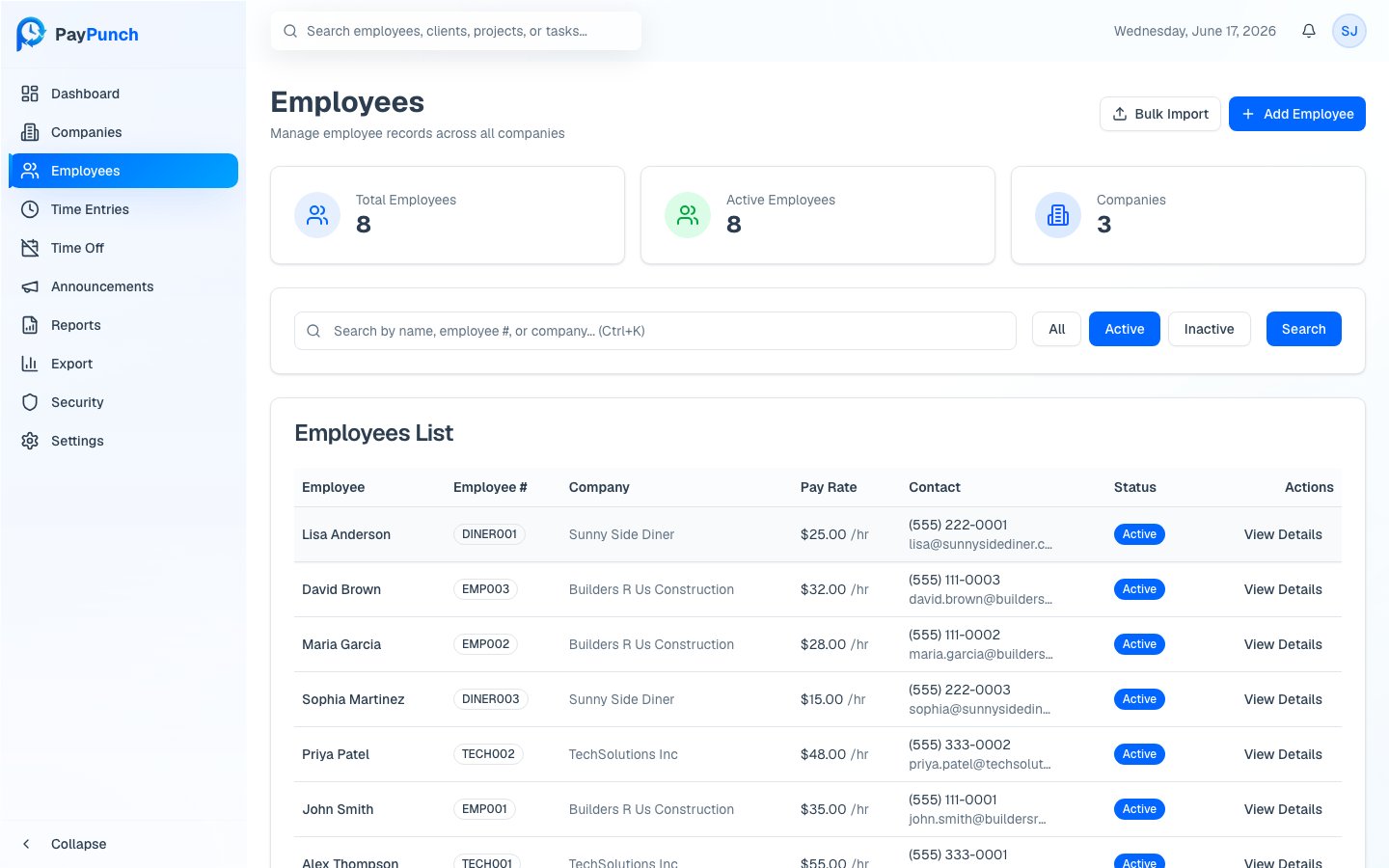
Open **Employees** from the sidebar. Three cards at the top show **Total
Employees**, **Active Employees**, and **Companies**.
The table shows each worker's **Employee**, **Employee #**, **Company**, **Pay
Rate**, **Contact**, and **Status** (Active or Inactive). Click **View Details**
on any row to open that employee's profile.
### Search and filter
* Use the search box to find a worker **by name, employee #, or company**. Press
Ctrl+K / Cmd+K to focus it.
* Filter the roster with the **All**, **Active**, and **Inactive** buttons.
## Add an employee
You have two paths, both reachable from the top of the Employees page:
Walk one new hire through guided onboarding.
Import many employees at once from a CSV or Excel file.
## Edit or deactivate an employee
Open an employee's profile to edit their personal, employment, compensation, and
tax details, or to review their pay and time history. See
[Employee Profiles](/admin/employee-profiles) for the full field reference.
Removing an employee is a **soft delete** — their status becomes **Inactive** and
a termination date is recorded, but their time entries and history are kept for
reporting and payroll.
## Where to go next
CSV / Excel bulk import.
Guided new-hire setup.
Profile, pay history, and documents.
## The roster
Open **Employees** from the sidebar. Three cards at the top show **Total
Employees**, **Active Employees**, and **Companies**.
The table shows each worker's **Employee**, **Employee #**, **Company**, **Pay
Rate**, **Contact**, and **Status** (Active or Inactive). Click **View Details**
on any row to open that employee's profile.
### Search and filter
* Use the search box to find a worker **by name, employee #, or company**. Press
Ctrl+K / Cmd+K to focus it.
* Filter the roster with the **All**, **Active**, and **Inactive** buttons.
## Add an employee
You have two paths, both reachable from the top of the Employees page:
Walk one new hire through guided onboarding.
Import many employees at once from a CSV or Excel file.
## Edit or deactivate an employee
Open an employee's profile to edit their personal, employment, compensation, and
tax details, or to review their pay and time history. See
[Employee Profiles](/admin/employee-profiles) for the full field reference.
Removing an employee is a **soft delete** — their status becomes **Inactive** and
a termination date is recorded, but their time entries and history are kept for
reporting and payroll.
## Where to go next
CSV / Excel bulk import.
Guided new-hire setup.
Profile, pay history, and documents.