> ## Documentation Index
> Fetch the complete documentation index at: https://docs.paypunch.io/llms.txt
> Use this file to discover all available pages before exploring further.
# Employee Profiles
> Edit an employee's personal, employment, tax, and pay details, and review their pay-rate and time history.
An employee's profile is the single record for everything PayPunch knows about
that worker — their personal details, employment terms, compensation, tax setup,
documents, and a full history of their hours and pay-rate changes.
 ## Open a profile
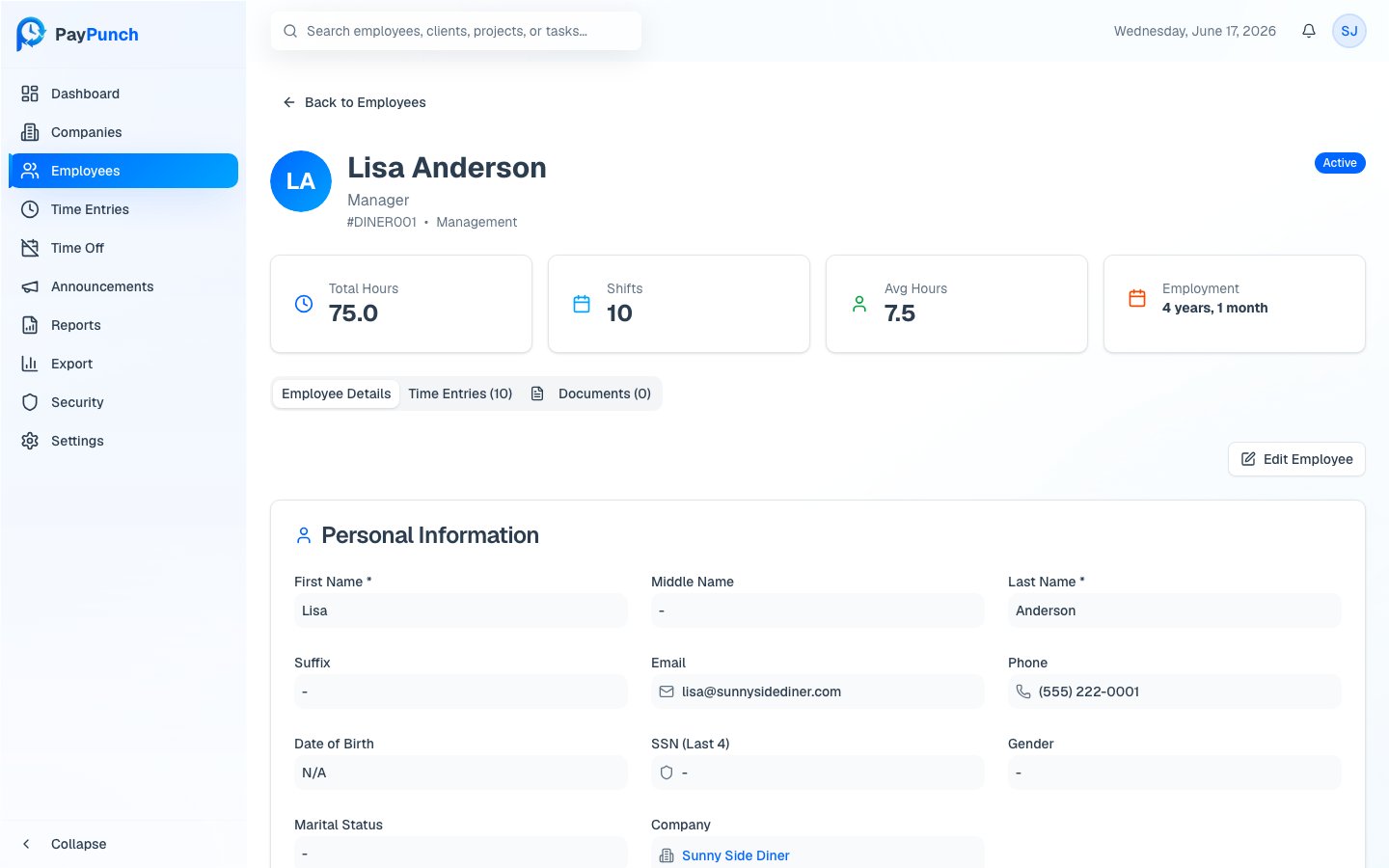
From the **Employees** roster, click **View Details** on any worker. The profile
header shows the employee's name, job title, employee number, department, and an
**Active / Inactive** status badge, plus four quick stats: **Total Hours**,
**Shifts**, **Avg Hours**, and **Employment** length.
The profile is organized into three tabs:
* **Employee Details** — all editable fields (below)
* **Time Entries** — this employee's shifts
* **Documents** — uploaded and missing documents
## Edit employee details
On the **Employee Details** tab, click **Edit Employee**, make your changes, then
click **Save Changes** (or **Cancel** to discard). Fields are grouped into cards:
| Card | Key fields |
| ------------------------ | ------------------------------------------------------------------------------------------------------------------------------------------------ |
| **Personal Information** | First / Middle / Last name, Suffix, Email, Phone, Date of Birth, SSN (Last 4), Gender, Marital Status |
| **Address** | Street Address, Address Line 2, City, State, ZIP Code, County |
| **Employment Details** | Employee Number, Job Title, Department, Hire Date, Employment Type, FLSA Status, Standard Hours/Week, Workers Comp Class, Work Location |
| **Compensation** | Pay Rate, Pay Type (Hourly / Salary / Contract), Pay Frequency |
| **Federal Tax (W-4)** | Filing Status, W-4 Year, Extra Withholding, Dependents (Step 3), Other Income (4a), Deductions (4b), Multiple Jobs (Step 2c), Federal Tax Exempt |
| **State Tax** | Tax State, Filing Status, Allowances, Extra Withholding, State Tax Exempt |
| **Direct Deposit** | Bank Name, Account Type, Routing # (Last 4), Account # (Last 4), and a read-only **Verification Status** |
| **Emergency Contact** | Contact Name, Relationship, Phone, Alternate Phone |
**First Name** and **Last Name** are required. Sensitive numbers — SSN, routing,
and account — store only the **last four digits**.
## Pay-rate history
Whenever you change an employee's **Pay Rate** or **Pay Type**, PayPunch
automatically closes the current rate and records a new entry in the **Pay Rate
History** card. Each row shows the **Effective Date**, **Rate**, **Type**,
**Changed By** (Admin or Client), **Reason**, and **Status** (the current rate is
flagged, older rates show *"Until {date}"*).
When you edit a pay rate you can add a **reason** for the change — it's stored in
the history so you always know why a rate changed and who changed it.
## Time entries and documents
* The **Time Entries** tab lists this employee's shifts with **Date**, **Clock
In**, **Clock Out**, **Total Hours**, and **Status** (Completed or In Progress).
* The **Documents** tab shows onboarding status, uploaded documents, and
uploaders for any **missing** required documents (Government ID, W-4 Form,
Direct Deposit Authorization) plus optional I-9 and other documents. See
[Documents & Compliance](/admin/documents-and-compliance).
## Direct deposit verification
The **Verification Status** badge reflects the bank prenote check: **Not
Started**, **Pending Verification**, **Verified**, or **Failed**. An employee
with no banking details shows **Direct Deposit Not Set Up**.
## Open a profile
From the **Employees** roster, click **View Details** on any worker. The profile
header shows the employee's name, job title, employee number, department, and an
**Active / Inactive** status badge, plus four quick stats: **Total Hours**,
**Shifts**, **Avg Hours**, and **Employment** length.
The profile is organized into three tabs:
* **Employee Details** — all editable fields (below)
* **Time Entries** — this employee's shifts
* **Documents** — uploaded and missing documents
## Edit employee details
On the **Employee Details** tab, click **Edit Employee**, make your changes, then
click **Save Changes** (or **Cancel** to discard). Fields are grouped into cards:
| Card | Key fields |
| ------------------------ | ------------------------------------------------------------------------------------------------------------------------------------------------ |
| **Personal Information** | First / Middle / Last name, Suffix, Email, Phone, Date of Birth, SSN (Last 4), Gender, Marital Status |
| **Address** | Street Address, Address Line 2, City, State, ZIP Code, County |
| **Employment Details** | Employee Number, Job Title, Department, Hire Date, Employment Type, FLSA Status, Standard Hours/Week, Workers Comp Class, Work Location |
| **Compensation** | Pay Rate, Pay Type (Hourly / Salary / Contract), Pay Frequency |
| **Federal Tax (W-4)** | Filing Status, W-4 Year, Extra Withholding, Dependents (Step 3), Other Income (4a), Deductions (4b), Multiple Jobs (Step 2c), Federal Tax Exempt |
| **State Tax** | Tax State, Filing Status, Allowances, Extra Withholding, State Tax Exempt |
| **Direct Deposit** | Bank Name, Account Type, Routing # (Last 4), Account # (Last 4), and a read-only **Verification Status** |
| **Emergency Contact** | Contact Name, Relationship, Phone, Alternate Phone |
**First Name** and **Last Name** are required. Sensitive numbers — SSN, routing,
and account — store only the **last four digits**.
## Pay-rate history
Whenever you change an employee's **Pay Rate** or **Pay Type**, PayPunch
automatically closes the current rate and records a new entry in the **Pay Rate
History** card. Each row shows the **Effective Date**, **Rate**, **Type**,
**Changed By** (Admin or Client), **Reason**, and **Status** (the current rate is
flagged, older rates show *"Until {date}"*).
When you edit a pay rate you can add a **reason** for the change — it's stored in
the history so you always know why a rate changed and who changed it.
## Time entries and documents
* The **Time Entries** tab lists this employee's shifts with **Date**, **Clock
In**, **Clock Out**, **Total Hours**, and **Status** (Completed or In Progress).
* The **Documents** tab shows onboarding status, uploaded documents, and
uploaders for any **missing** required documents (Government ID, W-4 Form,
Direct Deposit Authorization) plus optional I-9 and other documents. See
[Documents & Compliance](/admin/documents-and-compliance).
## Direct deposit verification
The **Verification Status** badge reflects the bank prenote check: **Not
Started**, **Pending Verification**, **Verified**, or **Failed**. An employee
with no banking details shows **Direct Deposit Not Set Up**.