> ## Documentation Index
> Fetch the complete documentation index at: https://docs.paypunch.io/llms.txt
> Use this file to discover all available pages before exploring further.
# Announcements
> Create and schedule system-wide announcements for client companies and employees.
**Announcements** let you broadcast a message across PayPunch — a maintenance
notice, a policy change, or a payroll-deadline reminder. You choose who sees it,
how urgent it looks, and when it publishes and expires.
 ## The Announcements page
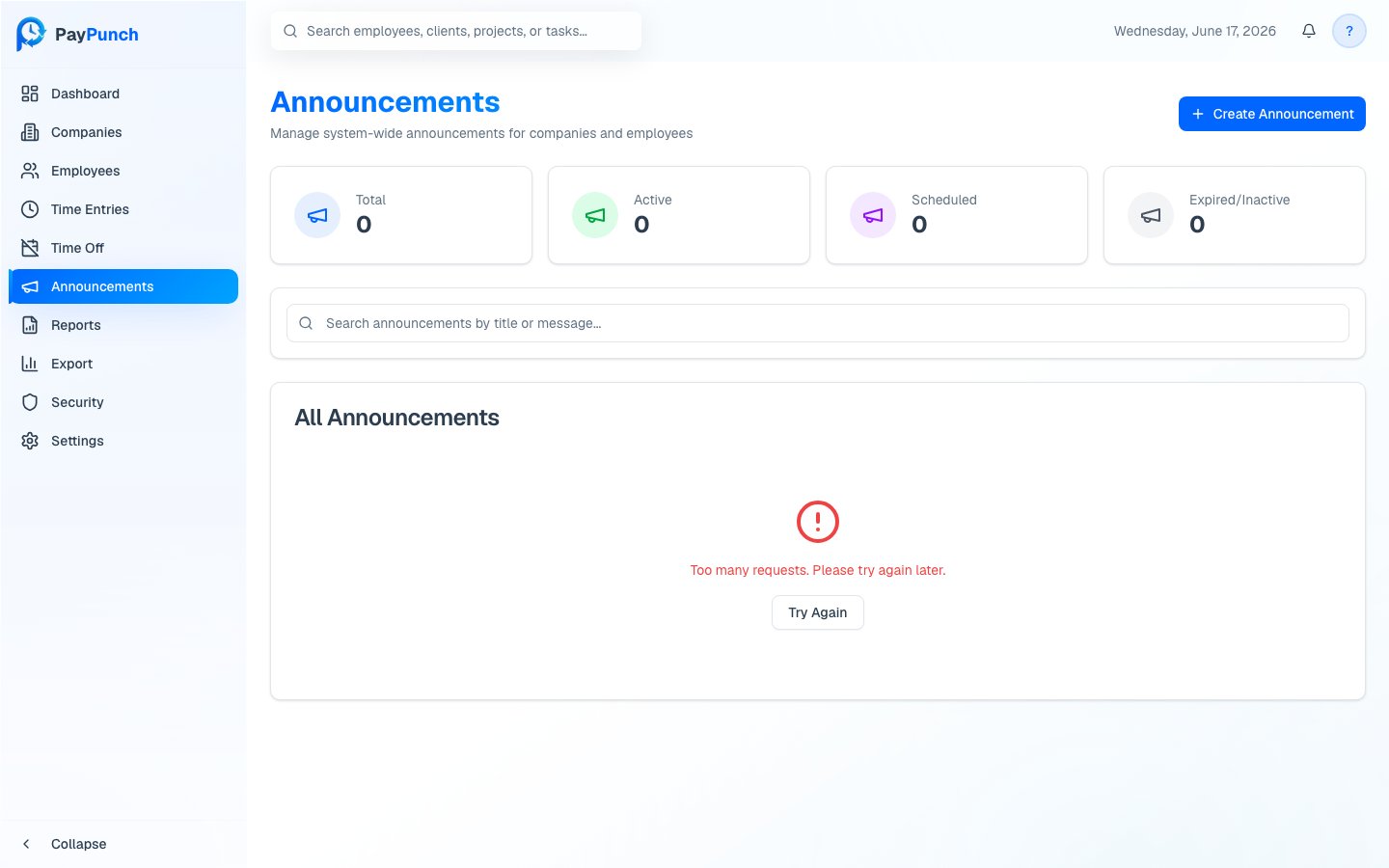
Open **Announcements** from the sidebar. Cards summarize **Total**, **Active**,
**Scheduled**, and **Expired/Inactive** announcements. The table lists each
announcement's **Title**, **Priority**, **Audience**, **Status**, **Publish
Date**, and **Expires** date. Use the search box to find one by title or message.
## Create an announcement
Click **Create Announcement**.
Enter a **Title** and **Message** (both required).
Choose a **Priority** — **Info (Blue)**, **Warning (Amber)**, or **Critical
(Red)** — and a **Target Audience** — **Everyone**, **Companies Only**, or
**Employees Only**. Optionally scope it to a **Specific Company**.
Optionally add an **Action URL** and **Action Label** (a button on the
banner), then set **Publish At** and an optional **Expires At**.
Click **Create Announcement**.
Leave **Specific Company** empty to show the announcement to everyone in the
target audience. Set it to scope the message to a single client.
## Edit or delete
Use the **Edit** and **Delete** actions on any row. Editing opens the same fields
(**Save Changes**); deleting asks for confirmation and can't be undone.
## Statuses
An announcement is **Active**, **Scheduled** (publish date in the future),
**Inactive**, or **Expired** (past its expiry). Active announcements appear as a
banner to their target audience.
Creating, editing, and deleting announcements require the **ADMIN** or
**SUPER\_ADMIN** role — read-only (VIEWER) users can't manage them.
## The Announcements page
Open **Announcements** from the sidebar. Cards summarize **Total**, **Active**,
**Scheduled**, and **Expired/Inactive** announcements. The table lists each
announcement's **Title**, **Priority**, **Audience**, **Status**, **Publish
Date**, and **Expires** date. Use the search box to find one by title or message.
## Create an announcement
Click **Create Announcement**.
Enter a **Title** and **Message** (both required).
Choose a **Priority** — **Info (Blue)**, **Warning (Amber)**, or **Critical
(Red)** — and a **Target Audience** — **Everyone**, **Companies Only**, or
**Employees Only**. Optionally scope it to a **Specific Company**.
Optionally add an **Action URL** and **Action Label** (a button on the
banner), then set **Publish At** and an optional **Expires At**.
Click **Create Announcement**.
Leave **Specific Company** empty to show the announcement to everyone in the
target audience. Set it to scope the message to a single client.
## Edit or delete
Use the **Edit** and **Delete** actions on any row. Editing opens the same fields
(**Save Changes**); deleting asks for confirmation and can't be undone.
## Statuses
An announcement is **Active**, **Scheduled** (publish date in the future),
**Inactive**, or **Expired** (past its expiry). Active announcements appear as a
banner to their target audience.
Creating, editing, and deleting announcements require the **ADMIN** or
**SUPER\_ADMIN** role — read-only (VIEWER) users can't manage them.